Highlight Watermark and Time in PDF
Watermark your PDF documents easily using pdfFiller's intuitive tools to enhance branding and confidentiality.
What is the Watermark Tool in pdfFiller?
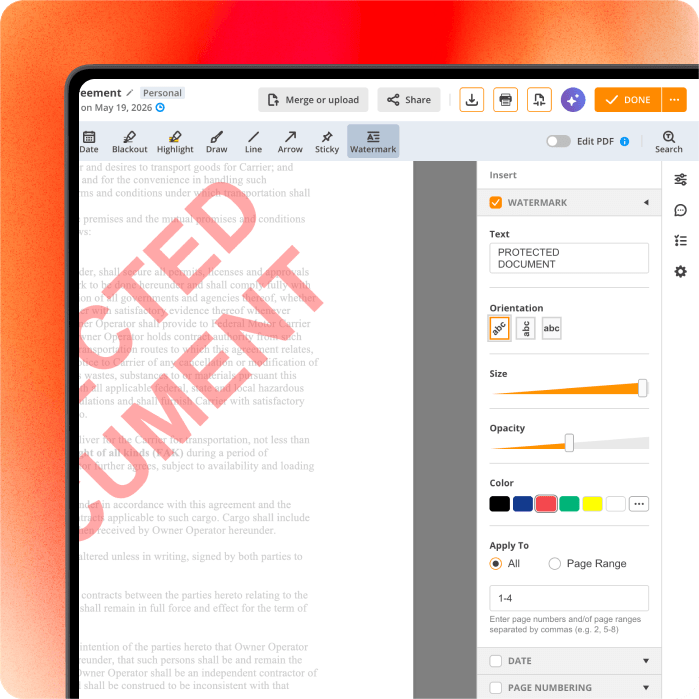
The watermark tool in pdfFiller allows you to watermark PDF documents effectively, enhancing document branding and security. There are two types of watermarks you can apply: text and image. You can customize these watermarks with various options such as size, color, and transparency. The document-wide stamping tools ensure that your watermark appears consistently across all pages. The user-friendly interface makes it easy for small and medium-sized businesses to implement this feature without needing advanced technical skills.
How Does Watermarking Solve Document Workflow Issues?
Watermarking is essential for enhancing document security and branding. By applying a watermark PDF, businesses can protect sensitive information and maintain professionalism. This is particularly important for small and medium-sized businesses that often share legal documents or branding proposals. Watermarking helps in establishing brand identity while ensuring that confidential information remains secure. In scenarios where documents are shared externally, watermarks serve as a reminder of ownership and confidentiality.
How to Add a Text Watermark to Your PDF
- Open your PDF document in pdfFiller.
- Select the watermark tool from the editing options.
- Choose the option to add a text watermark.
- Enter your custom text in the designated field.
- Adjust the transparency level to ensure visibility.
- Select the pages where you want the watermark to appear.
- Preview the document to see how the watermark looks.
- Save the document with the watermark applied.
How to Upload an Image Watermark
- Open your PDF document in pdfFiller.
- Access the watermark tool from the editing menu.
- Select the option to upload an image watermark.
- Upload your logo or desired image from your device.
- Adjust the size and placement of the image on the page.
- Ensure the watermark is visible against the document background.
- Choose the pages where the image watermark should be applied.
- Save your document with the new watermark included.
Customizing Your Watermark Appearance
Customizing your watermark appearance is straightforward. You can adjust the size of the watermark to fit your document needs. Choose from various color options to align with your branding. Additionally, you can set rotation angles to position the watermark creatively. Adjusting the opacity levels allows you to control how prominently the watermark appears, ensuring it does not distract from the document's content.
Applying Watermarks to Specific Pages
When applying a watermark PDF, you have control over where it appears. You can select the current page, apply it to all pages, or specify a custom page range. For example, if you only want to watermark the first page of a legal document, you can easily set this option. This flexibility is particularly useful for small and medium-sized businesses that need to tailor their documents for different audiences.
Editing or Removing a Watermark
To edit or remove a watermark, access the watermark tool again in pdfFiller. You can modify existing watermarks by changing the text or image used. If you decide that a watermark is no longer needed, simply select the option to delete it. This process is straightforward, ensuring that your documents can be updated as needed without confusion.
Applying a Date Stamp to Your PDF
Adding a date stamp using the watermark tool is simple. You can choose from various date format options to suit your preferences. Set the placement of the date stamp on the page, ensuring it does not interfere with other content. Adjust the transparency to make the date visible yet unobtrusive. This feature is particularly useful for tracking document versions or indicating when a document was shared.
Adding Page Numbers to Your PDF
To add sequential page numbers, access the watermark tool in pdfFiller. You can choose from different numbering formats that suit your document style. Set the placement options for the page numbers, ensuring they are consistent throughout the document. Adjust the font settings to match your branding. This feature is essential for maintaining organization in multi-page documents.
Understanding Bates Numbering for Legal Use
Bates numbering is a method used primarily in legal documents to assign unique identifiers to each page. You can customize the prefix and suffix options for your Bates numbers, as well as set digit padding for consistency. This feature is crucial for legal scenarios where documents need to be tracked and referenced accurately. Implementing Bates numbering helps in maintaining order and clarity in legal documentation.
How Does pdfFiller Compare?
Adobe Acrobat offers extensive PDF editing features but can be complex and costly for small businesses. Users may find it overwhelming for simple watermarking tasks.
Smallpdf provides basic watermarking but lacks the advanced customization options available in pdfFiller. It may not meet the needs of users looking for detailed branding features.
ilovepdf offers free watermarking tools but with limitations on functionality and document types. Users may need to upgrade for more comprehensive features.