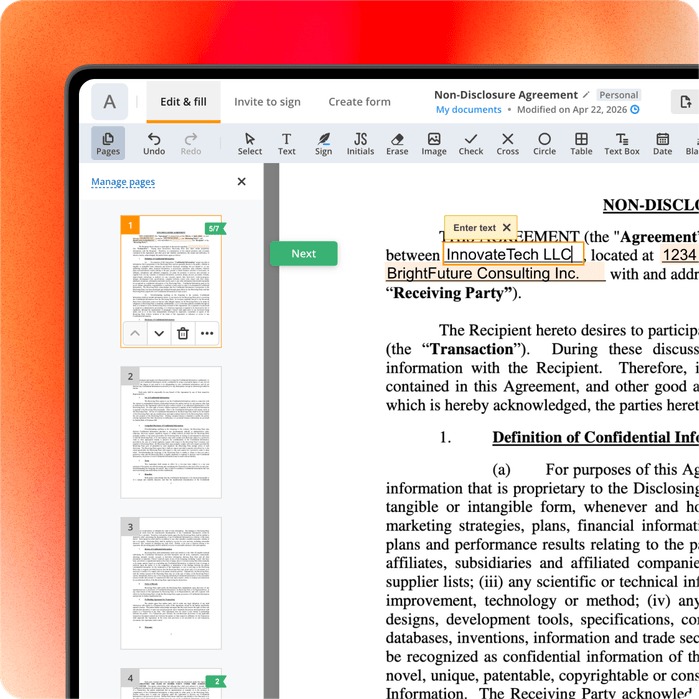
Insert Word in Excel
Insert words into your Excel documents quickly and easily using pdfFiller's intuitive editing tools.
What is the Insert Word Feature in Excel?
The Insert Word feature in Excel allows you to directly modify text within your documents. With this functionality, you can insert words in Excel without needing to go through complicated procedures. The user-friendly interface of pdfFiller ensures that anyone can make changes to their Excel files effortlessly. This feature works on any device, making it accessible for professionals and small businesses alike. Whether you are editing reports or updating spreadsheets, this tool simplifies the process of Excel editing.
How Does This Feature Solve Your Editing Needs?
Inserting words into your Excel documents enhances your document management capabilities significantly. With the ability to insert words in Excel, you can make quick updates without the need for file conversion. This is particularly beneficial for small businesses that require efficient workflows. Instead of relying on time-consuming methods, pdfFiller allows you to edit your documents directly, saving you both time and effort.
Steps to Insert Words in Excel
- Open your Excel document in pdfFiller.
- Click on the text area where you want to insert words.
- Type your text directly into the document.
- Review the changes to ensure accuracy.
- Save your changes to keep the updated content.
- Download the edited document or share it directly from pdfFiller.
- Repeat the process for any additional text you wish to insert.
- Close the document once all edits are complete.
Uploading Your Excel Documents to pdfFiller
To start editing, you need to upload your Excel files to pdfFiller. Supported file formats include .xls and .xlsx, allowing for a smooth upload process. You can utilize the drag-and-drop functionality to easily add your documents without any installation required. This makes pdfFiller a convenient online Excel editor that caters to your editing needs without the hassle of unsupported formats.
Comparing pdfFiller with Other Excel Editing Tools
When evaluating how pdfFiller stacks up against competitors, several key differentiators emerge. Adobe Acrobat offers extensive editing features but requires complex setup, making it less accessible for small businesses. Foxit provides a solid editing experience but lacks some user-friendly features, which may not be intuitive for beginners. Nitro is good for PDF editing but does not focus on Excel documents specifically, limiting its versatility for Excel users.
Security and Data Handling in pdfFiller
Your data is protected during editing with pdfFiller's robust security measures. The platform employs encryption methods to safeguard your information, ensuring that your document workflows remain confidential. Additionally, pdfFiller adheres to strict data privacy policies, providing secure access to your files without compromising on safety.
Limitations of the Insert Word Feature
While the Insert Word feature is highly useful, it does have some limitations. There are restrictions on file types, as certain formats may not be compatible. Additionally, the feature does not support OCR for scanned documents, which can hinder editing capabilities. Users should also be aware that there is no guaranteed font matching when inserting text, which may affect the overall appearance of the document.
Real-World Scenarios for Using Insert Word
The Insert Word feature can be particularly beneficial in various professional contexts. For accountants, it allows for quick updates to financial reports without needing to reformat entire documents. Marketers can use this feature to edit promotional materials efficiently, ensuring that all content is up-to-date. Project managers can also benefit by inserting necessary updates into project timelines, keeping all stakeholders informed without delay.
Browser Compatibility for pdfFiller
pdfFiller is compatible with a wide range of browsers, ensuring that you can access your documents from any device. Supported browsers include Chrome, Firefox, Safari, and Edge, allowing for cross-device functionality without the need for installation. This flexibility makes pdfFiller an ideal choice for professionals who need to work on the go.
Next Steps After Inserting Words
After you have inserted words into your Excel document, the next steps involve saving your document to preserve the changes. You can also explore various sharing options available through pdfFiller, allowing you to collaborate with others easily. Additionally, further editing features are available should you need to make more adjustments, ensuring that your workflow remains efficient.