Merge PDF and Convert PDF to Word for Tablet
Merge PDF files quickly and convert them to Word documents using pdfFiller.
What is the PDF Merge Tool?
The PDF merge tool is designed to combine multiple files into one PDF, making it ideal for contracts, reports, and invoices. This tool is accessible from any device without the need for installation, allowing you to manage your documents efficiently. By using the merge PDF functionality, you can simplify your document management tasks and avoid the complexities associated with traditional software solutions.
How Merging PDF Files Solves Workflow Issues
Merging PDF files helps consolidate multiple documents into one file, which significantly reduces the time spent managing separate files. This process not only improves organization but also enhances clarity in your document workflows. For professionals like accountants and real estate agents, merging PDFs can streamline their operations and make document handling more efficient.
How to Upload Documents for Merging
- Access the merge tool on pdfFiller's website.
- Upload files from your local device or MyDocs library.
- Select the files you want to merge; ensure they are in supported formats.
- Integrate with cloud storage services for easy access to your documents.
- Confirm the upload and prepare for merging.
Supported File Formats for Merging
The merge tool supports various file formats, including PDF, Word, Excel, and image files. Non-PDF files will convert automatically during the merging process, ensuring that document fidelity is maintained throughout. This flexibility allows you to work with different types of documents without losing quality.
Step-by-Step Instructions for Merging
- Select the files you want to merge from your device.
- Use drag-and-drop thumbnails to reorder pages as needed.
- Click the 'Merge' button to combine the selected files into one PDF.
- Wait for the merging process to complete, which usually takes seconds.
- Download the merged PDF or save it directly to MyDocs for future access.
Reordering Pages Before Merging
To reorder pages in the merge tool, use the thumbnails provided to drag and drop pages into your desired order. You can preview changes before finalizing the merge, ensuring that the document flows logically. This feature allows for easy adjustments, making it simple to create a well-organized final document.
Output Options After Merging
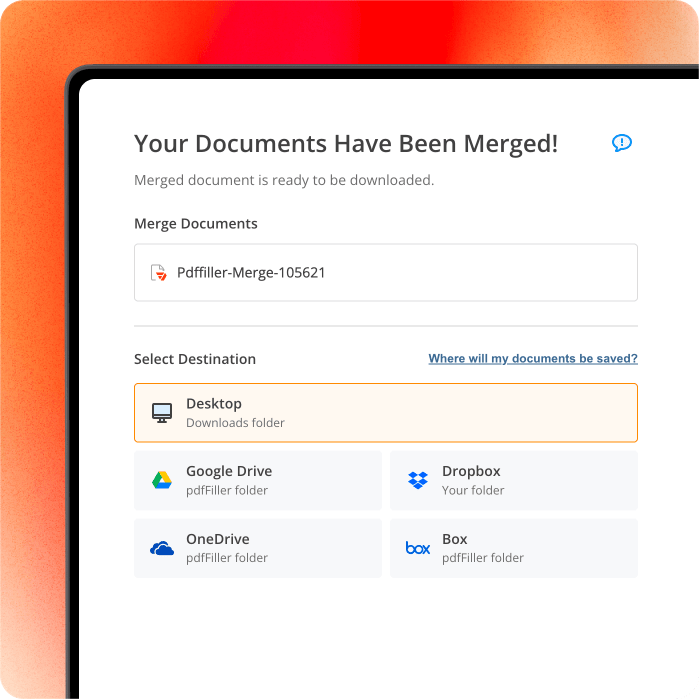
After merging, you can download the merged PDF immediately or save it directly to MyDocs for future access. The output file will be ready for editing or sharing, allowing you to utilize additional features of pdfFiller as needed. This flexibility ensures that your merged document is accessible and functional right away.
Merge vs. Rearrange Pages: What’s the Difference?
Merging combines separate files into one document, while rearranging modifies the order of pages within a single document. Understanding this difference is essential for choosing the right tool based on your needs. For example, if you have multiple contracts to combine, merging is the appropriate action, whereas rearranging is useful when adjusting the order of pages in a single contract.
Editing Merged Documents After Combining
To edit merged PDFs, open the document in the pdfFiller editor. You can annotate, fill, or sign the document as needed, ensuring that it meets your requirements. Once you finish editing, save changes directly to MyDocs for easy retrieval later.
Scenarios for Merging PDFs in Business
There are various scenarios where merging PDFs can be beneficial in business. For instance, real estate agents can combine contracts with exhibits to present a complete package to clients. Freelancers can merge invoices to streamline their billing processes, while contractors may compile bids and proposals into a single document for easier submission. These practical applications demonstrate how merging PDFs can enhance efficiency in different professional contexts.
Known Limitations of the Merge Tool
While the merge tool is powerful, there are some limitations to be aware of. File size limits apply based on your subscription tier, which may restrict the number of files you can merge at once. Additionally, complex documents may affect conversion fidelity, so it's important to check your files before merging. Lastly, there is a maximum file count for merging, which users should keep in mind.
Free vs. Paid Access for Merging PDFs
Free users have limited merge capabilities, which may not meet the needs of all users. Paid plans offer advanced features and higher limits, making them more suitable for businesses that require frequent merging. Comparing features between free and paid plans can help you choose the right option for your document management needs.
Supported Document Formats and Export Options
After merging, you can export merged files as either PDF or Word documents. The tool maintains formatting during export, ensuring that your documents look professional. You can also choose export paths based on your specific needs, making it easy to manage your files post-merging.
Browser Compatibility for Merging PDFs
The merge tool works across major web browsers without requiring installation, making it accessible from any device. It features a mobile-friendly interface, allowing you to merge PDFs on the go. This consistent performance across devices ensures that you can manage your documents effectively, regardless of where you are.
Security and Data Handling in Merging
When using the merge tool, files are encrypted during upload and processing, ensuring that your data remains secure. pdfFiller complies with data protection regulations, providing peace of mind when handling sensitive documents. The secure handling of your files is a priority, allowing you to merge PDFs without concerns about data breaches.
How Does pdfFiller Compare?
pdfFiller offers a user-friendly interface that simplifies the merging process compared to other tools. It provides more templates than many competitors, which can enhance your document creation experience. Additionally, built-in editing features make it easier to modify documents after merging, setting pdfFiller apart from other PDF merging tools.
Next Steps After Merging PDFs
After merging your PDFs, you can edit, sign, or share the merged document as needed. Utilize additional features of pdfFiller for efficiency, such as filling forms or adding e-signatures. Finally, store your merged files securely in MyDocs for easy access later, ensuring your documents are organized and readily available.