Password Protect PDF
Secure your PDF documents by adding password protection easily with pdfFiller. Protect sensitive information from unauthorized access.
What is Password Protection for PDFs?
Password protection for PDFs is a security measure that restricts access to your documents by requiring a password to open them. This feature is essential for ensuring document security, especially when handling sensitive information. By using the Password Protect PDF function, you can protect the entire document or specific pages, ensuring confidentiality and preventing unauthorized access. For example, a small business might use this feature to secure financial records or legal contracts, allowing only authorized personnel to view the contents.
How to Access the Protect Document Feature
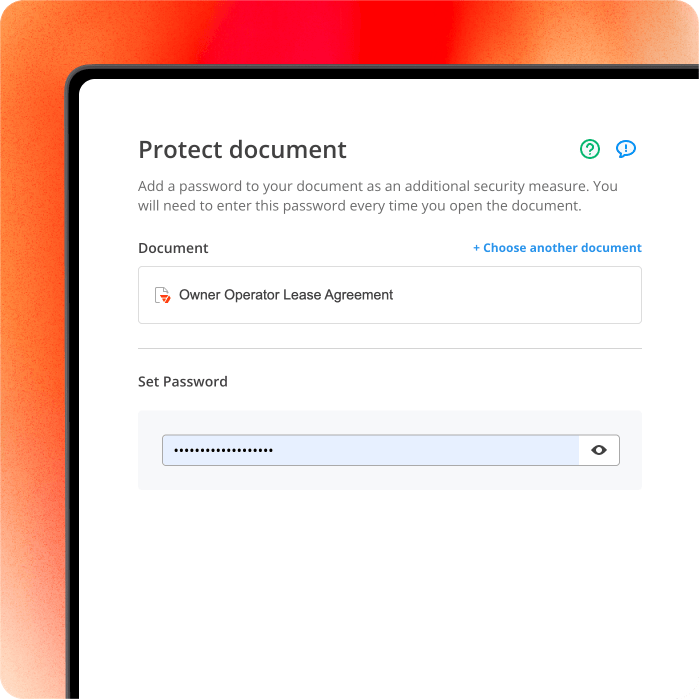
To access the password protection feature in pdfFiller, navigate to the Tools menu on the main interface. From there, select the Protect Document option. This feature is available in the My Documents section, making it easy to find and use. By utilizing online PDF tools like pdfFiller, you can quickly secure your documents without complicated navigation.
Steps to Add a Password to a PDF
- Select the document you want to secure in pdfFiller.
- Enter a strong password that meets the security standards.
- Apply protection to finalize the password settings.
- Save the document to ensure the password protection is activated.
- Test the password by reopening the document to confirm access restrictions.
- Share the document securely with authorized users only.
- Consider using password encryption for added security.
- Regularly update passwords to maintain document security.
How to Open a Password-Protected PDF
To access a secured PDF document, enter the known password when prompted. You can access the document via pdfFiller, which provides a user-friendly interface for opening protected files. Additionally, you can share the document securely with others by providing them with the password, ensuring that only authorized individuals can view the content.
Protecting the Entire Document vs. Specific Pages
When deciding whether to protect the whole document or just certain pages, consider your needs. Full document protection is ideal for sensitive materials, while page range selection allows flexibility for digital forms that may not require full security. For instance, a legal contract might need complete protection, whereas an HR document could only require specific sections to be secured.
The Confidential Folder for Secure Storage
The Confidential Folder feature in pdfFiller enhances security for sensitive documents. This option requires phone verification for access, ensuring that only authorized users can view the files. It also isolates document visibility, providing access control features that are crucial for managing confidential files effectively.
Creating a Read-Only PDF for Recipients
To create a read-only PDF for external users, follow these steps: first, set the document to read-only mode in pdfFiller. This feature is beneficial for document sharing, as it prevents unauthorized edits while allowing recipients to view the content. Additionally, ensuring legal compliance is essential when sharing documents that require signatures or approvals.
Password Protection on Download vs. Shared Link
When comparing password protection methods for downloaded files versus shared links, there are notable differences in access and user experience. Downloaded files may require the user to enter a password each time they access the document, while shared links can provide a more streamlined experience for authorized users. However, security implications vary, as shared links may expose documents to a broader audience if not managed correctly.
When to Password Protect a PDF
Password protection is essential in various scenarios, such as when dealing with legal contracts, HR documents, or financial records. Each of these document types contains sensitive information that must be secured to prevent unauthorized access. By using the Password Protect PDF feature, you can ensure that only authorized personnel can view and manage these critical documents.
Browser and Device Compatibility for Password Protection
Password protection in pdfFiller is compatible across various browsers and devices. Supported browsers include Chrome, Firefox, and Safari, ensuring a consistent user experience. Mobile device behavior is also optimized, allowing you to access and secure your PDFs from anywhere without technical specifications complicating the process.
Limitations of Password Protection in pdfFiller
While pdfFiller offers effective password protection, there are limitations to be aware of. For example, the maximum password length may restrict your options, and there are page-range protection limits that could affect how you secure your documents. Additionally, understanding the encryption standards is crucial for ensuring the highest level of security for your PDFs.
How Does pdfFiller Compare?
Adobe Acrobat offers comprehensive PDF editing features but can be complex for small businesses. Users may find it costly compared to pdfFiller.
Smallpdf provides basic PDF tools but lacks the extensive template library and user-friendly interface of pdfFiller. It may not meet all business needs.
ilovepdf is good for basic PDF tasks but lacks advanced security features and integrations available in pdfFiller. Users may miss out on efficiency.
Next Steps to Secure Your PDFs
To secure your PDFs, start by trying the password protection feature in pdfFiller. This tool provides numerous benefits, including easy access to features and the ability to protect sensitive documents effectively. By taking these steps, you can ensure that your documents remain secure and accessible only to authorized individuals.