PDF Compress to Below 2048 KB For Free

Drop document here to upload
Select from device
Up to 100 MB for PDF and up to 25 MB for DOC, DOCX, RTF, PPT, PPTX, JPEG, PNG, JFIF, XLS, XLSX or TXT

Last updated on Sep 15, 2026

Compress PDF to Below 2048 KB

Compress your PDF files to under 2048 KB quickly and easily with pdfFiller's online tool, ensuring efficient document sharing.

What is the PDF Compress Tool?

The PDF compress tool is designed to reduce the size of your PDF files, making them easier to share and store. This tool optimizes images, flattens annotations, and maintains text integrity, ensuring that your documents remain professional and readable. It works on any device, allowing small and medium-sized businesses to manage their digital documents efficiently without the need for complicated software or technical setup.

Why Compress Your PDF Files?

Large PDF files can hinder sharing, especially when sending documents via email. By compressing your PDF, you can ensure that your files are under the size limit for attachments, which improves upload speed and saves valuable storage space. Reducing file size is essential for effective document sharing, particularly for small businesses that need to collaborate and communicate efficiently.

How to Access the Compress Tool

To access the compress tool, navigate to the editor header button or the All Tools dashboard on pdfFiller. You do not need to upload a document to find the compression feature, making it easy to locate and use. The straightforward navigation ensures that you can quickly get started with compressing your PDF files.

Steps to Compress a PDF

  • Open your document in pdfFiller's editor.
  • Click the compress button located in the toolbar.
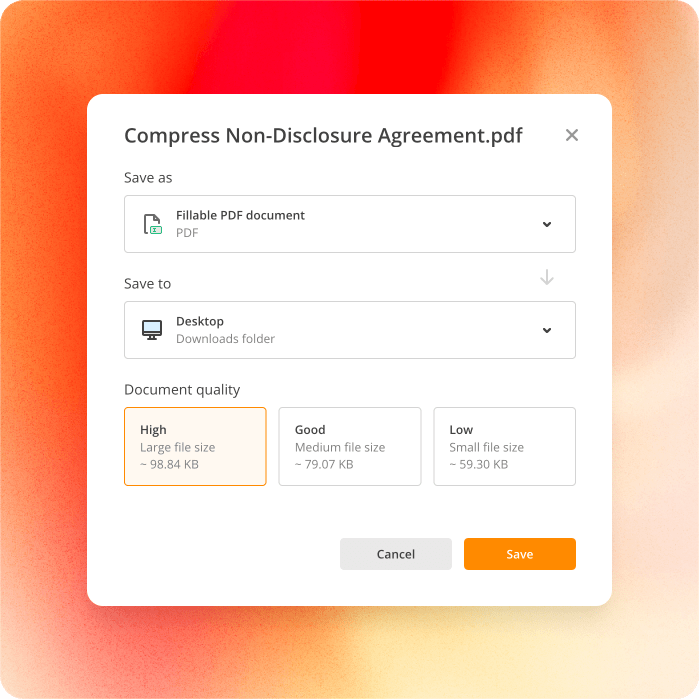
  • Select your desired quality level for the compressed file.
  • Download the compressed file to your device.
  • Verify the file size to ensure it meets your requirements.

Choosing a Compression Quality Level

When compressing a PDF, you can choose between high, medium, and low quality settings. Each setting impacts the final file size and visual quality of the document. High quality maintains the best appearance but results in a larger file size, while low quality significantly reduces size but may affect image clarity. Consider your specific needs when selecting a quality level, as it can influence how your document is perceived.

What Changes After Compression?

After compressing your PDF, you may notice that images within the document could lose some quality, while text remains intact. Annotations are preserved, and form fields are unaffected, ensuring that the essential content of your document is maintained. Understanding these changes can help you prepare your files for sharing without unexpected surprises.

Expected File Size Reduction

The amount of size reduction you can expect varies based on the content type of your PDF. Image-heavy files tend to compress more significantly than text-only files, which may yield less reduction. There are no guarantees on the exact percentage of size reduction, as it depends on the specific elements within your document.

Next Steps After Compression

Once you have compressed your PDF, you can download the file and share it via email or other platforms. If the file is still too large, consider re-compressing it with a lower quality setting. Additionally, save the compressed file for future use to avoid repeated compression efforts.

Comparing Compression Tools

How does pdfFiller compare to other PDF compression tools? Smallpdf offers a straightforward compression tool but lacks the extensive template library of pdfFiller. Users may find fewer features for document management. ilovepdf provides a variety of PDF tools but can be less user-friendly than pdfFiller's integrated platform, requiring navigation through multiple tools. Adobe Acrobat is powerful with extensive features but often comes with a higher price tag and complexity that may not suit small businesses. Many prefer pdfFiller for its simplicity and cost-effectiveness.

Industry-Specific Scenarios for PDF Compression

Compressing PDFs is crucial in various scenarios. For legal document sharing, maintaining a manageable file size ensures compliance with email limits while preserving document integrity. Marketing materials often need to be sent quickly, making compression essential for timely distribution. Freelancers submitting project proposals benefit from reduced file sizes, ensuring their submissions are received without issues. Financial reports must be shared efficiently, and compression helps in meeting size requirements while retaining necessary details.

Try most popular PDF tools

Discover a full set of tools to handle any document task.

Edit PDFs

Make quick PDF edits online.

Sign

Add legally binding signatures.

Merge

Combine multiple PDFs.

Request signatures

Send a document for signing.

Convert

Transform PDFs into other formats.

Rearrange

Change the order of pages.

Share

Send PDFs for review or editing.

Compress

Reduce PDF file sizes.

How to compress your PDF?

1. Upload your document

Compress, edit, sign, and manage documents from a single solution

  • Compress and edit PDFs in one place Edit your PDF and compress it directly within the editor. Choose from high, medium, or low compression levels to balance quality and file size according to your needs.
  • Equip yourself with powerful PDF tools Edit PDFs online almost as easily as Word documents. Add text, adjust formatting, replace content, insert images, and more. pdfFiller has all you need to get your documents done from start to finish.
  • eSign and send documents Sign documents on your own or send them to others for signatures, whether a single recipient or an entire group. You can assign roles, manage the signing order, set reminders, and request additional authentication.
  • Annotate and collaborate Highlight important data, redact sensitive details, add sticky notes, and exchange comments in your PDFs. Then, instantly send documents for review or editing. You can also share files and folders with your team to boost collaboration.
  • Organize and manage PDFs Merge, split, rearrange, and convert PDFs into formats like DOCX, XLSX, JPEG, PNG, and PPTX. Secure your documents by locking them with a password or placing them in an encrypted folder.
  • Secure files in the cloud Organize your documents and templates in secure cloud storage and access them from anywhere. pdfFiller follows strict security regulations such as GDPR, HIPAA, PCI DSS, SOC 2 Type II, and others to help safeguard your data.

Who needs this?

Explore how professionals across industries use pdfFiller to compress PDFs

Education

Teachers and administrators can reduce file sizes for effortless sharing with pdfFiller’s compress feature, and enhance collaboration between students and educators with pdfFiller's tools designed for seamless collaboration.

  • Lesson plans
  • Student enrollment forms
  • Class schedules
  • Permission slips
Education
  • G2 — Users Most Likely To Recommend
  • G2 — Grid Leader in Small-Business
  • G2 — High Performer
  • G2 — Regional Leader
  • G2 — Easiest To Do Business With
  • G2 — Best Meets Requirements
  • G2 — Best Support

pdfFiller scores top ratings on review platforms

pdfFiller is rated 4.6 out of 5 stars across 1,000+ G2 reviews.

The service form filling out forms and faxing documents is great
Mario
So far so good! About to try and make a fillable form of my own to use for membership applications.
Ashleigh
Just started with it today on 30 day trial. Still learning, but like it so fa
Tim H
easily accessed any form ive ever needed
Crystal D
AMAZING CUSTOMER SERVICE - JED I have been conversing with the support agent called Jed, and he has made my vision of this company very clear. Supportive, constructive and quick with the aim to please. He has dealt with my query in such a fast and efficient way that is was delightful to receive a response from him. I just want to thank Jed for the amazing customer service received by him and I surely hope his company sees this and praises him. @PDFFILLER
Luan
Great customer service! I contacted the company when I realized I had signed up for the wrong plan. Within minutes, they replied to my email and refunded me, as well as set me up with the plan that was right for me.
Patty Porter

Compress documents with a trusted solution

Try easy-to-use tools for all your document management needs.

pdfFiller workspace for creating, filling and managing PDF forms

Why compress documents with pdfFiller?

Optimize quality at the right file size

Watch our PDF compress in action

Check out a quick video tutorial that shows how to compress any file into an editable PDF in three easy steps.

FAQs

If you can't find what you're looking for, please contact us anytime!

To PDF compress to below 2048 KB without compromising quality, use a reliable online tool like pdfFiller. Start by uploading your PDF file, then select the compression option that balances size and quality. This method ensures that your document remains clear while meeting size requirements. Additionally, consider removing unnecessary images or reducing image resolution within the PDF before compression. This approach not only helps in achieving the desired file size but also maintains the document's integrity, making it suitable for sharing across various platforms.

To ensure your compressed PDF remains secure after reducing its size, utilize pdfFiller's built-in security protocols. When you PDF compress to below 2048 KB, ensure that you apply password protection and encryption options available during the compression process. This will safeguard sensitive information while maintaining a manageable file size. Furthermore, always download the compressed PDF to a secure location and consider using cloud storage solutions that offer additional security features, such as two-factor authentication, to protect your documents from unauthorized access.

Common issues when trying to PDF compress to below 2048 KB include loss of image quality, formatting errors, and compatibility problems across different devices. To mitigate these issues, use pdfFiller's advanced compression tools that optimize files without sacrificing quality. If you encounter formatting errors, check the original document for any complex layouts that may not compress well. Always test the compressed PDF on various platforms to ensure cross-platform compatibility, which is crucial for remote professionals and legal teams who need consistent document presentation.

Yes, you can compress multiple PDFs to below 2048 KB simultaneously using pdfFiller's batch processing feature. This allows you to upload several documents at once and apply compression settings to all of them in one go. This is particularly useful for legal teams and SMEs that handle numerous documents regularly. To do this, simply select the batch compression option, adjust your settings, and let the tool process your files efficiently. This not only saves time but also ensures that all documents meet size requirements for easy sharing and storage.

If your PDF still exceeds 2048 KB after compression, consider further optimizing the document by removing non-essential elements such as high-resolution images, embedded fonts, or excessive annotations. Use pdfFiller's editing features to streamline the content before attempting to compress again. Additionally, check if the PDF contains scanned images; converting these to lower-resolution formats can significantly reduce file size. If necessary, split the document into smaller sections to ensure each part meets the size requirement while maintaining usability.

Yes, there is a limit to how much you can compress a PDF while maintaining readability. Generally, compressing a PDF to below 2048 KB should not significantly affect text clarity or image quality if done correctly. With pdfFiller, you can choose compression levels that prioritize readability. However, if your document contains many images or complex graphics, you may need to find a balance between size and quality. Always preview the compressed document to ensure it meets your standards before finalizing.

PDF compression can significantly enhance document automation and workflow efficiency by reducing file sizes for easier sharing and storage. When you PDF compress to below 2048 KB, it facilitates quicker uploads and downloads, which is essential for remote professionals and legal teams who rely on swift document transactions. Additionally, smaller files are easier to manage in cloud-based systems, allowing for better collaboration and faster processing times. Implementing efficient compression practices with tools like pdfFiller can streamline your document management processes, ultimately saving time and resources.

What businesses achieve with pdfFiller

Discover how you can benefit too.

I was happy to do this for patients, but I simply didn't have 30–60 minutes to fill out each form. It was a true waste of resources to do it that way, and as a surgeon, my time is better spent in patient care, which was often delayed.

Marshall Orthopaedics

One tool. Every document task.

One workflow shouldn’t take five tools

Start free trial