Reduce PDF Size to 4 MB
Reduce your PDF file size quickly and efficiently using pdfFiller's compression tool, perfect for small businesses needing to share documents easily.
What Does the PDF Compression Tool Do?
The PDF compression tool is designed to help you reduce PDF size effectively. It flattens annotations, which means any comments or notes are merged into the document, ensuring a clean final output. Additionally, it optimizes images, reducing their file size without significantly impacting quality. The tool maintains text integrity, so your content remains clear and readable. You can access this feature directly within the pdfFiller editor, making it user-friendly and straightforward for small and medium businesses.
Why Compress Your PDF Files?
Reducing PDF file sizes is important for several reasons. First, email attachment limits often restrict the size of files you can send, making compression necessary. Second, storage space concerns arise when dealing with numerous large files, which can quickly fill up your available storage. Third, faster upload times enhance your workflow, allowing you to share documents more efficiently. Common use cases for small and medium businesses include sending contracts, invoices, and reports, all of which can benefit from reduced file sizes.
How to Access the PDF Compression Tool
To locate the compression feature in pdfFiller, start by navigating to the editor header button. From there, you can access the All Tools dashboard, where the compression tool is listed. No document is required to begin; simply click on the tool to start. The user-friendly interface ensures that you can find and use the compression feature without complicated navigation steps.
Steps to Reduce PDF Size
- Click on the Compress button located in the pdfFiller interface.
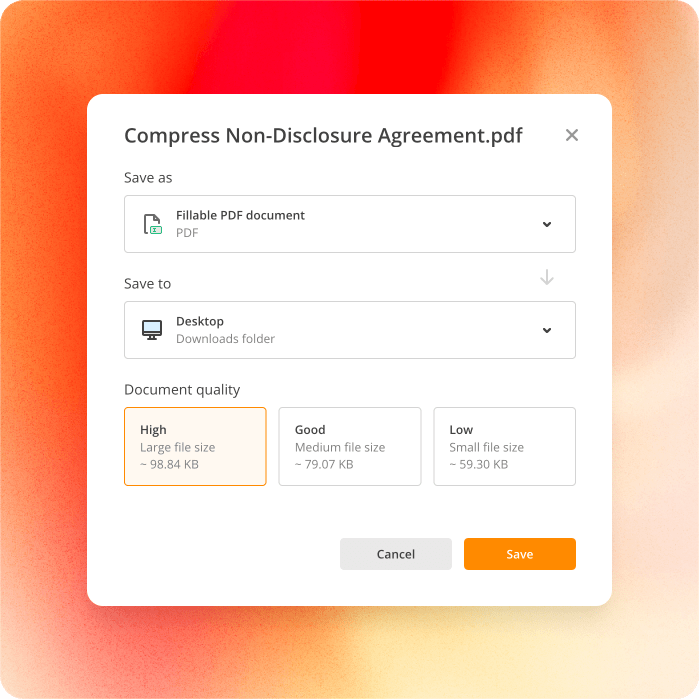
- Select your desired quality level for the compressed PDF.
- Download the compressed file to your device.
- No IT setup is needed to use this tool, making it accessible for all users.
- Ensure that you review the compressed document to verify that it meets your needs.
Choosing the Right Compression Quality Level
When reducing PDF size, you will encounter different quality settings: High, Medium, and Low. Each setting impacts the final file size and quality of the document. High settings retain more image quality but result in larger file sizes, while Low settings significantly reduce file size but may compromise image clarity. Understanding these trade-offs is essential, especially for small businesses that rely on quality documents for presentations and client communications. Your choice may also depend on your user plan with pdfFiller.
What Changes When You Compress a PDF?
When you compress a PDF, certain content is affected. Images within the document may lose some quality, depending on the compression level chosen. However, text remains intact, ensuring that your written content is preserved. The overall structure of the document is maintained, and form fields remain unaffected, allowing for continued usability. This clarity helps in document sharing without losing essential information.
Expected Results from PDF Compression
Setting realistic expectations for file size reduction is crucial. The variability of results can depend on the content type of your PDF. For instance, image-heavy PDFs typically compress more significantly than text-only PDFs, which may yield less reduction. Additionally, if your files are already optimized, you might see minimal change in size. Understanding these factors helps small businesses plan their document management strategies effectively.
Next Steps After Compression
After compressing a PDF, you have several options for what to do next. First, you can choose from various download options to save the file to your device. If you need to share the document via email, ensure that it meets the attachment size limits. If further compression is necessary, you can repeat the process. Additionally, consider file management tips to keep your documents organized and easily accessible.
Comparing Compression with Other Methods
Compression differs from other file size reduction methods in several ways. For example, deleting pages reduces the document's content but may not be suitable for all situations. Splitting a PDF into smaller files can help, but it may complicate document management. Using the Save As function can also create smaller files, but it may not maintain the original formatting. Understanding when to use compression versus these methods can help small businesses manage their documents more effectively.
Industry Scenarios for PDF Compression
PDF compression is beneficial in various industry scenarios. Freelancers often need to email contracts quickly, making compression essential for timely submissions. Small businesses sharing invoices can reduce file sizes to meet email limits, ensuring smooth transactions. Professionals managing large reports can benefit from compression to facilitate easier sharing with colleagues and clients. These relatable scenarios highlight the practical applications of pdfFiller's compression tool across different sectors.
How Does pdfFiller Compare?
Smallpdf offers a straightforward compression tool but lacks the extensive template library of pdfFiller. Users may find fewer document management features. ilovepdf provides basic compression options but does not integrate as well with document editing and signing tools, requiring users to utilize multiple tools for full functionality. Adobe Acrobat is known for its robust features but can be complex and costly for small businesses, presenting a steeper learning curve and higher expenses.