Protect from Copying and Add Watermark to PDF
Protect your PDF files with a password and add watermarks using pdfFiller.
What is Protect Document?
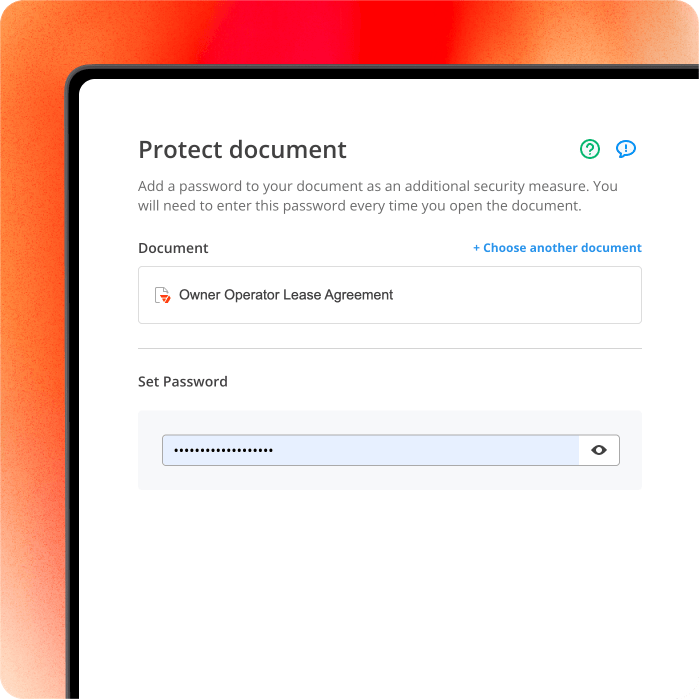
The Protect Document feature allows you to protect PDF files by adding a password that restricts unauthorized access. This feature is particularly useful for sensitive documents, ensuring that only authorized individuals can view or edit them. You can apply password protection to the entire document or select specific pages, making it a flexible solution for various needs. Accessing this feature is straightforward; simply navigate to the Tools menu in pdfFiller. By using this feature, you can significantly enhance your document security without needing complex security jargon.
How to Access Protect Document Feature
To use the Protect Document feature, start by navigating to the Tools section in the menu. From there, select the Protect Document option. This feature is available on all devices, ensuring that you can secure your documents from anywhere. There is no IT setup required, making it accessible for small and medium-sized businesses and professionals who need a simple solution for document security.
Steps to Add a Password to a PDF
- Select the document you wish to protect by opening it in pdfFiller.
- Enter the desired password in the password field to secure your document.
- Choose the scope of protection by selecting whether to apply the password to the entire document or specific pages.
- Click the Apply button to secure the document with the password you have set.
How to Open a Password-Protected PDF
To access your password-protected PDFs, you need to enter the correct password when prompted. You can access these files through the pdfFiller interface, which works seamlessly on all devices. If you forget your password, consider using password retrieval tips to regain access without compromising document security.
Protecting Specific Pages vs. Entire Document
When using the Protect Document feature, you can choose between full or partial protection. Protecting specific pages can be beneficial if only certain sections of the document contain sensitive information. This option allows for more flexibility in document sharing and security. To select specific pages in the tool, simply indicate your choices during the password setup process.
Using the Confidential Folder for Secure Storage
The Confidential folder feature enhances document security by requiring phone verification for access. This isolates sensitive documents from your main lists, providing an extra layer of protection. It is ideal for storing sensitive files that require heightened security measures, ensuring that only authorized personnel can access them.
Creating a Read-Only PDF for Recipients
To make PDFs read-only for recipients, use the Protect Document feature to set the read-only status. This ensures that recipients can view the document without making any changes, preserving the integrity of the content. This feature is particularly useful for document sharing, as it prevents unauthorized edits while still allowing access to the information.
Password Protection on Download vs. Shared Link
Password protection applies to both downloads and shared links, but the user experience may differ slightly. When sharing a link, recipients will need to enter the password to access the document, similar to downloading it. Understanding these differences can help you choose the best method for sharing protected PDFs while maintaining security.
When to Password-Protect a PDF
Password protection is essential in various scenarios, including legal contracts and agreements, HR documents and employee records, financial statements, and personal identification documents. These types of files often contain sensitive information that requires safeguarding against unauthorized access.
Browser and Device Compatibility for Password Protection
Password protection is supported across various browsers, ensuring that you can secure your PDFs regardless of the platform. Mobile devices also offer functionality for password protection, although the user experience may vary. For optimal use, it is recommended to use updated browsers and devices that support the latest security features.
Limitations of Password Protection
While password protection is a valuable feature, it does have limitations. For instance, there are maximum password length restrictions that you should be aware of. Additionally, page-range protection may not be available in all plans, and the encryption standards applied can vary. Understanding these limitations helps you make informed decisions about document security.
Comparison of pdfFiller with Other PDF Tools
How does pdfFiller compare to other PDF tools? When comparing pdfFiller to ilovepdf, pdfFiller offers a user-friendly interface with comprehensive features, while ilovepdf may lack some advanced options. In contrast to Smallpdf, pdfFiller provides greater document management capabilities, whereas Smallpdf focuses primarily on compression. Lastly, when compared to Adobe Acrobat, pdfFiller is more affordable for small businesses, but Adobe Acrobat has a longer history in the market.
Next Steps to Secure Your PDFs
Start protecting your PDFs in minutes with pdfFiller. There is no software installation required, and you can access over 1 million templates for ease of use. Join the 68 million trusted users who rely on pdfFiller for their document security needs.