Protect from Copying and Reorder PDF
Password-protect your PDF documents easily with pdfFiller to prevent unauthorized access and copying.
What is Protect Document?
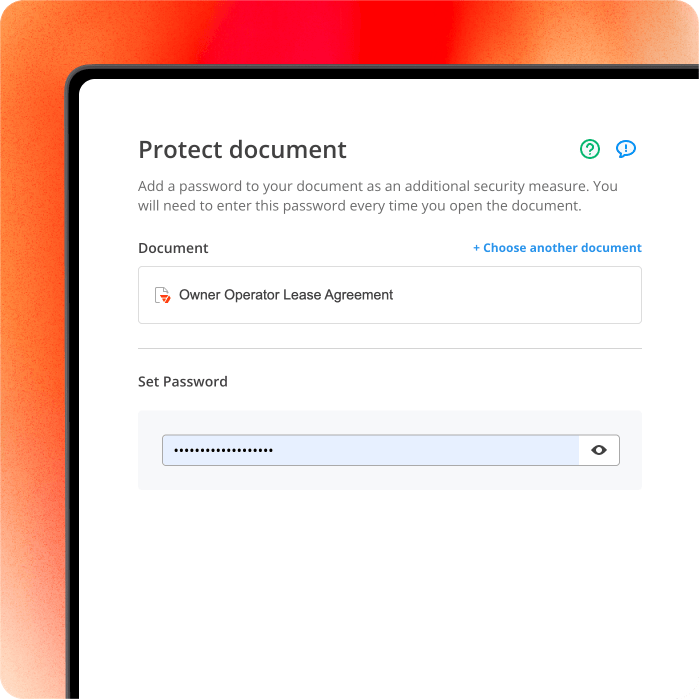
The Protect Document feature in pdfFiller allows you to secure your PDFs with a password. This feature is essential for anyone looking to protect sensitive information within their documents. You can add a password that must be entered to open the PDF, ensuring that only authorized individuals can access the content. This password protection can be applied to the entire document or to specific pages, depending on your needs. To access this feature, simply navigate to Tools and select Protect Document. Additionally, pdfFiller includes legally binding e-signatures, which adds another layer of security and authenticity to your documents.
How to Access the Protect Document Feature
- Navigate to the Tools menu in pdfFiller.
- Select Protect Document from the dropdown options.
- This feature is available on all devices, ensuring you can secure your PDFs anytime, anywhere.
- No IT setup is required, making it accessible for everyone.
Steps to Add a Password to a PDF
- Open the PDF document you wish to protect.
- Enter the desired password in the provided field.
- Select the specific pages you want to protect, or choose to secure the entire document.
- Click Apply to secure the document with the password you have set.
- Confirm the password to ensure it is correct and will grant access when needed.
How to Open a Password-Protected PDF
- Locate the password-protected PDF you want to access.
- Enter the correct password when prompted to unlock the document.
- Access the PDF via the Tools menu if needed.
- This method works on any device, ensuring flexibility in accessing your documents.
- No additional software is required to open the secured PDF.
Protecting Specific Pages vs. Entire Document
When deciding whether to protect the entire document or just specific pages, consider the context of your document. Protecting the full document is ideal for sensitive information that should not be accessed by anyone without permission. On the other hand, if only certain pages contain confidential data, you might choose to protect just those pages. This decision impacts document usability, as restricting access to the whole document can limit collaboration. For example, if you have a contract where only the financial details are sensitive, protecting just those pages allows others to view the rest of the document without restrictions.
Using the Confidential Folder for Secure Storage
The Confidential folder in pdfFiller is designed for storing sensitive documents securely. To access this folder, you must complete phone verification, ensuring that only authorized users can access the contents. You can set a custom password for this folder, adding another layer of security. Documents stored in the Confidential folder are hidden from your main lists, making it an ideal solution for sensitive information that requires extra protection. This feature is particularly useful for legal documents or personal information that should not be easily visible.
Creating a Read-Only PDF for Recipients
To make PDFs read-only for external users, you can set specific permissions that prevent editing while allowing viewing. This is crucial for documents that need to be shared without the risk of unauthorized changes. Common use cases for read-only PDFs include contracts, reports, and presentations. To create a read-only state, navigate to the document settings and adjust the permissions accordingly. This ensures that recipients can view the document but cannot alter its content.
Password Protection on Download vs. Shared Link
Understanding how password protection works for different sharing methods is essential. When you share a PDF via download, the password protection applies directly to the file, ensuring that anyone who downloads it must enter the password to access it. In contrast, when sharing a link, the password protection may be managed through the link settings, which can vary based on the platform used. Each method has its own security considerations, so it’s important to choose the one that best fits your needs. Best practices include using strong passwords and ensuring that recipients understand how to access the protected content.
When to Password-Protect a PDF
Password protection is essential for various document types, particularly legal contracts and sensitive documents that contain personal information. Examples of sensitive information include financial records, medical records, and proprietary business information. The legal implications of unsecured documents can be significant, leading to unauthorized access and potential data breaches. It is recommended to always password-protect documents that contain sensitive information to safeguard against unauthorized access and ensure compliance with privacy regulations.
Browser and Device Compatibility for Password Protection
Password protection in pdfFiller is compatible with a wide range of browsers, including Chrome, Firefox, and Safari. Mobile device compatibility is also a key feature, allowing you to protect PDFs on smartphones and tablets. However, user experience may vary slightly between desktop and mobile platforms, so it’s important to test your documents on the devices you plan to use. For optimal usage, ensure that you are using the latest version of your browser to avoid any compatibility issues.
Limitations and Known Constraints of Password Protection
While the Protect Document feature is powerful, it does have limitations. For instance, the maximum password length is restricted, which may impact the strength of your password. Additionally, the encryption standards used for password protection may vary, and certain features, like page-range protection, may not be available on all plan tiers. It is crucial to understand these constraints to effectively use the password protection feature without overpromising security.
Comparison with Other PDF Protection Tools
pdfFiller stands out when compared to other PDF protection tools like ilovepdf, Smallpdf, and Adobe Acrobat. Unlike many competitors, pdfFiller offers a user-friendly interface that requires no technical setup, making it accessible for small and medium-sized businesses. Users have noted that pdfFiller's unique features, such as built-in e-signatures and extensive template library, provide significant advantages over other tools. While some alternatives may offer more advanced features, pdfFiller's simplicity and effectiveness make it a preferred choice for many.
Next Steps to Secure Your PDFs
To recap, pdfFiller offers a straightforward way to protect your documents with password protection. This feature is easy to use and requires no software installation, making it accessible for everyone. We encourage you to try the Protect Document feature today and experience the benefits of securing your PDFs against unauthorized access and copying. With pdfFiller, you can confidently manage your documents knowing they are protected.