Reduce Photo to 3 MB For Free

Drop document here to upload
Select from device
Up to 100 MB for PDF and up to 25 MB for DOC, DOCX, RTF, PPT, PPTX, JPEG, PNG, JFIF, XLS, XLSX or TXT

Last updated on Sep 19, 2026

Reduce Photo to 3 MB

Reduce photo sizes to 3 MB quickly using pdfFiller's compression tool.

What Does the Compress Tool Do?

The Compress tool in pdfFiller optimizes embedded images and flattens layers within your documents. This ensures that while the file size is reduced, the text and form data integrity remain intact. You can easily access this tool in both the editor and the All Tools dashboard, making it ideal for image-heavy PDFs. By using this tool, you can efficiently manage your document storage without sacrificing quality.

Why Compress Your Photos?

Large file sizes can lead to several consequences, such as difficulties in sharing documents via email or cloud services. Reducing photo file sizes can significantly enhance the ease of sharing and storage. Common scenarios that necessitate compression include sending images through email attachments, where large files may exceed size limits. Compressing photos not only facilitates smoother sharing but also helps in conserving storage space.

How to Access the Compress Tool

To locate the Compress tool in pdfFiller, check the editor header where it is prominently displayed. Additionally, you can find it in the All Tools dashboard. There are no specific IT setup requirements needed to access this tool, making it user-friendly for everyone. Simply navigate to the appropriate section, and you’re ready to start compressing your photos.

Steps to Reduce Photo Size

  • Upload your photo to the pdfFiller platform.
  • Select the Compress tool from the available options.
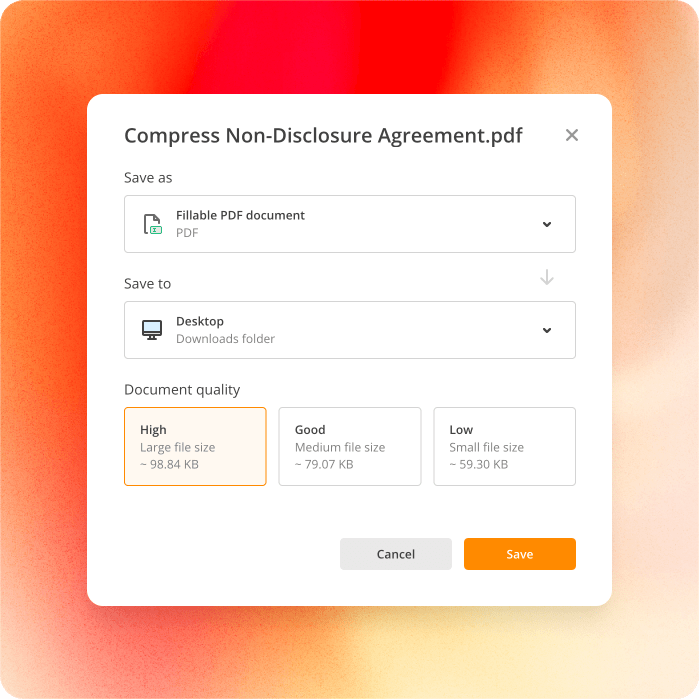
  • Choose your desired quality level for the compression process.
  • Download the compressed file once the process is complete.

Choosing Compression Quality Levels

When using the Compress tool, you have the option to select from high, medium, and low quality settings. Each quality level impacts the file size and image quality differently. For instance, high quality may retain more detail but result in a larger file size, while low quality will significantly reduce the file size but may affect image clarity. Recommendations for quality settings can vary based on the document type and your specific needs.

What Changes After Compression?

After compression, changes primarily affect images rather than text. The Compress tool preserves annotations and form fields, ensuring that the overall document structure remains intact. However, users should be aware of potential quality loss, especially with images, which may not appear as sharp as before. Understanding these changes can help you make informed decisions about your document's final appearance.

Expected File Size Reduction

The amount of file size reduction you can expect varies based on the content of the document. For example, images with high resolution may see more significant reductions than those that are already optimized. Factors influencing compression success include the original file size and the complexity of the images. It's important to note that files that have already been optimized may not reduce significantly further.

Next Steps After Compression

Once you have compressed your photo, you can easily download the compressed file. If the file is still too large, consider further compression or adjusting the quality settings. This integration with your sharing workflows can streamline your processes. Additionally, you may want to explore other features within pdfFiller to enhance your document management experience.

Compress vs. Other Size-Reduction Methods

The Compress tool differs from methods like Delete Pages and Split, which serve different purposes. While Compress is specifically designed for reducing file size, Delete Pages removes unnecessary content, and Split divides documents into smaller sections. Choosing the right method depends on your specific needs, but pdfFiller's compression offers unique benefits, particularly for image-heavy documents.

Scenarios for Using Compression

There are several real-world scenarios where compressing photos is beneficial. For instance:

  • Sending photos via email can be challenging with large attachments, making compression essential.
  • Uploading to social media often requires smaller file sizes for quick sharing.
  • Storing images on cloud services can be more efficient with reduced file sizes.
  • Preparing for presentations may necessitate smaller files for smoother performance during slideshows.

Supported Formats and Export Options

The Compress tool supports various input formats for compression, including JPEG and PNG. After compression, you can export files in multiple formats, ensuring compatibility with various devices. However, there are limitations on certain file types, so it's best to check compatibility before starting the compression process.

Browser and Device Compatibility

pdfFiller's Compress tool is compatible with major browsers, ensuring you can access it from both mobile and desktop devices. There are no installation requirements, allowing for a straightforward user experience across platforms. This flexibility ensures that you can manage your documents from anywhere without technical barriers.

Limitations of the Compress Tool

While the Compress tool is effective, there are limitations to be aware of. For instance, plan-tier restrictions may affect the number of compressions you can perform. Additionally, certain content types may yield minimal results when compressed. Understanding these constraints can help set realistic expectations for your compression outcomes.

Security and Compliance of Compressed Files

During the compression process, pdfFiller employs encryption practices to protect your files. The platform complies with industry standards, ensuring user data protection measures are in place. Security certifications held by pdfFiller further enhance trust in the safety of your compressed files.

Comparison with Other Compression Tools

When comparing pdfFiller's compression tool to alternatives like Smallpdf, ilovepdf, and Adobe Acrobat, several unique benefits emerge. pdfFiller offers an intuitive interface and seamless integration with other document management features, which can enhance user experience. While other tools may provide similar functionalities, pdfFiller stands out for its user-friendly design and comprehensive capabilities.

Free vs. Paid Access for Compression

Compression is available on the free plan, but there may be limits on file size or the number of compressions you can perform. If you find yourself needing more extensive features, starting a paid trial can unlock additional benefits for compression. Upgrading can provide enhanced capabilities tailored to your document management needs.

Next Steps and Broader Workflow Connection

Compression fits seamlessly into pdfFiller's broader features, enhancing your overall document management workflow. It is recommended to explore other tools within the platform that can further improve your efficiency. Engaging with these features will help you maximize the potential of your document management processes.

Try most popular PDF tools

Discover a full set of tools to handle any document task.

Edit PDFs

Make quick PDF edits online.

Sign

Add legally binding signatures.

Merge

Combine multiple PDFs.

Request signatures

Send a document for signing.

Convert

Transform PDFs into other formats.

Rearrange

Change the order of pages.

Share

Send PDFs for review or editing.

Compress

Reduce PDF file sizes.

How to compress your PDF?

1. Upload your document

Compress, edit, sign, and manage documents from a single solution

  • Compress and edit PDFs in one place Edit your PDF and compress it directly within the editor. Choose from high, medium, or low compression levels to balance quality and file size according to your needs.
  • Equip yourself with powerful PDF tools Edit PDFs online almost as easily as Word documents. Add text, adjust formatting, replace content, insert images, and more. pdfFiller has all you need to get your documents done from start to finish.
  • eSign and send documents Sign documents on your own or send them to others for signatures, whether a single recipient or an entire group. You can assign roles, manage the signing order, set reminders, and request additional authentication.
  • Annotate and collaborate Highlight important data, redact sensitive details, add sticky notes, and exchange comments in your PDFs. Then, instantly send documents for review or editing. You can also share files and folders with your team to boost collaboration.
  • Organize and manage PDFs Merge, split, rearrange, and convert PDFs into formats like DOCX, XLSX, JPEG, PNG, and PPTX. Secure your documents by locking them with a password or placing them in an encrypted folder.
  • Secure files in the cloud Organize your documents and templates in secure cloud storage and access them from anywhere. pdfFiller follows strict security regulations such as GDPR, HIPAA, PCI DSS, SOC 2 Type II, and others to help safeguard your data.

Who needs this?

Explore how professionals across industries use pdfFiller to compress PDFs

Education

Teachers and administrators can reduce file sizes for effortless sharing with pdfFiller’s compress feature, and enhance collaboration between students and educators with pdfFiller's tools designed for seamless collaboration.

  • Lesson plans
  • Student enrollment forms
  • Class schedules
  • Permission slips
Education
  • G2 — Users Most Likely To Recommend
  • G2 — Grid Leader in Small-Business
  • G2 — High Performer
  • G2 — Regional Leader
  • G2 — Easiest To Do Business With
  • G2 — Best Meets Requirements
  • G2 — Best Support

pdfFiller scores top ratings on review platforms

pdfFiller is rated 4.6 out of 5 stars across 1,000+ G2 reviews.

It is the most comprehensive PDF program I have ever worked with thus far. I am very pleased with it.
Heidi S
First time I've ever used it. It was simple enough for me. I love it! I was stuck filling out my w-2's & w-3's. I had purchased what I needed & was looking for a great program to film them out online & print. And PDF made it possible. Thanks
Sharon W
wonderful wonderful amazing and affordable
saral kailey
Love the ease of use. Love the ease of use.
User
Easy to use Very easy instruction a lot of options.
Subrena McGee
100% MUST HAVE! 100% MUST HAVE!! Would Recommend this to anyone!!
Dylan Acton

Compress documents with a trusted solution

Try easy-to-use tools for all your document management needs.

pdfFiller workspace for creating, filling and managing PDF forms

Why compress documents with pdfFiller?

Optimize quality at the right file size

Watch our PDF compress in action

Check out a quick video tutorial that shows how to compress any file into an editable PDF in three easy steps.

FAQs

If you can't find what you're looking for, please contact us anytime!

To reduce a photo to 3 MB without significant quality loss, use a reliable online tool like pdfFiller that specializes in image compression. Start by uploading your image to the platform, then select the compression settings that balance quality and file size. For best results, choose a moderate compression level, which will maintain visual clarity while achieving the desired file size. Additionally, consider converting your image to a different format (like JPEG) that typically offers better compression rates. This method is particularly useful for remote professionals and legal teams needing to manage images securely.

The best formats for reducing a photo to 3 MB are JPEG and PNG, with JPEG being the most effective for photographs due to its lossy compression. When using pdfFiller, upload your image in either format and utilize the built-in compression tools. JPEG allows for significant size reduction while maintaining acceptable quality, making it ideal for sharing in emails or online submissions. For images requiring transparency, PNG is preferable but may not compress as efficiently. Always check the output quality after compression to ensure it meets your needs.

You can quickly reduce a photo to 3 MB using online tools like pdfFiller, which offers fast and user-friendly image compression. Simply upload your image, select the desired file size, and let the tool automatically adjust the quality. This is particularly beneficial for remote professionals who need to send images efficiently. Additionally, desktop applications like Adobe Photoshop or GIMP can also be used for more control over the compression settings, allowing you to fine-tune the output based on your specific requirements.

Yes, it is generally safe to use reputable online tools like pdfFiller to reduce a photo to 3 MB, as they implement security protocols to protect your data. Look for platforms that offer encryption and do not store your files after processing. This is crucial for legal teams and SMEs that handle sensitive documents. Always read the privacy policy to ensure your images are handled securely. For added security, consider using tools that allow you to manage documents directly on your cloud storage.

If your photo won't reduce to 3 MB, first check the original file size and format. Use pdfFiller to try different compression settings or formats, such as converting to JPEG for better results. If the image is still too large, consider cropping unnecessary parts or reducing the resolution. This approach is particularly useful for remote professionals who need to optimize images for online submissions. Always preview the final image to ensure it meets your quality standards before sharing.

Yes, you can reduce multiple photos to 3 MB at once using batch processing features available in tools like pdfFiller. This is especially useful for legal teams and SMEs that need to manage large volumes of images efficiently. Simply upload all the images, select the desired size, and let the tool compress them simultaneously. This saves time and ensures consistency across your files, making it easier to maintain a professional appearance in your documents.

Common mistakes when reducing a photo to 3 MB include over-compressing the image, which can lead to pixelation and loss of detail. Always start with a moderate compression level using pdfFiller and check the output quality. Another mistake is not considering the file format; using JPEG for photos and PNG for graphics can significantly impact the final size. Additionally, neglecting to crop unnecessary areas can result in larger files. Always preview your images before finalizing to ensure they meet your quality standards.

What businesses achieve with pdfFiller

Discover how you can benefit too.

I was happy to do this for patients, but I simply didn't have 30–60 minutes to fill out each form. It was a true waste of resources to do it that way, and as a surgeon, my time is better spent in patient care, which was often delayed.

Marshall Orthopaedics

One tool. Every document task.

One workflow shouldn’t take five tools

Start free trial