Reduce Word Size from 225 KB to 8 MB
Reduce Word file size quickly and easily using pdfFiller's online tool.
What is the Compress Tool?
The Compress tool is a feature designed to help you reduce Word size efficiently. It is accessible in the editor and the All Tools dashboard, making it easy to find. This tool optimizes embedded images and annotations while preserving text and form field data. Additionally, it is available without requiring any IT setup, allowing you to start compressing your documents immediately. By using this tool, you can manage your files more effectively and ensure they are ready for sharing or storage.
Why Compress Your Word Files?
Compressing your Word files is essential for several reasons. First, it improves sharing efficiency, allowing you to send documents via email without worrying about size limits. Second, it reduces storage space, which is particularly beneficial for small businesses and freelancers who manage numerous files. Third, compression enhances upload speed, making it quicker to share documents online. Lastly, it prevents email delivery issues that often arise from large file sizes, ensuring your documents reach their intended recipients without hassle.
How to Access the Compress Tool
- Locate the Compress tool in the editor header.
- Access it from the All Tools dashboard without needing to open a document first.
- Navigate easily to the tool, ensuring a smooth user experience.
Steps to Compress Your Word Document
- Select the Compress tool from the dashboard.
- Upload your Word document that needs compression.
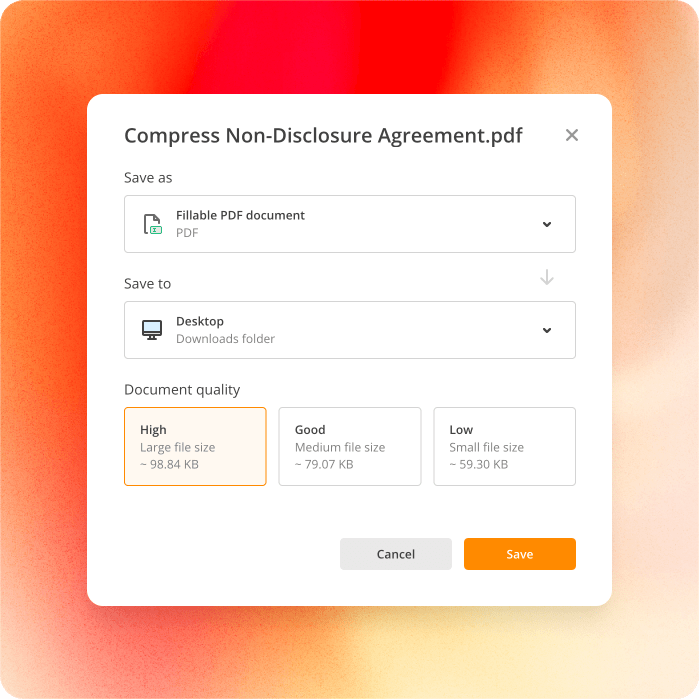
- Choose the desired compression quality level based on your needs.
- Download the compressed file once the process is complete.
Choosing Compression Quality Levels
When using the Compress tool, you will encounter different quality settings for compression. Options include high, medium, and low quality, each impacting file size and image quality differently. Depending on your plan, the available quality levels may vary. It's essential to select the best quality level based on your document's content and intended use, ensuring you maintain a balance between size and clarity.
What Changes After Compression?
After compressing your Word document, you may notice some changes. Images within the document may lose quality, which is a common trade-off for reducing file size. However, the text and overall structure of the document remain intact, ensuring that your message is clear. Importantly, any form fields you have included will be preserved, and the integrity of the document is maintained throughout the compression process.
Expected File Size Reduction
The amount of file size reduction you can expect varies based on the content of your document. For instance, image-heavy files tend to compress more significantly compared to text-only PDFs, which yield minimal reduction. Additionally, if your files are already optimized, you may see little change in size after compression. Understanding these factors can help you set realistic expectations for your document management.
Next Steps After Compression
Once you have compressed your document, there are a few steps to follow. First, download the compressed file to your device. Next, check if further reduction is needed based on your sharing requirements. You can then share the document via email or cloud services. If the file size is still too large, consider re-compressing it to achieve a more manageable size.
Comparison with Other Compression Tools
When comparing pdfFiller with other compression tools, several differences stand out. Smallpdf offers a user-friendly interface for PDF compression, but it has limited features compared to pdfFiller's comprehensive toolset. ilovepdf provides basic compression options for free, yet it lacks the flexibility and advanced features found in pdfFiller. Adobe Acrobat, while an industry-standard tool with advanced features, comes with a higher cost and complexity than pdfFiller, making it less accessible for small businesses.
Conclusion and Further Resources
In conclusion, compressing your Word files can significantly benefit your document management process. It allows for easier sharing and storage while maintaining the integrity of your documents. We encourage you to explore other tools available on pdfFiller that can further enhance your workflow. For additional support, please refer to our resources, and feel free to reach out with any questions or feedback.