Remove Password from PDF and Add Watermark to PDF
Remove passwords from your PDFs and add watermarks effortlessly using pdfFiller.
What is Password Removal for PDFs?
Removing a password from a PDF allows you to access locked documents easily. This process is beneficial for sharing files with clients or colleagues, as it enhances document usability. By removing passwords, you can ensure that your PDFs are accessible to those who need them without facing technical barriers. This is particularly useful for small and medium businesses that require straightforward solutions for document management. With pdfFiller, you can remove passwords from PDFs without needing to understand complex technical jargon.
How to Access the Password Removal Feature
- Navigate to the Tools section in pdfFiller.
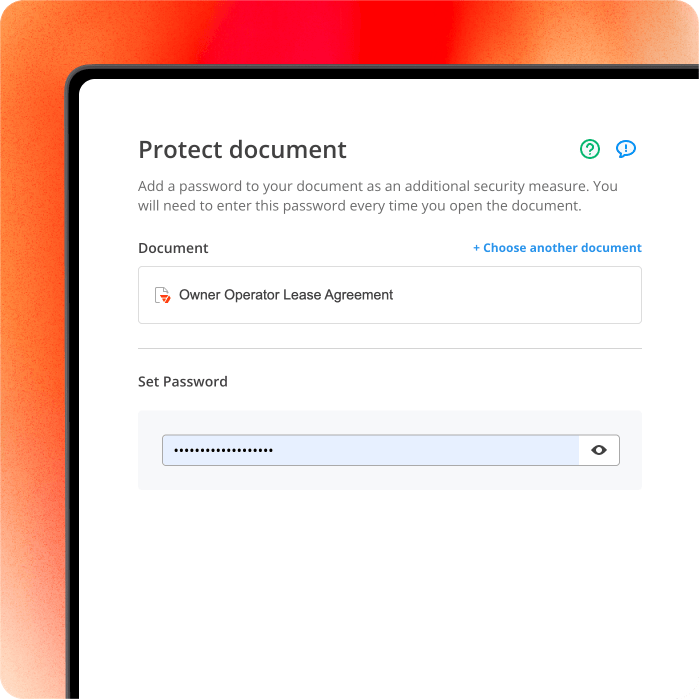
- Select Protect Document from the document action menu.
- Access this feature from any device, ensuring flexibility and convenience.
Steps to Remove a Password from a PDF
- Select the document you wish to edit in pdfFiller.
- Enter the current password to unlock the document.
- Confirm the password removal to finalize the process.
Adding a Watermark to Your PDF
After removing the password, you can add a watermark to your PDF to enhance branding. Start by choosing your desired watermark options, which may include text or images. Adjust the position and opacity settings to ensure the watermark appears as intended. Finally, save the changes to the document to apply the watermark effectively. This process not only personalizes your document but also reinforces your brand identity.
When to Remove Passwords from PDFs
Removing passwords from PDFs is beneficial in several scenarios. For instance, when sharing documents with clients, it eliminates barriers to access. Additionally, during internal team collaboration, removing passwords can facilitate smoother communication. Preparing documents for public access also warrants password removal, ensuring that anyone can view the content without restrictions.
Limitations of Password Removal
While removing passwords from PDFs is useful, there are limitations to consider. First, you must know the current password to remove it. Additionally, this process does not prevent others from printing or taking screenshots of the document. Therefore, it is not advisable to remove passwords from sensitive documents without caution, as this could expose confidential information.
Comparison with Other PDF Tools
pdfFiller stands out among PDF tools due to its unique features and ease of use. Unlike many competitors, pdfFiller offers a straightforward interface that small businesses can navigate without extensive training. Additionally, its pricing model is advantageous for small businesses, providing access to essential features without hidden fees.
Mobile Access for Password Removal
To remove passwords from PDFs on mobile devices, access pdfFiller via your mobile browser. The steps for mobile password removal are similar to those on a desktop. This compatibility ensures that you can manage your documents on-the-go, making it convenient for busy professionals who need to work from various locations.
Next Steps for Securing Your PDFs
To enhance your document security, try pdfFiller for password removal today. Explore additional features that can help you manage your documents more effectively. Sign up for a free trial to experience the full range of capabilities and ensure your PDFs are secure and easily accessible.