Remove Password from PDF
Remove password from PDF files quickly and securely using pdfFiller's online tools, ensuring easy access to your documents.
What is Password Protection for PDFs?
Password protection for PDFs is a security measure that prevents unauthorized access to sensitive documents. By requiring a password, you can safeguard important information from being viewed or altered by unauthorized individuals. Common use cases for PDFs include legal contracts, financial records, and personal identification documents. The importance of document security cannot be overstated, especially for small and medium-sized businesses that handle confidential information regularly. To effectively manage your documents, you may need to remove a password from a PDF to access or convert it easily.
How to Access the Protect Document Feature
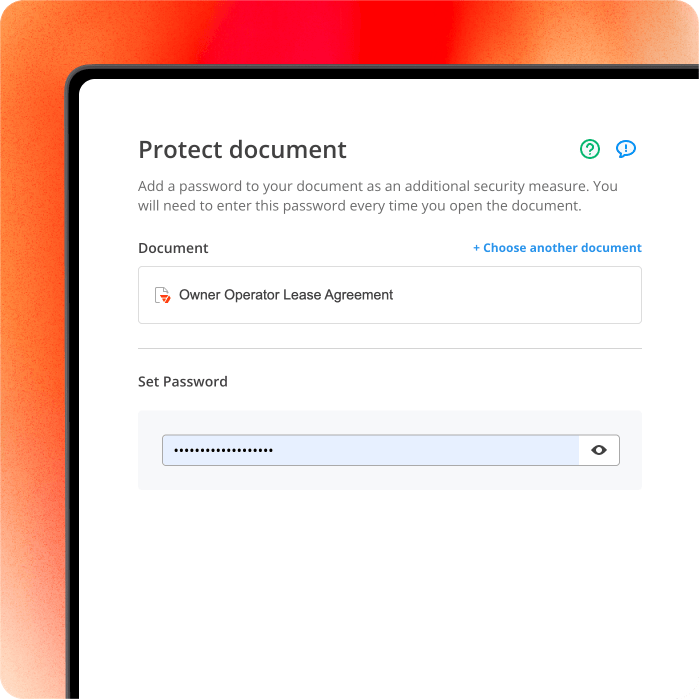
To find and use the Protect Document feature in pdfFiller, navigate to the Tools menu. This feature is available on all plans and is designed with a user-friendly interface, making it easy for you to secure your documents. Simply select the document you wish to protect and follow the prompts to add a password. This straightforward access ensures that you can manage your document security without any technical hurdles.
Steps to Remove Password from PDF
- Select the document you want to modify in pdfFiller.
- Click on the Protect Document option from the Tools menu.
- Enter the current password required to access the PDF.
- Click the Apply button to remove the password from the document.
- Save the document to ensure the changes take effect.
- Verify that the password has been successfully removed by reopening the document.
- If needed, convert the PDF to another format for further editing.
- Share the document as required, now accessible without a password.
Opening a Password-Protected PDF
To access a PDF after removing the password, simply open the document in pdfFiller. Enter the correct password when prompted to confirm access. This process is crucial to maintain document integrity, ensuring that only authorized individuals can view the contents. Once the password is removed, you can unlock PDF files for editing or sharing without restrictions.
Protecting Specific Pages vs. Entire Document
When using the Protect Document feature, you can choose to apply password protection to either the entire document or specific pages. Selecting page ranges allows you to tailor security measures based on the sensitivity of the content. For example, you might want to protect financial records while leaving other pages accessible. This selective protection can be beneficial in various scenarios, such as when sharing documents with external parties.
Using the Confidential Folder
The Confidential folder in pdfFiller provides an additional layer of security for sensitive documents. Accessing this folder requires phone verification and a custom password, ensuring that only authorized users can view the contents. This feature hides documents from the Recent and main document lists, providing isolated access for sensitive files. Utilizing the Confidential folder is an effective way to manage document security within your workspace.
Creating a Read-Only PDF for Recipients
To create a read-only PDF for external users, use the Protect Document feature to set restrictions on editing. This ensures that recipients can view the document without making changes, which is particularly important for e-signatures and formal agreements. By establishing a read-only state, you can share documents securely while maintaining control over the content.
Password Protection on Download vs. Shared Link
Password protection applies differently when downloading a document versus sharing it via a pdfFiller link. When you download a password-protected PDF, the recipient must enter the password to access the file locally. Conversely, when sharing via a link, the same password requirement ensures that only authorized individuals can view the document online. Understanding these differences is essential for effective document management.
When to Password-Protect a PDF
There are several scenarios where password protection is necessary. For example, legal contracts often contain sensitive information that must be safeguarded. Similarly, HR documents and financial records require protection to prevent unauthorized access. Personal identification documents also benefit from password security to ensure privacy. Knowing when to remove a password from a PDF can help you manage your documents effectively.
Browser and Device Compatibility
pdfFiller's Protect Document feature is compatible with various browsers and mobile devices. Supported browsers include Chrome, Firefox, and Safari, ensuring that you can access the feature from your preferred platform. Mobile device behavior may differ slightly, but the core functionality remains consistent across devices. This compatibility enhances your digital workflows, allowing you to manage documents on the go.
How Does pdfFiller Compare?
pdfFiller offers a comprehensive approach to document management, including password protection features that are user-friendly and efficient. In comparison, ilovepdf provides basic password removal but lacks advanced features like document management, which may limit its effectiveness for complex workflows. Smallpdf offers a straightforward interface but does not integrate with other document tools, potentially hindering efficiency for businesses. Adobe Acrobat is known for its robust features but comes with a higher price tag, making pdfFiller a more cost-effective option for small businesses needing reliable document solutions.
Next Steps
Try the Protect Document feature today to secure any PDF in minutes with no software to install. With pdfFiller, you can easily manage your documents and ensure that sensitive information remains protected.