Remove Password from PDF and Password Protect PDF for Safari For Free

Drop document here to upload
Select from device
Up to 100 MB for PDF and up to 25 MB for DOC, DOCX, RTF, PPT, PPTX, JPEG, PNG, JFIF, XLS, XLSX or TXT

Last updated on Sep 16, 2026

Remove Password from PDF and Password Protect PDF for Safari

Protect your PDF documents by adding or removing passwords easily using pdfFiller on Safari.

What is Protect Document?

The Protect Document feature in pdfFiller allows you to enhance the security of your PDF files. This feature adds a password to open a PDF, ensuring that only authorized individuals can access the document. You can apply password protection to the entire document or select specific pages, giving you flexibility in managing sensitive information. Additionally, pdfFiller offers legally binding e-signatures, making it a comprehensive tool for document security. Importantly, no IT setup is required, allowing you to implement these protections quickly and easily.

How to Access Protect Document

To find the Protect Document feature in pdfFiller, navigate to the Tools menu within the interface. From there, select the Protect Document option. This feature is available on all devices, ensuring you can secure your documents whether you're using a desktop or mobile device. No installation is required, making it straightforward to access and use.

Steps to Add a Password to a PDF

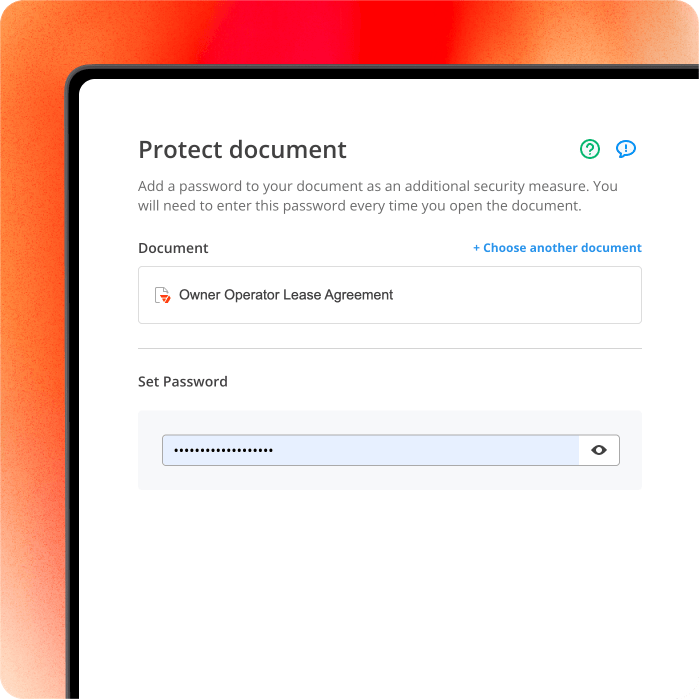
  • Select the document you wish to protect by opening it in pdfFiller.
  • Enter your desired password in the designated field to secure the document.
  • Choose whether to apply the password to the entire document or specific pages.
  • Click the Apply button to finalize the password protection and secure your PDF.

How to Open a Password-Protected PDF

To access a PDF that requires a password, simply enter the known password when prompted. You can access the document through the pdfFiller interface, which is designed for ease of use. This feature is available on any device, and no additional software is needed to open your secured documents.

Protecting Specific Pages vs. Entire Document

When using the Protect Document feature, you can choose between protecting the full document or only selected pages. Targeted protection allows you to secure sensitive sections while keeping other parts accessible. This flexibility is beneficial for various use cases, such as protecting confidential information without restricting access to the entire document. The selection process is easy, ensuring you can implement the desired level of security quickly.

Using the Confidential Folder for Secure Storage

The Confidential folder in pdfFiller provides an additional layer of security for your documents. Access to this folder requires phone verification, ensuring that only authorized users can view the contents. You can set a custom password for access, which hides documents from the main lists, adding a layer of privacy. This feature offers workspace-level security, making it ideal for sensitive documents that require extra protection.

Creating a Read-Only PDF for Recipients

To create a read-only PDF for others, use the Protect Document feature to set the document as read-only. This approach is beneficial for external sharing, as it ensures that the document's content remains unchanged. By implementing read-only settings, you maintain the integrity of the document while allowing others to view it. Additionally, legally binding e-signatures can be included, further enhancing the document's security and authenticity.

Password Protection on Download vs. Shared Link

Password protection is essential whether you are sharing a document via download or a shared link. Both methods require a password for access, but they offer different user experiences. Understanding the security implications of each method helps you choose the best approach for sharing sensitive documents. To share securely, ensure that the password is communicated only to authorized individuals.

When to Password-Protect a PDF

Password protection is crucial in various scenarios, including legal contracts and agreements, HR documents, financial statements, and personal identification documents. Each of these document types contains sensitive information that requires safeguarding against unauthorized access. By implementing password protection, you can ensure that only intended recipients can view or modify these important files.

Browser and Device Compatibility

pdfFiller supports a wide range of browsers, ensuring compatibility for users across different platforms. Mobile compatibility is also a key feature, allowing you to manage your documents on the go. While functionality remains consistent across devices, it is recommended to use updated browsers for the best experience. This ensures that all features, including password protection, work smoothly.

Limitations and Known Constraints

While the Protect Document feature is powerful, it does have limitations. For instance, there is a maximum password length that you should be aware of when setting up security. The encryption standards used are designed to protect your documents, but it is important to understand that page-range protection may not be available in all plans. Familiarizing yourself with these limitations can help you make informed decisions about document security.

How Does pdfFiller Compare?

When comparing pdfFiller to alternatives like ilovepdf, Smallpdf, and Adobe Acrobat, pdfFiller stands out with its unique features. Unlike some competitors, pdfFiller offers a user-friendly interface with no installation required, making it accessible for small and medium businesses. Additionally, user feedback highlights higher satisfaction ratings for pdfFiller due to its affordability and ease of use.

Next Steps to Secure Your PDFs

To start using the Protect Document feature, follow the easy steps outlined above. No software installation is needed, allowing you to quickly secure your documents. By taking advantage of this feature, you can protect sensitive information and ensure that your documents remain confidential. Try the Protect Document feature today and experience the benefits of securing your PDFs.

Try most popular PDF tools

Discover a full set of tools to handle any document task.

Edit PDFs

Make quick PDF edits online.

Sign

Add legally binding signatures.

Merge

Combine multiple PDFs.

Request signatures

Send a document for signing.

Convert

Transform PDFs into other formats.

Rearrange

Change the order of pages.

Share

Send PDFs for review or editing.

Compress

Reduce PDF file sizes.

How to protect a PDF with a password?

1. Upload

Keep your documents confidential

  • Edit, then lock it down Edit text, add images, or fill out forms to complete your PDF. After, create a password to lock down the final version and prevent unauthorized access.
  • eSign and protect After you’ve signed an agreement, protect it with a password to ensure its integrity and keep its contents confidential.
  • Verify signers Sending a document for signing? Add an extra layer of security by setting a unique password or sending a one-time SMS code to your recipients before they can eSign.
  • Share with confidence Send sensitive files without the stress. Add a password before you share via link or email, ensuring only the right people can access your document.
  • Your digital cabinet—secured Keep all documents neatly organized in your secure cloud storage. Move sensitive files, such as contracts or personal records, to a confidential folder accessible only via password.

Who uses this tool?

Learn how professionals use pdfFiller to keep sensitive information safe.

Business Owners

Add a password to confidential documents to safeguard your company’s critical data. Ensure that only authorized partners, investors, or team members can access proprietary information, protecting your business from data leaks.

  • Business plans
  • Financial reports
  • Investor agreements
  • Strategic plans
Business Owners
  • G2 — Users Most Likely To Recommend
  • G2 — Grid Leader in Small-Business
  • G2 — High Performer
  • G2 — Regional Leader
  • G2 — Easiest To Do Business With
  • G2 — Best Meets Requirements
  • G2 — Best Support

pdfFiller scores top ratings on review platforms

pdfFiller is rated 4.6 out of 5 stars across 1,000+ G2 reviews.

Great service that allow us to provide excellent customer service.
Charles W
Very user friendly and looks like a very good lease form
Anonymous Customer
I still have Pdffiller.I makes my job easier and I can log anywhere in the world to do complete My job and even email it.
Nick
I had some troubles purchasing my subscription after my free trial and had a long wait using the chat feature. However, I called into the customer support line and had immediate amazing customer service in resolving my issue. My customer service rep was very detail in listening to my concerns and offering resolution. Because of the excellent customer service experience my PDfFiller representative delivered I proceeded with a one-year commitment of service and recommended these services to my family member.
Rebecca J
Very convenient for new business applications
Dan A
EXCELLENT! Very clean and simple to use. Definitely a user friendly app.
Natasha B

Protect PDFs with a trusted, all-in-one solution

Try pdfFiller for all your document management needs.

pdfFiller workspace for creating, filling and managing PDF forms

Why trust pdfFiller to secure your documents?

All-in-one solution

Watch our PDF tools in action

Check out this video tutorial to learn how to secure your PDFs from unauthorized access using password protection.

FAQs

If you can't find what you're looking for, please contact us anytime!

To remove a password from a PDF using pdfFiller on Safari, simply upload your PDF file to the platform, enter the password when prompted, and select the option to remove the password. This process is straightforward and allows you to access your document without restrictions. After removing the password, you can save the PDF without any security settings. For best results, ensure your Safari browser is updated to avoid compatibility issues.

To password protect a PDF in Safari with pdfFiller, first upload your document to the platform. Once uploaded, navigate to the security settings and select 'Password Protect'. Enter a strong password that meets security protocols, and confirm it. This will encrypt your PDF, ensuring that only authorized users can access it. Always choose a unique password to enhance document security and consider using a password manager for better management.

No, you cannot remove a password from a PDF without knowing the original password due to security protocols designed to protect sensitive information. If you have forgotten the password, consider using password recovery tools or contacting the document creator for assistance. Always ensure you have the right to access the document before attempting to bypass security features.

Using pdfFiller to password protect PDFs on Safari offers several security benefits, including encryption of sensitive data and compliance with document automation standards. By setting a password, you prevent unauthorized access, ensuring that only intended recipients can view or edit the document. Additionally, pdfFiller’s cloud-based platform allows for easy management and sharing of secure documents, which is crucial for remote professionals and legal teams.

Yes, pdfFiller is a cloud-based platform, allowing you to remove passwords from PDFs on multiple devices, including desktops, tablets, and smartphones. Simply log into your account from any device using Safari or any other browser, and access your documents. This cross-platform compatibility ensures that you can manage your PDF files securely, no matter where you are, making it ideal for remote professionals and SMEs.

If you encounter issues while removing a password from a PDF in Safari, first ensure that your browser is updated and that you have a stable internet connection. Clear your browser cache and try again. If the problem persists, check pdfFiller’s support resources or contact their customer service for assistance. They can provide guidance on troubleshooting common issues, ensuring you can efficiently manage your documents.

While pdfFiller is a powerful tool for managing PDFs, there are limitations when it comes to removing passwords. You must know the original password to unlock the document. Additionally, certain PDFs with advanced security settings may not be compatible with pdfFiller’s features. Always check the document’s security settings before attempting to remove a password, and ensure you have the necessary permissions to modify the file.

Transforming businesses with pdfFiller

Check out these success stories.

This saved us an incredible amount of time! It feels like pdfFiller was custom-created for us.

Sales Frontline Insurance Group

One tool. Every document task.

One workflow shouldn’t take five tools

Start free trial