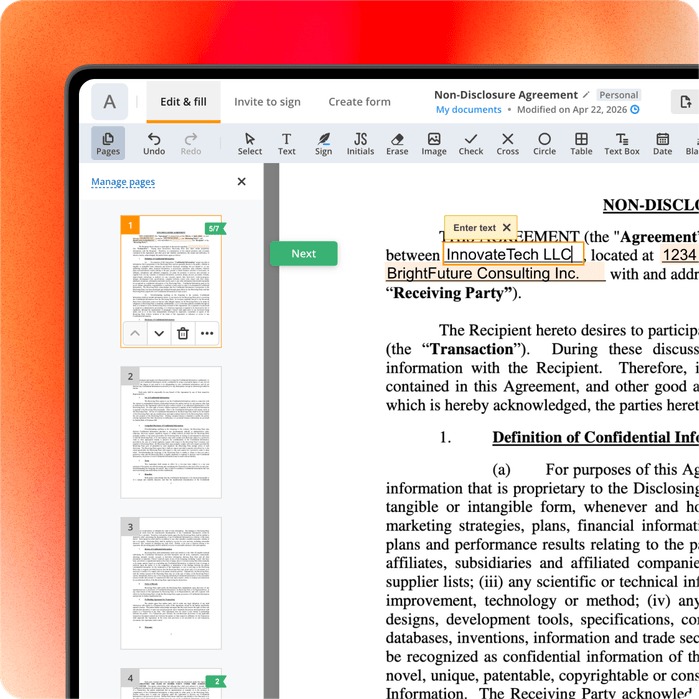
Revamp DOCX Documents For Free

Drop document here to upload
Select from device
Up to 100 MB for PDF and up to 25 MB for DOC, DOCX, RTF, PPT, PPTX, JPEG, PNG, JFIF, XLS, XLSX or TXT

Last updated on Sep 22, 2026

Revamp DOCX Documents

Revamp DOCX documents effortlessly with pdfFiller's intuitive editing tools, designed for small businesses.

What is Edit Mode for DOCX Documents?

Edit Mode for DOCX documents allows you to modify your files directly within the editing interface. To access this feature, simply click the Edit button on your document. Once in Edit Mode, you can modify text directly, ensuring that your changes are applied in real-time. This mode supports various formatting options, enabling you to adjust font styles, sizes, and colors as needed. By using Edit Mode, you can revamp DOCX documents without the complications of complex software requirements, making it an ideal choice for small businesses focused on efficient document editing.

How Does Revamping DOCX Documents Solve Workflow Issues?

Revamping DOCX documents addresses common workflow issues faced by professionals. For instance, quick updates can be made for professionals who need to respond to changes rapidly. There’s no need for conversion between formats, which saves time and reduces frustration. This is particularly beneficial for small businesses that require efficient document management without lengthy editing processes. By streamlining the editing workflow, pdfFiller allows teams to focus on their core tasks rather than getting bogged down by document issues.

Steps to Edit Existing Text in DOCX

  • Open your DOCX document in pdfFiller.
  • Click on the Edit button to enter Edit Mode.
  • Locate the text block you wish to edit.
  • Click directly on the text to modify it.
  • Make your changes as needed, adjusting the text as required.
  • Review your changes for accuracy and clarity.
  • Click the Save button to save your changes easily.
  • Close the document or continue editing other sections as needed.

Adding New Text Blocks to Your DOCX

  • Open your DOCX document in pdfFiller.
  • Click on the Edit button to access Edit Mode.
  • Position your cursor where you want to insert new text.
  • Select the option to add a new text block.
  • Type your new text into the block.
  • Set formatting options such as font style and size.
  • Ensure the new text is correctly placed within the document.
  • Click Save to keep your changes.

Removing Text from Your DOCX Document

  • Open your DOCX document in pdfFiller.
  • Enter Edit Mode by clicking the Edit button.
  • Highlight the text you wish to delete.
  • Press the delete key or select the delete option.
  • Confirm the deletion if prompted.
  • Review the document to ensure the text is removed.
  • Use the undo option if you accidentally delete the wrong text.
  • Save your document to finalize the changes.

Using Whiteout for Corrections in DOCX

The whiteout tool in pdfFiller allows you to cover text for corrections without permanently deleting it. This tool is particularly useful for making quick adjustments while maintaining the original content underneath. Unlike the blackout tool, which obscures text completely, whiteout enables you to make visible corrections that can be easily modified later. Applying the whiteout tool is straightforward, making it an efficient option for document editing.

Formatting Options for Your DOCX Text

When revamping DOCX documents, various text formatting features are available to enhance your document's appearance. You can choose from different font styles to match your branding or personal preference. Text alignment options allow you to position your text as needed, whether centered, left-aligned, or right-aligned. Additionally, you can change text colors to highlight important information or to make your document more visually appealing. These formatting options ensure that your documents are not only functional but also professional in appearance.

Find and Replace Text in Your DOCX

The find and replace feature in pdfFiller allows you to quickly locate specific text within your document. This tool is invaluable for making bulk changes, as it enables you to replace old information with new text efficiently. By using this feature, you can save time in editing, especially when dealing with lengthy documents. Instead of manually searching for each instance of text, you can streamline the process and ensure consistency throughout your document.

Editing Native vs. Scanned DOCX Files

When it comes to editing DOCX files, there are notable differences between native and scanned documents. Native DOCX files allow for direct editing, enabling you to make changes easily and quickly. In contrast, scanned documents require Optical Character Recognition (OCR) to convert images of text into editable text. This process can introduce limitations, as OCR may not always accurately capture the original formatting or text. Understanding these differences is essential for selecting the right approach for your document editing needs.

Real-World Scenarios for Revamping DOCX Documents

Revamping DOCX documents can be particularly beneficial in various professional scenarios. For accountants, the ability to quickly edit financial reports ensures accuracy and timely updates. Marketers can use these tools to adjust promotional materials and proposals on the fly, responding to client needs efficiently. Legal professionals benefit from the ability to revise contracts and agreements swiftly, ensuring compliance and clarity. These practical applications demonstrate how pdfFiller can enhance document workflows across different industries.

How Does pdfFiller Compare?

Adobe Acrobat offers comprehensive editing features but requires a subscription; pdfFiller provides essential tools at a lower cost. Foxit is known for speed but lacks user-friendly templates; pdfFiller combines speed with an extensive template library. Nitro provides robust editing tools but can be complex; pdfFiller simplifies the editing process for small businesses.

Try most popular PDF tools

Discover a full set of tools to handle any document task.

Edit PDFs

Make quick PDF edits online.

Sign

Add legally binding signatures.

Merge

Combine multiple PDFs.

Request signatures

Send a document for signing.

Convert

Transform PDFs into other formats.

Rearrange

Change the order of pages.

Share

Send PDFs for review or editing.

Compress

Reduce PDF file sizes.

How to edit PDFs with pdfFiller

1. Upload or create

The online PDF editor that has it all

  • Edit PDFs without workarounds Quickly add, erase, replace, or reformat text in PDFs without converting files back and forth or using clunky desktop software. Our editor works on any device, allowing you to fill out forms and make edits wherever you are.
  • Add legally binding signatures Sign PDFs directly in the editor—no extra eSignature tools needed. Add your signature or initials after editing a contract or agreement and send it out to sign.
  • Make a lasting impression with your PDFs Add images, logos, tables, and watermarks to maintain a professional look of your documents on any device. Draw lines and arrows, insert checkmarks and shapes, or draw freehand to make quick markings or organize information.
  • Annotate and collaborate Highlight important data, redact sensitive details, add sticky notes, and exchange comments for speedy document reviews. Share files instantly to request edits, feedback, or approval—no need for email attachments.
  • Create fillable PDF forms Turn static PDFs into interactive fillable forms anyone can complete online. Drag and drop text boxes, signature fields, dropdowns, and checkboxes, then share your form via a link or publish it on your website.
  • Split, merge, and rearrange Edit and reorganize your PDFs in one place. Split a large PDF into bite-sized docs or merge separate files into one comprehensive document. Need a smaller file size? Compress your document with just one click!

Who needs this?

Explore how professionals across industries use pdfFiller to edit PDFs.

Education

Educators and administrators use pdfFiller to edit lesson plans, sign permission slips, and collaborate on curriculum updates. Create fillable forms for enrollment or evaluations, and organize PDFs with ease, all on one platform.

  • Lesson plans
  • Permission slips
  • Enrollment forms
  • Course registration forms
Education
  • G2 — Users Most Likely To Recommend
  • G2 — Grid Leader in Small-Business
  • G2 — High Performer
  • G2 — Regional Leader
  • G2 — Easiest To Do Business With
  • G2 — Best Meets Requirements
  • G2 — Best Support

pdfFiller scores top ratings on review platforms

pdfFiller is rated 4.6 out of 5 stars across 1,000+ G2 reviews.

PDF Filler is crisp and fast. It took care of my needs seamlessly and productively. I would recommend and use it again and again!
Lorel L
It was design to do exactly what I want it to do.
Blmfoster
First time using, easy to use, I am not a computer whiz.
Trevor M
excellent excellent excellent excellent
Viktoriia Bagdanashvili
Paul was extremely helpful and solved… Paul was extremely helpful and solved my problem instantly. Thank you
Zayd Rehman
I am no computer guru, but gets my simple requirements sorted without incurring the expense of a Designer
Martin P

Edit PDFs with an all-in-one solution

Try easy-to-use tools for all your document management needs.

pdfFiller workspace for creating, filling and managing PDF forms

PDF editing is just the beginning

More than a PDF editor

Watch our PDF editor in action

Check out a quick video tutorial that shows how to edit any file into an editable PDF in three easy steps.

FAQs

If you can't find what you're looking for, please contact us anytime!

To revamp DOCX documents for enhanced collaboration, start by utilizing cloud-based tools like pdfFiller that allow real-time editing and sharing. This ensures that all team members can access the latest version without the hassle of email chains. Additionally, incorporate comments and track changes features to facilitate feedback and discussions directly within the document. A practical tip is to establish a clear naming convention for document versions to avoid confusion and ensure everyone is on the same page. By implementing these strategies, you can significantly improve team collaboration and document management efficiency.

To ensure the security of your revamped DOCX documents when sharing, utilize platforms like pdfFiller that offer robust security protocols, including encryption and password protection. Always set permissions to control who can view or edit the document, and consider using watermarking to deter unauthorized use. A practical tip is to regularly audit access logs to monitor who has interacted with your documents. By following these steps, you can confidently share your documents while maintaining their integrity and confidentiality.

To automate the revamping of DOCX documents, consider using document automation tools integrated with pdfFiller. These tools can streamline repetitive tasks such as formatting, data entry, and content updates, significantly reducing manual effort. Additionally, explore features like templates and batch processing to expedite the creation of multiple documents at once. A practical tip is to create a library of frequently used templates to save time on future projects. By leveraging automation, you can enhance productivity and focus on more strategic tasks.

To optimize your revamped DOCX documents for cross-platform compatibility, ensure that you use standard fonts and formatting that are widely supported across different operating systems and devices. Avoid using complex layouts or features that may not render correctly on all platforms. Additionally, save your documents in multiple formats, including PDF, to ensure they can be accessed by anyone, regardless of their software. A practical tip is to test your documents on various devices before finalizing them to catch any compatibility issues early. This approach will help maintain the document's integrity and usability across different environments.

When revamping DOCX documents, avoid common mistakes such as neglecting to proofread for grammatical errors and inconsistencies. Also, steer clear of overcomplicating the layout with excessive graphics or fonts, which can distract from the content. Ensure that you maintain a consistent style throughout the document to enhance readability. A practical tip is to use the 'Read Aloud' feature in Word to catch errors you might miss visually. By being mindful of these pitfalls, you can create polished and professional documents that effectively communicate your message.

To effectively track changes and feedback in revamped DOCX documents, utilize the 'Track Changes' feature in Microsoft Word or similar tools available in pdfFiller. This allows you to see edits made by collaborators and accept or reject changes easily. Encourage team members to leave comments for additional context on their suggestions. A practical tip is to schedule regular review sessions to discuss changes collectively, ensuring everyone is aligned on the document's direction. This collaborative approach not only improves the document quality but also fosters a sense of ownership among team members.

To prepare your revamped DOCX documents for e-signature, first ensure that all necessary fields are clearly marked for signatures, dates, and any other required information. Use pdfFiller's e-signature features to convert your DOCX into a format that supports electronic signing. Additionally, verify that the document is free of errors and that all parties have access to the final version. A practical tip is to send a test document to a colleague to ensure the signing process works smoothly before sending it to clients. By following these steps, you can streamline the signing process and enhance document workflow.

Transforming businesses with pdfFiller

Check out these success stories.

I was happy to do this for patients, but I simply didn't have 30–60 minutes to fill out each form. It was a true waste of resources to do it that way, and as a surgeon, my time is better spent in patient care, which was often delayed.

Marshall Orthopaedics

One tool. Every document task.

One workflow shouldn’t take five tools

Start free trial