Save PDF as RTF For Free

Drop document here to upload
Select from device
Up to 100 MB for PDF and up to 25 MB for DOC, DOCX, RTF, PPT, PPTX, JPEG, PNG, JFIF, XLS, XLSX or TXT
Note: Integration described on this webpage may temporarily not be available.

Last updated on Oct 13, 2026

Save PDF as RTF

Convert your PDF documents to RTF format quickly and easily using pdfFiller's online tool, perfect for editing and sharing.

What is the PDF to RTF Conversion Tool?

The PDF to RTF conversion tool is designed to help small businesses convert their PDF documents into RTF format. This tool is ideal for creating editable documents without the need for complex software installations. By using this tool, you can easily modify your documents, making it a valuable asset for any business looking to streamline their document workflows. The simplicity of the process ensures that users can focus on their work rather than getting bogged down by complicated procedures.

Why Convert PDF to RTF?

Converting PDF to RTF format offers several advantages for document editing. First, RTF files allow for editable text, making it easier to make changes to your documents. Additionally, RTF format is compatible with various word processors, ensuring that your documents can be opened and edited across different platforms. This is particularly beneficial for legal documents that require frequent updates and modifications, allowing for a more efficient workflow.

How to Access the PDF to RTF Tool

  • Access the tool via the Done dropdown menu on the pdfFiller homepage.
  • Locate the All Tools card for a quick link to the conversion tool.
  • Use the Document row menu to find the PDF to RTF conversion option.

Uploading Documents for Conversion

To upload documents for conversion, you can use the drag-and-drop functionality available on the pdfFiller platform. The tool supports various file types, including PDFs, Word documents, and images. There are no size limits for the files you can upload, making it easy to convert large documents without any hassle. This straightforward upload process ensures that you can quickly get your documents ready for conversion.

Step-by-Step Guide to Save PDF as RTF

  • Upload your PDF document to the pdfFiller platform.
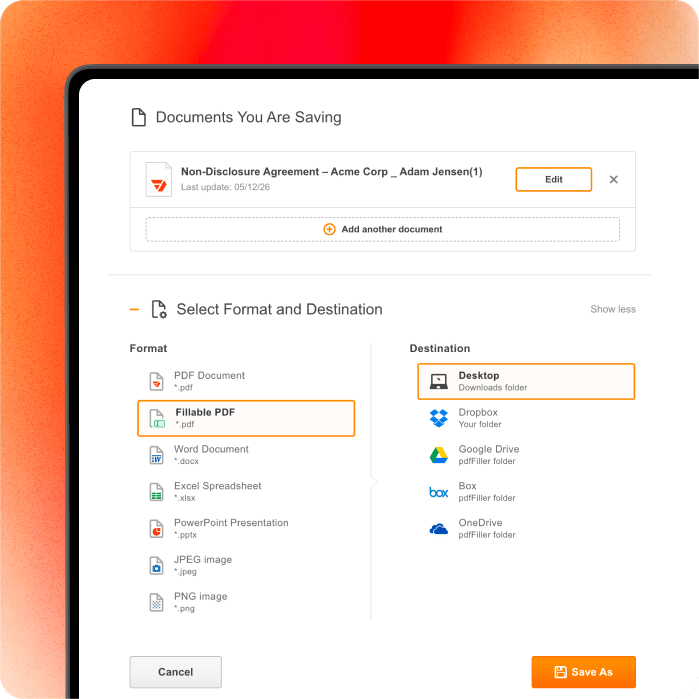
  • Select the RTF format from the available conversion options.
  • Download the converted RTF file to your device.

Supported Output Formats

  • RTF format for easy text editing and compatibility.
  • Word format for users who prefer Microsoft Word compatibility.
  • Excel format for spreadsheet needs.
  • Image formats for visual content conversion.
  • Plan-tier availability may affect access to certain formats.

Input File Types for Conversion

  • PDF files are the primary input type for conversion.
  • Word documents can also be converted to RTF format.
  • Excel files are accepted for conversion as well.
  • Image files can be uploaded for conversion into editable formats.

Quality Expectations from Converted Files

When converting files, you can expect a high level of layout fidelity, ensuring that the original document's formatting is preserved. The text in the converted RTF file will be editable, allowing for easy modifications. However, keep in mind that OCR limitations may affect the quality of scanned documents, potentially leading to inaccuracies in text recognition. It's essential to review the converted files to ensure they meet your quality standards.

Comparison with Other Conversion Methods

pdfFiller's conversion tool differs from traditional Save As methods, which may not always maintain formatting. Unlike compression and download methods that can alter file integrity, pdfFiller ensures that your documents retain their original structure during conversion. This makes it a preferred choice for users who require reliable document editing capabilities.

Scenarios for Using PDF to RTF Conversion

There are several practical scenarios where saving a PDF as RTF is beneficial. For instance, legal professionals often need to edit legal documents, making RTF format ideal for this purpose. Marketing teams may require updates to marketing materials, and converting PDFs to RTF allows for quick modifications. Additionally, businesses frequently need to adjust invoices, and having the ability to save PDFs as RTF can streamline this process, ensuring accuracy and efficiency in document handling.

Security and Data Handling

pdfFiller prioritizes document security during the conversion process. All conversions are processed server-side, ensuring that your files are handled securely. Data encryption is implemented to protect sensitive information, and the platform adheres to strict privacy policies to safeguard user data. This commitment to security allows you to convert documents with peace of mind.

How Does pdfFiller Compare?

Adobe Acrobat offers comprehensive PDF editing but requires a subscription, which can be a higher cost for advanced features. Smallpdf provides basic PDF tools but lacks advanced editing capabilities, limiting functionality for complex documents. Nitro is good for business use but can be complicated for casual users, presenting a steeper learning curve compared to pdfFiller.

Try most popular PDF tools

Discover a full set of tools to handle any document task.

Edit PDFs

Make quick PDF edits online.

Sign

Add legally binding signatures.

Merge

Combine multiple PDFs.

Request signatures

Send a document for signing.

Convert

Transform PDFs into other formats.

Rearrange

Change the order of pages.

Share

Send PDFs for review or editing.

Compress

Reduce PDF file sizes.

How to convert your PDF?

1. Upload your document

All-in-one PDF converter: Convert, edit, sign, and manage documents

  • Convert and edit docs in one place Upload your document, make quick edits online, and save it as a PDF, text document (DOCX), spreadsheet (XLSX), image (JPEG/PNG), or presentation (PPTX).
  • Equip yourself with powerful PDF tools Edit PDFs online almost as easily as Word documents. Add text, adjust formatting, replace content, insert images, and more.
  • eSign and send documents Sign documents on your own or send them to others for signatures, whether a single recipient or an entire group.
  • Annotate & collaborate Highlight important data, redact sensitive details, add sticky notes, and exchange comments in your PDFs. Then, instantly send documents for review or editing.
  • Collect data without chasing people down Create fillable PDF forms and let others complete them from any device. Publish forms online or share them via a direct link to capture data and signatures.
  • Store files securely in the cloud Organize your documents and templates in secure cloud storage and access them from anywhere. pdfFiller follows strict security regulations to help safeguard your data.

Who needs this?

Explore how professionals across industries use pdfFiller to convert PDFs online.

Real Estate

Real estate agents and brokers rely on pdfFiller to edit and annotate brochures, lease agreements, and contracts. They can easily convert documents to formats like JPEG, PDF, DOCX, or XLSX for quick sharing and signature collection.

  • Property listing brochures
  • Lease agreements
  • Sales contracts
  • Property management forms
Real Estate
  • G2 — Users Most Likely To Recommend
  • G2 — Grid Leader in Small-Business
  • G2 — High Performer
  • G2 — Regional Leader
  • G2 — Easiest To Do Business With
  • G2 — Best Meets Requirements
  • G2 — Best Support

pdfFiller scores top ratings on review platforms

pdfFiller is rated 4.6 out of 5 stars across 1,000+ G2 reviews.

This is an easy website to go to and create documents
Teresa F
FEELING OVERWHELMED BY TAX DOCUMENTS AND PDF FILLER HELPED MAKE THE PROCESS MANAGEABLE.
JENNIFER M
Brilliant! And amazing customer service!
Anonymous Customer
Very positive - no problems - easy to navigate
Anonymous Customer
It is easy and simple to use It is easy and simple to use, together with the icons needed when editing are all available.
Kaori
PDF ****** is an easy to use platform for forms with very professional support.
Melissa M

Convert documents with a trusted solution

Try easy-to-use tools for all your document management needs.

pdfFiller workspace for creating, filling and managing PDF forms

Why convert documents with pdfFiller?

More than a PDF converter

Watch our PDF converter in action

Check out a quick video tutorial that shows how to convert any file into an editable PDF in three easy steps.

FAQs

If you can't find what you're looking for, please contact us anytime!

To save a PDF as an RTF file in pdfFiller, simply upload your PDF document, select the 'Save As' option, and choose RTF from the format list. This process ensures that your document retains its formatting while being converted to a more editable format. After uploading, navigate to the 'File' menu, select 'Download', and then choose 'RTF'. This method is secure and efficient, allowing for easy document automation and editing across various platforms.

Converting PDF to RTF offers several advantages, including enhanced editing capabilities and cross-platform compatibility. RTF files can be opened and edited in various word processors without losing formatting. This is particularly beneficial for legal teams and remote professionals who require precise document modifications. To maximize security, ensure that you use a trusted platform like pdfFiller, which provides robust security protocols during the conversion process.

Yes, it is safe to save a PDF as an RTF file using reputable online tools like pdfFiller, which employs advanced security measures to protect your documents. When using cloud-based platforms, always check for features like encryption and secure file storage. pdfFiller ensures that your sensitive information remains confidential while allowing you to convert and manage documents efficiently. Always opt for services that prioritize user data protection.

Yes, pdfFiller allows you to convert multiple PDFs to RTF in a batch process. This feature is particularly useful for legal teams and SMEs needing to manage large volumes of documents efficiently. To do this, upload all your PDFs at once, select the batch conversion option, and choose RTF as the output format. This saves time and ensures consistency across your documents, enhancing your workflow and document management processes.

If you notice formatting changes after saving a PDF as RTF, try adjusting the settings in pdfFiller before conversion. Ensure that you select the correct options for preserving layout and fonts. Sometimes, complex PDF elements may not translate perfectly into RTF. For best results, simplify your original PDF layout if possible. Additionally, using pdfFiller's editing tools post-conversion can help restore any necessary formatting adjustments.

pdfFiller maintains document integrity when saving as RTF by utilizing advanced algorithms that prioritize formatting accuracy during conversion. The platform supports various document types and ensures that essential elements like images, tables, and text styles are preserved. For users, this means a smoother transition from PDF to RTF, allowing for seamless editing and collaboration. Always review your document post-conversion to ensure it meets your standards.

While saving PDFs as RTF files is generally straightforward, there are some limitations to consider. RTF files may not support all PDF features, such as complex graphics or embedded multimedia. Additionally, certain fonts may not convert accurately, leading to potential formatting issues. To mitigate these challenges, use pdfFiller's editing tools to make necessary adjustments after conversion. This ensures that your final document meets your professional standards and requirements.

What businesses achieve with pdfFiller

Discover how you can benefit too.

Other software options offering customized branding have really extreme pricing. Compared to the monthly costs of PandaDoc, we are now saving unbelievable amounts of money.

B2B Services Message Direct

One tool. Every document task.

One workflow shouldn’t take five tools

Start free trial