Secure PDF File and Convert PDF to PNG for Computer For Free

Drop document here to upload
Select from device
Up to 100 MB for PDF and up to 25 MB for DOC, DOCX, RTF, PPT, PPTX, JPEG, PNG, JFIF, XLS, XLSX or TXT

Last updated on Sep 17, 2026

Secure PDF File and Convert PDF to PNG for Computer

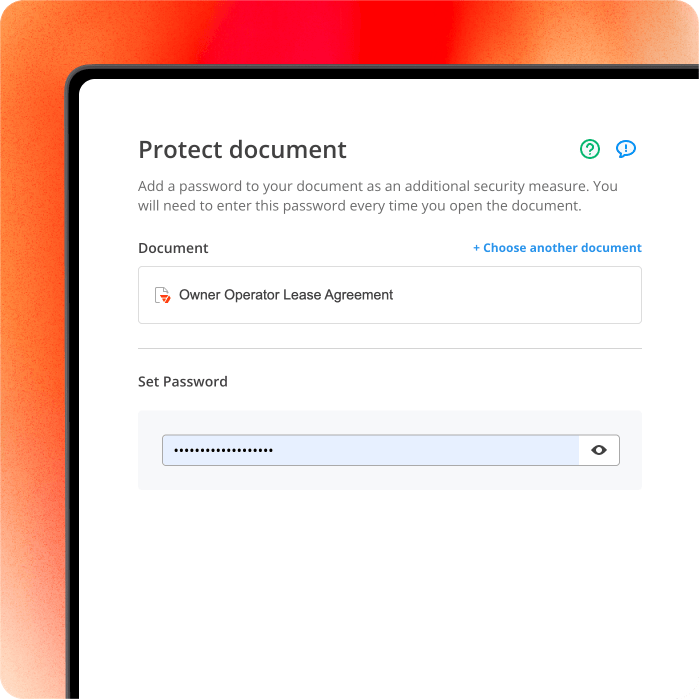
Secure your PDF files by adding a password for protection. Use pdfFiller’s Protect Document feature to safeguard sensitive information effortlessly.

What is PDF Password Protection?

Password protection is a method used to secure PDF files by requiring a password to access the document. This is particularly important for small and medium-sized businesses (SMBs) that handle confidential documents, such as financial reports or legal contracts. For instance, a law firm may need to secure client contracts to prevent unauthorized access, ensuring that sensitive information remains confidential. Implementing PDF security measures helps protect against data breaches and unauthorized sharing, making it essential for any business managing sensitive information.

How to Access the Protect Document Feature

To use the Protect Document feature in pdfFiller, navigate to the Tools section and select Protect Document. This feature is available on all plans and is designed with a user-friendly interface, making it easy for anyone to secure PDF files without needing advanced technical skills. By following these simple steps, you can quickly add password protection to your documents, ensuring their safety and confidentiality.

Steps to Add a Password to a PDF

  • Open the PDF document you want to secure in pdfFiller.
  • Navigate to the Tools menu and select Protect Document.
  • Choose whether to apply the password to the entire document or specific pages.
  • Enter your desired password in the provided field.
  • Confirm the password by re-entering it in the confirmation field.
  • Click on the Apply button to save the password protection settings.
  • Download the secured PDF file to your device.
  • Test the password by attempting to open the document to ensure it is correctly applied.

How to Open a Password-Protected PDF

To access a password-protected PDF, you need to enter the correct password when prompted. If you are using pdfFiller, simply upload the secured PDF file, and you will be asked to input the password. If you encounter issues, ensure that you are entering the password correctly, as it is case-sensitive. Additionally, check for any common troubleshooting tips, such as ensuring the file is not corrupted or that you are using the correct version of the software.

Protecting Specific Pages vs. Entire Document

When securing a PDF file, you can choose to protect specific pages or the entire document. For example, if you only need to secure sensitive financial data within a report, you can select just those pages. This option is beneficial for documents that contain both confidential and non-confidential information. On the other hand, applying password protection to the entire document ensures comprehensive security, which is ideal for sensitive contracts or agreements that should not be accessed without authorization.

The Confidential Folder for Secure Storage

pdfFiller offers a Confidential Folder feature that provides additional security for sensitive documents. To access this folder, you need to meet specific requirements, such as having an active subscription. The benefits of using the Confidential Folder include enhanced visibility settings, allowing you to control who can view or edit the documents stored within. This feature is particularly useful for businesses that need to manage confidential documents securely.

Creating a Read-Only PDF for Recipients

To share PDFs securely, you can create a read-only version of your document. This process involves setting permissions that prevent recipients from editing the content. The benefits for recipients include the assurance that the document's integrity is maintained, which is crucial for legal agreements or official reports. For example, a human resources department may share employee contracts in read-only format to prevent unauthorized changes.

Password Protection on Download vs. Shared Link

Understanding the differences in password protection methods is essential. When you download a password-protected PDF, the password must be entered to access the file locally. In contrast, when sharing a link to a secured document, the recipient may need to enter the password directly in their browser. Each method has its security implications, and it's important to consider which option best suits your needs based on how the document will be accessed.

When to Password-Protect a PDF

Password protection is necessary in various scenarios, particularly when dealing with confidential documents. For instance, financial statements, legal contracts, and employee records should always be secured to prevent unauthorized access. The importance of security cannot be overstated, especially in industries like finance and law, where sensitive information is frequently handled. Implementing password protection helps mitigate risks associated with data breaches and unauthorized sharing.

Limitations and Known Constraints

While password protection is an effective security measure, there are limitations to be aware of. For example, the maximum password length may vary depending on the software used, and certain encryption standards may not be supported on all platforms. Additionally, some features may be restricted based on your subscription plan tier. Understanding these constraints will help you make informed decisions about securing your PDF files effectively.

How Does pdfFiller Compare?

Adobe Acrobat offers extensive features for PDF management but is often too complex and costly for SMBs. Users may find it overwhelming for basic tasks.

Smallpdf provides a straightforward interface for PDF tasks but lacks the comprehensive features and templates that pdfFiller offers. Users may miss out on advanced functionalities.

ilovepdf is good for basic PDF editing but does not provide the same level of security features as pdfFiller. Users may need to use multiple tools for complete document management.

Try most popular PDF tools

Discover a full set of tools to handle any document task.

Edit PDFs

Make quick PDF edits online.

Sign

Add legally binding signatures.

Merge

Combine multiple PDFs.

Request signatures

Send a document for signing.

Convert

Transform PDFs into other formats.

Rearrange

Change the order of pages.

Share

Send PDFs for review or editing.

Compress

Reduce PDF file sizes.

How to protect a PDF with a password?

1. Upload

Keep your documents confidential

  • Edit, then lock it down Edit text, add images, or fill out forms to complete your PDF. After, create a password to lock down the final version and prevent unauthorized access.
  • eSign and protect After you’ve signed an agreement, protect it with a password to ensure its integrity and keep its contents confidential.
  • Verify signers Sending a document for signing? Add an extra layer of security by setting a unique password or sending a one-time SMS code to your recipients before they can eSign.
  • Share with confidence Send sensitive files without the stress. Add a password before you share via link or email, ensuring only the right people can access your document.
  • Your digital cabinet—secured Keep all documents neatly organized in your secure cloud storage. Move sensitive files, such as contracts or personal records, to a confidential folder accessible only via password.

Who uses this tool?

Learn how professionals use pdfFiller to keep sensitive information safe.

Business Owners

Add a password to confidential documents to safeguard your company’s critical data. Ensure that only authorized partners, investors, or team members can access proprietary information, protecting your business from data leaks.

  • Business plans
  • Financial reports
  • Investor agreements
  • Strategic plans
Business Owners
  • G2 — Users Most Likely To Recommend
  • G2 — Grid Leader in Small-Business
  • G2 — High Performer
  • G2 — Regional Leader
  • G2 — Easiest To Do Business With
  • G2 — Best Meets Requirements
  • G2 — Best Support

pdfFiller scores top ratings on review platforms

pdfFiller is rated 4.6 out of 5 stars across 1,000+ G2 reviews.

This is exactly what I needed for my home business needs. Thanks
Cathy
I really enjoy PDF filler. It is way more user friendly than Adobe Pro and it is so convenient for it to be a website that I can access from anywhere. Who ever created this is a genius!!!!!!!!!!!!
T Jones
I enjoy learning on this app,really… I enjoy learning on this app,really easy to learn aswell
Michelle A Hiroki
Online pdf editor and collection of forms
Grant M
Exactly what I needed. Exactly what I needed.
Kelley Sommer
This is Great This is Great, I love it.
James Williams

Protect PDFs with a trusted, all-in-one solution

Try pdfFiller for all your document management needs.

pdfFiller workspace for creating, filling and managing PDF forms

Why trust pdfFiller to secure your documents?

All-in-one solution

Watch our PDF tools in action

Check out this video tutorial to learn how to secure your PDFs from unauthorized access using password protection.

FAQs

If you can't find what you're looking for, please contact us anytime!

To secure a PDF file before converting it to PNG, use pdfFiller's built-in encryption feature. Start by uploading your PDF to the platform, then navigate to the security settings where you can apply password protection and set permissions. This ensures that only authorized users can access the document. After securing your PDF, you can easily convert it to PNG by selecting the 'Convert' option. This process not only protects sensitive information but also allows for seamless sharing in a widely compatible image format.

The best practices for converting a secure PDF file to PNG include ensuring that the PDF is encrypted and that you have the necessary permissions to convert it. Use pdfFiller to first check the security settings of your PDF. If the file is password-protected, enter the password to unlock it. Once unlocked, select the 'Convert to PNG' option. This method maintains the integrity of the original document while providing a high-quality image output. Additionally, consider adjusting the resolution settings during conversion for optimal clarity.

When handling PDF files, especially those containing sensitive information, consider implementing security protocols such as encryption, password protection, and digital signatures. pdfFiller allows users to encrypt their PDFs, ensuring that only authorized personnel can access them. Additionally, using digital signatures can verify the authenticity of the document. These protocols not only protect your data but also enhance compliance with legal standards, making it essential for remote professionals and legal teams to adopt these practices.

Yes, you can convert multiple secure PDF files to PNG at once using pdfFiller's batch processing feature. First, ensure that each PDF is secured according to your requirements. Upload all the PDFs to the platform, then select the batch convert option. This feature allows you to convert multiple files simultaneously, saving you time and effort. Remember to check the output settings to maintain the quality of each PNG file, ensuring they meet your professional standards.

If you forget the password to your secure PDF file, pdfFiller offers a password recovery feature that can help you regain access. Start by uploading the locked PDF to the platform. If the recovery option is available, follow the prompts to reset the password. If you cannot recover the password, you may need to contact the document creator for assistance. Always keep a secure record of your passwords to avoid this issue in the future, especially when dealing with sensitive documents.

pdfFiller ensures the security of your PDF files during conversion by utilizing advanced encryption methods and secure cloud storage. When you upload a PDF, it is encrypted both in transit and at rest, protecting your data from unauthorized access. Additionally, pdfFiller complies with industry-standard security protocols, making it a reliable choice for remote professionals and legal teams. Always review the security settings of your documents before conversion to ensure maximum protection.

Yes, it is possible to edit a secure PDF file before converting it to PNG using pdfFiller. First, ensure that you have the necessary permissions to edit the document. Once uploaded, you can make changes such as adding annotations, filling forms, or modifying text. After completing your edits, you can convert the PDF to PNG while retaining the changes. This feature is particularly useful for remote professionals who need to update documents before sharing them in a more accessible format.

Transforming businesses with pdfFiller

Check out these success stories.

This saved us an incredible amount of time! It feels like pdfFiller was custom-created for us.

Sales Frontline Insurance Group

One tool. Every document task.

One workflow shouldn’t take five tools

Start free trial