Shrink PDF File Size to 250 KB
Compress PDF files quickly to reduce their size to 250 KB using pdfFiller's intuitive online tool.
What is the Compress Tool?
The Compress tool is designed to reduce file size, making it easier to manage and share documents. This tool is accessible within the pdfFiller editor, allowing you to compress PDF files without any technical setup required. It simplifies document management for small and medium-sized businesses by ensuring that large files do not hinder collaboration and sharing.
Why Compressing PDFs is Important
Reducing PDF file sizes is crucial for effective document sharing. Large files can lead to email deliverability issues, making it difficult to send important documents. By compressing PDFs, you save storage space and enhance collaboration among team members, ensuring that everyone can access necessary files without delays.
How to Access the Compress Tool
- Open the pdfFiller editor in your web browser.
- Locate the editor toolbar at the top of the screen.
- Click on the “All Tools” dashboard to find available features.
- Select the Compress tool from the list of options.
- No document is required to access the tool; you can start immediately.
Uploading Documents for Compression
To upload PDFs for compression, you can use the drag and drop functionality available in the pdfFiller editor. The tool supports multiple formats, allowing you to convert various digital documents into a compressed PDF. This process is straightforward and user-friendly, ensuring that you can quickly prepare your files for sharing.
Step-by-Step Guide to Compressing a PDF
- Select the PDF file you want to compress from your device.
- Open the Compress tool within the pdfFiller editor.
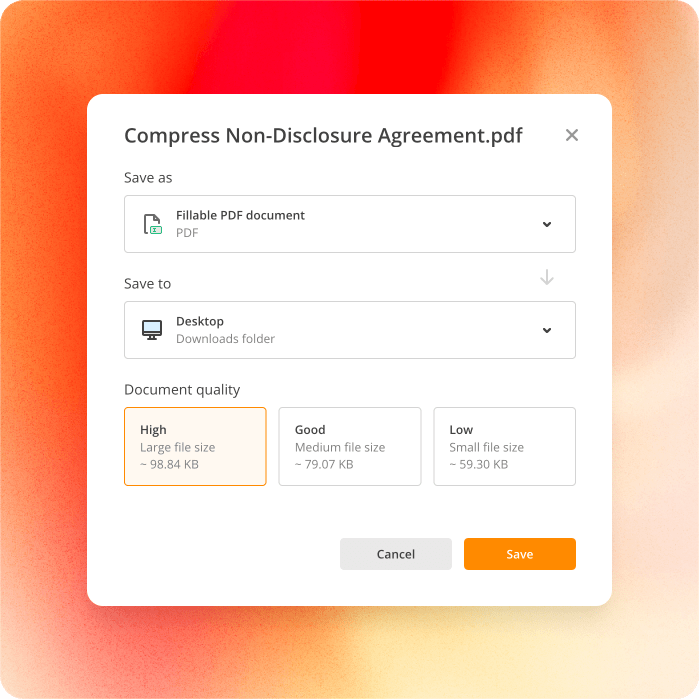
- Choose your desired quality level for the compression.
- Preview the changes to see how the file will look after compression.
- Click the “Compress” button to start the process.
- Wait for the tool to finish compressing your PDF.
- Download the compressed PDF file to your device.
- Share the file via email or other platforms as needed.
Choosing Compression Quality Levels
When using the Compress tool, you can select from high, medium, and low quality settings. Each setting impacts the final image quality of your PDF. For instance, high quality is best for documents requiring clear images, while low quality may suffice for text-heavy files. Understanding these options helps you optimize your PDF based on your specific needs.
What Changes After Compression?
After compressing a PDF, you may notice that images within the document might lose some quality, while the text remains intact. Additionally, any form fields in your PDF will be preserved, ensuring that the document's functionality is maintained even after compression.
Expected File Size Reduction
The amount of file size reduction you can expect varies by content type. For instance, image-heavy files tend to compress more significantly than text-based PDFs. If your document is already optimized, the compression may yield less noticeable results. This variability is important to keep in mind when preparing your PDFs for sharing.
Next Steps After Compression
Once you have compressed your PDF, you can easily download the file to your device. From there, you can share it via email or other platforms. Additionally, you may choose to edit the document further if needed, ensuring that it meets all your requirements before final distribution.
Comparing Compression Methods
Understanding how to Compress PDF files differs from other methods such as deleting pages or splitting documents. Compression focuses on reducing file size while maintaining content integrity, which is not the case with other methods. Each method has its unique benefits, but compression is specifically designed for efficient document sharing.
Industry-Specific Scenarios for PDF Compression
PDF compression is particularly beneficial in various real-world scenarios. For example, real estate professionals often need to share large property documents quickly. Compressing these files ensures they can be sent via email without issues. Similarly, businesses submitting invoices can benefit from reduced file sizes, making the submission process smoother. Legal professionals also find compression useful for sharing contracts without compromising on quality.
How Does pdfFiller Compare?
Smallpdf offers a straightforward PDF compression tool but lacks the extensive template library of pdfFiller. Users may miss out on additional document management features.
ilovepdf provides basic compression features but does not integrate as seamlessly with document editing and signing. Users may find it less efficient for comprehensive workflows.
Adobe Acrobat is known for robust features but can be costly for small businesses. Users may prefer pdfFiller for its affordability and ease of use.