Signature Script Generator For Free

Create your legally-binding electronic signature using one of the available methods and apply it to any document in seconds.

Drop document here to upload
Select from device
Up to 100 MB for PDF and up to 25 MB for DOC, DOCX, RTF, PPT, PPTX, JPEG, PNG, JFIF, XLS, XLSX or TXT

Last updated on Oct 21, 2026

Signature Script Generator

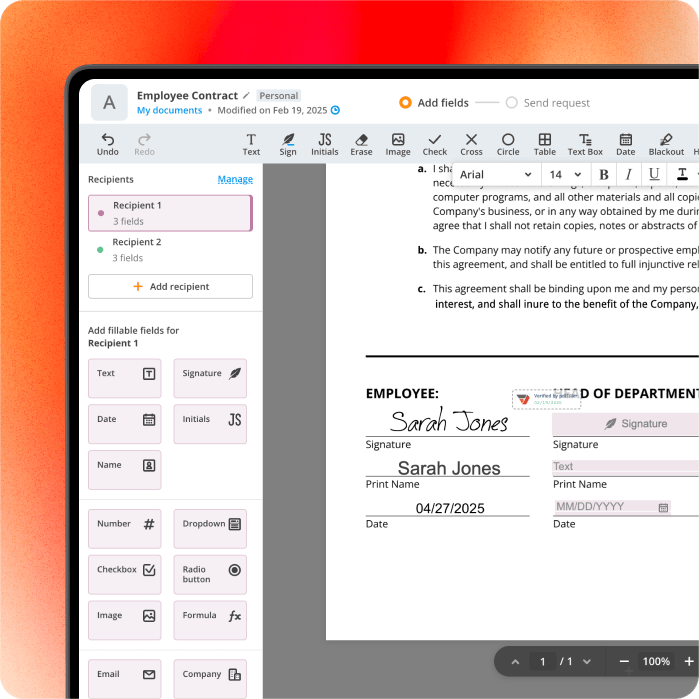
Generate your signature script quickly and easily using pdfFiller's intuitive tool for self-signing documents.

What is the Signature Script Generator?

The Signature Script Generator is a user-friendly tool designed for self-signing documents. It allows you to create legally binding e-signatures without the need for complex setups or sending documents for signature. With pdfFiller, you can generate your signature quickly and efficiently, ensuring that your document workflows remain smooth and hassle-free.

How This Tool Solves Document Workflow Problems

Document workflows often face delays when signatures are required. The Signature Script Generator addresses these common issues by enabling you to sign documents instantly. This speed is crucial for small businesses that need to maintain efficiency in their operations. By integrating with other tools, pdfFiller enhances your overall document management experience, allowing you to focus on what matters most: your business.

Three Ways to Create Your Signature

With pdfFiller, you can create your signature using three methods: Draw, Type, and Upload. Each method produces a legally binding signature, giving you the flexibility to choose based on your preferences. Whether you prefer to draw your signature freehand, type it out in a selected font, or upload an image of your handwritten signature, pdfFiller makes it easy for everyone to create a signature that suits their needs.

How to Draw Your Signature

To draw your signature, you can use a mouse, touchpad, or stylus. Start by selecting the Draw method in the Signature tool. Once activated, you can customize the appearance by choosing the color and line thickness. For best results, practice drawing your signature a few times before finalizing it. This method is perfect for those who want a personal touch in their signature.

Typing Your Signature

To type your signature, select the Type method in the Signature tool. You can choose from various font styles and colors to create a signature that reflects your personality. After typing your name, you can easily place it on the document. This method is ideal for users who prefer a clean and professional look for their signature.

Uploading an Image of Your Signature

To upload your signature, select the Upload method in the Signature tool. Supported file formats include JPEG, PNG, and GIF. Ensure that the image quality is high for the best results. Once uploaded, you can place your signature on the document. This method is useful for those who already have a handwritten signature image they want to use.

Adding Your Initials

You can add your initials using the same three methods: Draw, Type, and Upload. Adding initials is important for documents that require quick acknowledgment. Customize your initials just like your signature, ensuring they match your style and preferences. This feature is particularly useful for contracts and agreements where initials are needed for validation.

Customizing Your Signature Appearance

pdfFiller allows you to customize your signature's appearance. You can adjust color and thickness for drawn signatures, resize and reposition any signature, and choose font styles for typed signatures. Customization is essential for creating a signature that aligns with your personal or brand identity, making your documents look professional.

Saving and Reusing Your Signatures

Once you create a signature, you can save it to your pdfFiller account for future use. This feature allows you to set a default signature, streamlining your signing process for subsequent documents. Reusing signatures saves time and ensures consistency across your signed documents, enhancing your overall efficiency.

Step-by-Step Instructions for Signature Creation

  • Select the Signature tool in the pdfFiller editor.
  • Choose your preferred method: Draw, Type, or Upload.
  • If drawing, use your mouse or stylus to create your signature.
  • If typing, select a font and color, then type your name.
  • If uploading, click to upload your signature image file.
  • Customize your signature's appearance as desired.
  • Save your signature for future use.
  • Place your signature on the document where needed.

Legal Validity of Your Signature

Signatures created with pdfFiller comply with legal standards such as ESIGN, UETA, eIDAS, and GDPR. This compliance ensures that your signatures are legally binding. The importance of legal validity cannot be overstated, as it protects both parties involved in a transaction. Additionally, pdfFiller provides an audit trail for each signed document, enhancing its legal standing.

Understanding the Audit Trail and Verified Badge

pdfFiller generates a timestamped audit trail for each document signed, which includes details of the signing process. This feature is crucial for maintaining transparency and accountability. The Verified by pdfFiller badge attached to your signed documents further confirms their authenticity, providing peace of mind for all parties involved.

Real-World Scenarios for Using Signature Scripts

Consider the following scenarios where the Signature Script Generator proves invaluable:

  • Signing a lease agreement quickly to secure a rental property.
  • Authorizing a business contract without delays, ensuring timely execution.
  • Completing forms for clients efficiently, enhancing service delivery.
  • Freelancers can sign contracts with clients promptly, maintaining professionalism.

Browser and Device Compatibility

pdfFiller's Signature Script Generator is compatible with all major web browsers, including Chrome, Firefox, and Safari. It also works seamlessly on mobile devices, allowing you to sign documents on the go. For the best experience, ensure your browser is updated to the latest version.

Limitations of the Signature Tool

While the Signature Script Generator is powerful, it has limitations. You cannot request signatures from others; this tool is strictly for self-signing. Additionally, saved signatures must be manually placed on each document, as they do not auto-apply. Understanding these constraints helps you use the tool effectively.

Security Measures for Your Signatures

pdfFiller employs robust encryption standards to protect your signed documents. Data handling practices prioritize user privacy, ensuring that your information remains secure. The importance of security in e-signatures cannot be overlooked, as it safeguards sensitive information from unauthorized access.

Connecting Self-Signing to Send to Sign Workflows

Self-signing with pdfFiller can easily transition to Send to Sign workflows when additional signers are needed. This integration enhances user experience by allowing you to manage all signing processes within a single platform. It simplifies the workflow for businesses that require multiple signatures on documents.

Comparing pdfFiller with Other Signature Tools

When comparing pdfFiller to other signature tools like DocuSign, Adobe Acrobat Sign, and Dropbox Sign, several differentiators stand out. pdfFiller offers a more intuitive interface, making it easier for small businesses to adopt. Unlike Adobe Acrobat Sign, pdfFiller does not require extensive training, and it provides a wider range of ready-to-use templates. Additionally, pdfFiller's pricing structure is more accessible for small and medium-sized businesses, making it a preferred choice.

Next Steps

Now that you understand how to create and manage your signature using pdfFiller, you can enhance your document workflow. Start by filling out your documents, signing them with ease, and sharing them efficiently. Embrace the digital transformation with pdfFiller, where signing documents is just the beginning.

Try most popular PDF tools

Discover a full set of tools to handle any document task.

Edit PDFs

Make quick PDF edits online.

Sign

Add legally binding signatures.

Merge

Combine multiple PDFs.

Request signatures

Send a document for signing.

Convert

Transform PDFs into other formats.

Rearrange

Change the order of pages.

Share

Send PDFs for review or editing.

Compress

Reduce PDF file sizes.

How to sign a document online?

Upload

Signing and editing documents has never been easier

  • Edit and sign in one place Quickly eSign documents after reviewing or editing — no need to juggle tools and move files back and forth. Get your PDFs done fast with all the tools you need at your fingertips.
  • Easy sharing & collaboration After signing a document, share it instantly with clients and stakeholders for review, editing, or comments. To request signatures from other parties, add fillable fields and send the document for signing.
  • Mobile-ready solution Easily edit, sign, and send your documents from anywhere, even on the go. pdfFiller is entirely cloud-based, so you can manage documents effectively from your computer, smartphone, or tablet.
  • Legally binding & secure Sign contracts and agreements following global eSignature laws, including ESIGN, UETA, eIDAS, and GDPR. With HIPAA, PCI DSS, SOC 2 Type II, and other compliance standards, pdfFiller works for any industry.

Who needs this?

Explore how professionals use pdfFiller to sign documents.

Healthcare

Healthcare professionals use pdfFiller to simplify document signing, from patient consent forms to medical record requests. They can easily request, approve, and share signed documents with patients, staff, or suppliers, saving time and improving communication.

  • Patient consent forms
  • Prescription forms
  • Lab test requisition forms
  • Referral and consultation forms
Healthcare
  • G2 — Users Most Likely To Recommend
  • G2 — Grid Leader in Small-Business
  • G2 — High Performer
  • G2 — Regional Leader
  • G2 — Easiest To Do Business With
  • G2 — Best Meets Requirements
  • G2 — Best Support

pdfFiller scores top ratings on review platforms

pdfFiller is rated 4.6 out of 5 stars across 1,000+ G2 reviews.

I'm so impressed with it's robust capability.
Thomas M
I originally downloaded Adobe Flash Player thinking I could make my own PDS I was wrong it was I'm no help. Just by doing a simple internet search. I came across your website it's amazing. It does everything I needed to do and more so happy I found it! I'm a landlord and now I can send applications online and fill out leases online so convenient.
Nowland Kenyon Properties
Mainly great with a few difficult transitions.
Peter F
This is an excellent platform for editing PDF's. I dare say I prefer it to Adobe!
Neena
Gostei muito e tem sido muito útil para o que desejo.
Maria Helena M
Great product easy to navigate. I simply have no need for a subscription as i required one time use only
Anonymous Customer

eSign documents with a trusted, all‑in‑one solution

Try easy-to-use tools for all your document management needs.

pdfFiller workspace for creating, filling and managing PDF forms

Why sign documents with pdfFiller?

Ease of use

Watch pdfFiller eSignatures in action

Check out a quick video tutorial that shows how to create and place your signature or send a document for signing.

FAQs

If you can't find what you're looking for, please contact us anytime!

A Signature Script Generator is a digital tool that creates personalized signatures for electronic documents. It works by allowing users to input their name or initials, and then generates a stylized signature that can be used in various formats, including PDFs. This tool is particularly useful for remote professionals and legal teams who require secure and efficient document management. To maximize its effectiveness, consider using a Signature Script Generator that offers cross-platform compatibility, ensuring you can use your signature across different devices and applications.

Using a Signature Script Generator enhances document security by providing a unique digital signature that verifies the identity of the signer. This is crucial for legal teams and SMEs who need to ensure the authenticity of their documents. By integrating security protocols such as encryption and authentication, a Signature Script Generator can safeguard sensitive information. For best practices, always choose a generator that complies with industry standards for digital signatures, ensuring your documents remain secure during the signing process.

Yes, most Signature Script Generators allow for customization of your signature. Users can adjust the style, size, and color to create a signature that reflects their personal or brand identity. This feature is particularly beneficial for remote professionals who want to maintain a consistent brand image across their documents. To achieve the best results, experiment with different styles and ensure that your signature remains legible and professional, especially when used in formal documents.

A cloud-based Signature Script Generator offers several advantages, including accessibility, collaboration, and document automation. Users can access their generated signatures from any device with internet connectivity, making it easy to sign documents on the go. This is especially useful for legal teams and remote professionals who often work from various locations. Additionally, cloud-based solutions typically integrate with other document management tools, streamlining workflows. To leverage these benefits, look for a Signature Script Generator that offers seamless integration with your existing document management system.

To ensure your Signature Script Generator complies with legal standards, choose a tool that adheres to regulations such as the ESIGN Act and UETA in the United States. These regulations outline the legal validity of electronic signatures. A compliant Signature Script Generator will provide features like audit trails and secure storage of signed documents, which are essential for legal teams. Always verify the generator's compliance documentation and user reviews to confirm its reliability and legal standing.

When selecting a Signature Script Generator for business use, prioritize features such as security, ease of use, and integration capabilities. Look for generators that offer robust security protocols, including encryption and multi-factor authentication, to protect sensitive documents. Additionally, ensure the tool is user-friendly and compatible with various document formats. For businesses, a Signature Script Generator that integrates with existing document management systems can significantly enhance workflow efficiency. Always test the generator with sample documents to evaluate its performance before committing.

Yes, many Signature Script Generators support multiple signers on a single document, making them ideal for collaborative projects. This feature allows different individuals to sign documents in a designated order, which is essential for legal teams and remote professionals working on contracts or agreements. To facilitate this process, choose a Signature Script Generator that offers features like automated reminders and tracking for each signer, ensuring that all parties complete the signing process efficiently.

What businesses achieve with pdfFiller

Discover how you can benefit too.

pdfFiller allows us to tap into additional markets and sell business we might not otherwise have sold because of the speed and ease with which we can produce the forms.

Scaturro Insurance Agency LLC

One tool. Every document task.

One workflow shouldn’t take five tools

Start free trial