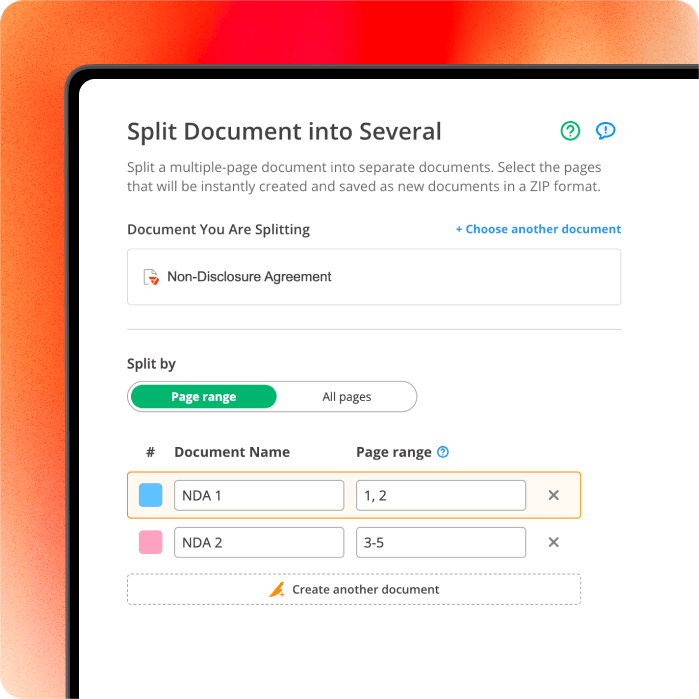
Split PDF and Convert PDF to Word for Server For Free

Drop document here to upload
Select from device
Up to 100 MB for PDF and up to 25 MB for DOC, DOCX, RTF, PPT, PPTX, JPEG, PNG, JFIF, XLS, XLSX or TXT

Last updated on Sep 17, 2026

Split PDF and Convert PDF to Word for Server

Split PDFs effortlessly and convert them to Word documents using pdfFiller.

What is the Split Tool?

The Split tool is designed to split PDF files into smaller, more manageable documents. It allows users to break down multi-page PDFs into individual files while maintaining the integrity of the original document. This tool features a user-friendly interface that makes it accessible for small businesses and professionals who may not have technical expertise. By using this tool, you can quickly access the functionality needed to manage your documents effectively.

How Does Splitting Solve Document Issues?

Splitting PDFs can significantly streamline document workflows. By breaking down large files, you make sharing easier and more efficient. This process allows you to isolate specific pages for targeted distribution, which is particularly useful for various professional document types. For example, a marketing team can share only relevant sections of a report, enhancing collaboration among team members and ensuring that everyone has access to the information they need.

Extracting Specific Pages from a PDF

  • Select the PDF file you want to work with.
  • Choose the individual pages you wish to extract.
  • Create a new standalone PDF that includes only the selected pages.
  • This feature is particularly useful for forms and contracts that require specific sections.
  • Utilize the simple user interface for quick actions without unnecessary complexity.

How to Split PDFs by Page Range

  • Open the PDF file you want to split.
  • Define specific page ranges for the output files.
  • Generate multiple named output files based on your defined ranges.
  • This method is ideal for reports and presentations that require specific sections to be shared.
  • Navigate the easy-to-use interface to complete the task efficiently.

Splitting Every Page into Separate PDFs

  • Select the PDF file you wish to split.
  • Choose the option to split all pages into individual PDFs.
  • Each page will be saved as its own PDF file.
  • The output files will be packaged as a ZIP archive for easy download.
  • This method is particularly useful for large documents that need to be divided into smaller, accessible files.

Saving and Downloading Output Files

After splitting your PDFs, the output files are saved to MyDocs. You have the option to download individual files or a ZIP package containing all the split files. This setup allows for easy access to your documents for future use, supporting various file types to meet your needs.

What Happens to the Source Document?

When you use the Split tool, the original document remains unchanged. No modifications or deletions occur, ensuring that the integrity of the original PDF is maintained. This feature is particularly important for sensitive information, as it guarantees that the source document is safe and intact.

Split vs. Delete Pages: Key Differences

Understanding the differences between splitting and deleting pages is essential for effective document management. Splitting creates new files without altering the original document, while deleting removes pages from the original PDF. Each function serves different use cases; for instance, splitting is useful for creating targeted documents, whereas deleting is more appropriate for cleaning up unnecessary content.

Editing Split Files After Creation

Once you have split your PDF files, you can open the output files in the editor. This allows you to annotate, fill, or sign the documents as needed. The transition from splitting to editing is straightforward, supporting various document types to enhance your workflow.

Supported Formats and Output Types

The Split tool accepts various input formats for splitting. All output files are generated as PDFs, ensuring compatibility with different document types. This versatility allows you to work with a wide range of documents, making it easier to manage your files effectively.

Scenarios for Using the Split Tool

There are numerous practical scenarios for using the Split tool. For example, you may need to extract a signed page for sharing with a client, separate report chapters for distribution among team members, or isolate a form page for editing. These scenarios highlight the tool's utility across various professional roles, making it an essential resource for document management.

Limitations and Known Constraints

While the Split tool is highly effective, it does have limitations. There are file size limits for uploads and page count limits for splitting. Additionally, certain features may be constrained based on your plan tier, which is important for user planning and expectations.

Free vs. Paid Access to Split Features

There are distinct differences between free and paid access to the Split tool's features. Free plans offer basic splitting capabilities, while upgrading to paid plans unlocks additional benefits and features. Understanding these distinctions is crucial for budget-conscious users who want to maximize their document management capabilities.

Browser and Device Compatibility

The Split tool is compatible with a variety of browsers and operating systems, ensuring accessibility for all users. You can access the tool on mobile devices without the need for installation, making it convenient for on-the-go document management.

How Does pdfFiller Compare?

pdfFiller's Split tool stands out in comparison to other PDF tools like ilovepdf, Smallpdf, and Adobe Acrobat Online. Key differentiators include its user-friendly interface, extensive template library, and the ability to manage documents without complex setups. Each competitor offers unique features, but pdfFiller's focus on small and medium businesses provides a tailored experience that meets specific needs.

Next Steps After Splitting PDFs

After splitting your PDFs, you can easily transition to editing, signing, or sharing the documents. This capability enhances your overall document management and is essential for efficient workflows, allowing you to handle your documents with greater flexibility.

Try most popular PDF tools

Discover a full set of tools to handle any document task.

Edit PDFs

Make quick PDF edits online.

Sign

Add legally binding signatures.

Merge

Combine multiple PDFs.

Request signatures

Send a document for signing.

Convert

Transform PDFs into other formats.

Rearrange

Change the order of pages.

Share

Send PDFs for review or editing.

Compress

Reduce PDF file sizes.

How to split a PDF?

1. Upload

An easy-to-use tool for splitting PDFs

  • Split & edit in one place Separate PDFs into smaller, more manageable files and jump straight into editing. From adding text and annotations to rearranging pages, handle documents from start to finish.
  • Split, sign, done Need to eSign just one section of a PDF? Split it, eSign, and send it off in seconds—no printing or scanning needed.
  • Organize like a pro Turn bulky PDFs into neatly split files and keep them organized in pdfFiller’s cloud. With folders, smart tags, and quick search tools, managing your documents is a breeze.
  • Share only what matters Share only the pages you need. Split your file, extract sections, and share them instantly for review, editing, or signing via email or a secure link—perfect for quick collaboration.

Who uses this tool?

Explore how professionals use pdfFiller to split and share documents.

Sales

Split large contracts or proposals into smaller, client-specific sections. Share only the relevant pages with clients or vendors, keeping communication clear and focused.

  • Client-specific contracts
  • Proposal sections
  • Vendor agreements
Sales
  • G2 — Users Most Likely To Recommend
  • G2 — Grid Leader in Small-Business
  • G2 — High Performer
  • G2 — Regional Leader
  • G2 — Easiest To Do Business With
  • G2 — Best Meets Requirements
  • G2 — Best Support

pdfFiller scores top ratings on review platforms

pdfFiller is rated 4.6 out of 5 stars across 1,000+ G2 reviews.

I'm new to the system so I'm still learning it but it seems to be pretty self explanatory.
Chris M
It has saved me a lot of time with government paperwork.
Eric B
We just really started using this system, so far so good.
Melaine
Im pleased with pdffiller and all of the features it allows me to use. With ease.
Tzoa
Hands down the best pdf editor period. I was able to white out and edit my document. No other application has given me this ability and it saved me so much time.
Anonymous Customer
Kara was a great help when I was just… Kara was a great help when I was just starting off with pdfFiller. She guided me through some of my questions and answered all of my questions with detail.
Michael Curtis

Split documents with a trusted, all-in-one solution

Try pdfFiller for all your document management needs.

pdfFiller workspace for creating, filling and managing PDF forms

Why trust pdfFiller to split your documents?

All-in-one solution

Watch pdfFiller in action

Check out this video tutorial to learn the basics of PDF editing and document management with pdfFiller.

FAQs

If you can't find what you're looking for, please contact us anytime!

To split a PDF and convert it to Word for server use, utilize pdfFiller's cloud-based tools. Start by uploading your PDF to pdfFiller, then select the 'Split PDF' feature to divide your document into smaller files. After splitting, choose the 'Convert to Word' option for each segment. This method ensures that your documents remain secure and accessible across different platforms, making it ideal for remote professionals and legal teams. For optimal results, ensure your server has the necessary permissions to handle file conversions.

When using pdfFiller to split PDFs and convert them to Word for server applications, robust security protocols are implemented. pdfFiller employs encryption during file uploads and downloads, ensuring that your documents are protected from unauthorized access. Additionally, all files are stored temporarily and deleted after processing, maintaining confidentiality. For organizations handling sensitive information, this level of security is crucial, making pdfFiller a reliable choice for document automation and management.

Yes, you can automate the process of splitting PDFs and converting them to Word for server use with pdfFiller's API. By integrating the API into your server environment, you can set up automated workflows that handle document management tasks without manual intervention. This is particularly beneficial for SMEs that require efficiency and consistency in document processing. To get started, refer to the pdfFiller API documentation for detailed instructions on setting up automated tasks.

When splitting large PDFs and converting them to Word for server applications, follow these best practices: First, assess the content of your PDF to determine logical split points, such as chapters or sections, to maintain context. Use pdfFiller's 'Split PDF' feature to create manageable file sizes, which will facilitate easier conversion to Word. Additionally, ensure that your server has adequate resources to handle multiple conversions simultaneously to avoid performance issues. This approach not only enhances efficiency but also improves user experience.

Yes, maintaining formatting when converting split PDFs to Word is possible with pdfFiller. The platform is designed to accurately preserve the layout, fonts, and images during the conversion process. To ensure the best results, use the 'Convert to Word' feature immediately after splitting your PDF, as this minimizes potential formatting loss. For documents that require precise formatting, consider reviewing the converted Word files for any adjustments needed, especially for complex layouts.

After splitting a PDF on a server using pdfFiller, you can convert the resulting files to Word format, as well as other formats like TXT or RTF. This flexibility allows you to choose the best format for your needs, whether for editing or sharing. To convert, simply select the desired file and choose the 'Convert to Word' option. This capability is particularly useful for legal teams and remote professionals who need to repurpose documents for various applications.

pdfFiller ensures cross-platform compatibility when splitting PDFs and converting them to Word by utilizing a cloud-based architecture that supports various operating systems and devices. This means that whether you're using Windows, macOS, or mobile devices, you can access pdfFiller's features seamlessly. Additionally, the converted Word documents are compatible with major word processing software, allowing for easy collaboration among remote teams. For best results, always check that your software is updated to the latest version.

Transforming businesses with pdfFiller

Check out these success stories.

This saved us an incredible amount of time! It feels like pdfFiller was custom-created for us.

Sales Frontline Insurance Group

One tool. Every document task.

One workflow shouldn’t take five tools

Start free trial