Purchase Order Templates

Get eSignatures done in a snap

Prepare, sign, send, and manage documents from a single cloud-based solution.

What are Purchase Order Templates?

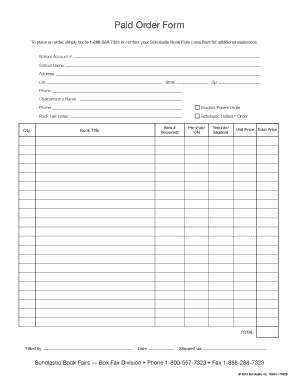
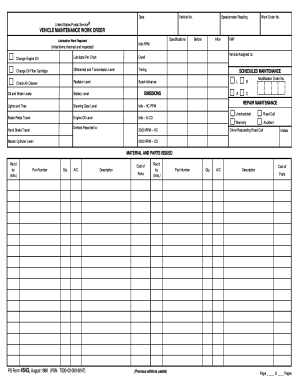
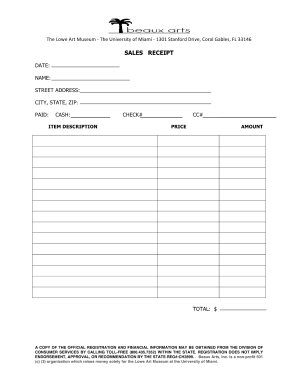
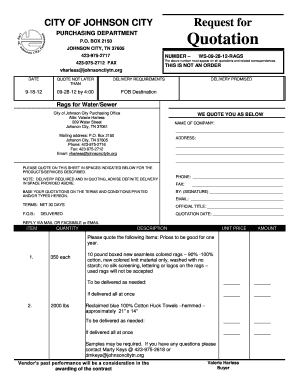
Purchase Order Templates are pre-designed forms or layouts that companies use to create and control their purchasing process. These templates help streamline the ordering process, ensuring accuracy, consistency, and efficiency in purchasing goods or services.

What are the types of Purchase Order Templates?

There are several types of Purchase Order Templates available, including: Standard Purchase Order - used for one-time purchases, Blanket Purchase Order - for recurring purchases, Planned Purchase Order - for future orders, Contract Purchase Order - for long-term agreements, and Electronic Purchase Order - for digital transactions.

Standard Purchase Order
Blanket Purchase Order
Planned Purchase Order
Contract Purchase Order
Electronic Purchase Order

How to complete Purchase Order Templates
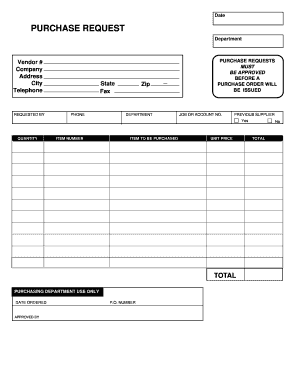
Completing Purchase Order Templates is a simple process that involves filling in the required information accurately. Here are the steps to complete a Purchase Order Template:
01
Enter the vendor's information, including name, address, and contact details.
02
Specify the details of the items or services being ordered, including quantity, price, and delivery date.
03
Add any special instructions or terms and conditions related to the purchase.
04
Review the completed Purchase Order Template for accuracy and completeness before submitting it to the vendor.

pdfFiller empowers users to create, edit, and share documents online. Offering unlimited fillable templates and powerful editing tools, pdfFiller is the only PDF editor users need to get their documents done.

Video Tutorial How to Fill Out Purchase Order Templates
Thousands of positive reviews can’t be wrong

Read more or give pdfFiller a try to experience the benefits for yourself
4.0
Easy to use Easy to use.
Easy to use Easy to use. Very helpful to fill out a form that normally is not required to be done online prior to Covid.
jchold22
4.0
I'm relieved it is HIPPA compliant.
I'm relieved it is HIPPA compliant. I was hoping I could use it in G suite... I am still becoming familiar with the product
Telemedicine
5.0
PDF filler is a very useful bit of software.
PDF filler is a very useful bit of software. The support is also wonderful and available 24/7 . I needed a PDF filler for one project and forgot to cancel the trial subscription. PDF filler support cheerfully refunded my money when requested. They certainly seem to strive for happy customers.
Michael R
4.0
Excellent customer service -- quick response time and great problem-solving abil...
Excellent customer service -- quick response time and great problem-solving ability. I found the PDFFiller app itself to be a little cumbersome to use. I'd hoped it would allow me to do what ***** does but for less money, but it was more like *********
Kate B

Questions & answers

0:00 7:14 Excel Tips (How to Create PO / Purchase Order) - YouTube YouTube Start of suggested clip End of suggested clip Welcome to the virtual office training today we will learn how to create vo purchase order inMoreWelcome to the virtual office training today we will learn how to create vo purchase order in Microsoft Excel just go to the file new on office template such box just type purchase order. And press
Tips on how to fill PO template: At the top right corner, fill in the Purchase order number. Enter order date as the date you order items and the delivery date as the expected date of delivery. In the item details table, include details like item description, quantity, and rate. The amount column gets auto-filled.
Create Your Own Purchase Order To help you kickstart your purchase order creation and optimization process, you can use these ready-to-use purchase order templates. Learn how to create purchase orders quickly with all the resources Visme has in store for you.
Open a blank Excel spreadsheet. Click on the "New" tab in the top left corner of the software. Select the "Purchase orders" option from the list that appears. Click on the template that matches the type of PO you plan to create.
How to create a purchase order in Word Open Microsoft Word. Open Microsoft Word and, under New Document, type in 'Purchase Order'. Format the page size. Add the company logo. Add the company slogan. Create a title. Add company information. Add contact information. Include the date.
Open a new Word document and select a template You can open Microsoft Word by clicking on the program on your desktop. Navigate to "New Document" and type "Purchase Order" into the search bar. This task prompts Word to display various templates, and you can pick whichever one you prefer.