Edit Google Drive Documents
Edit Google Drive documents quickly and easily with pdfFiller.
What pdfFiller's Platform Integrations Do
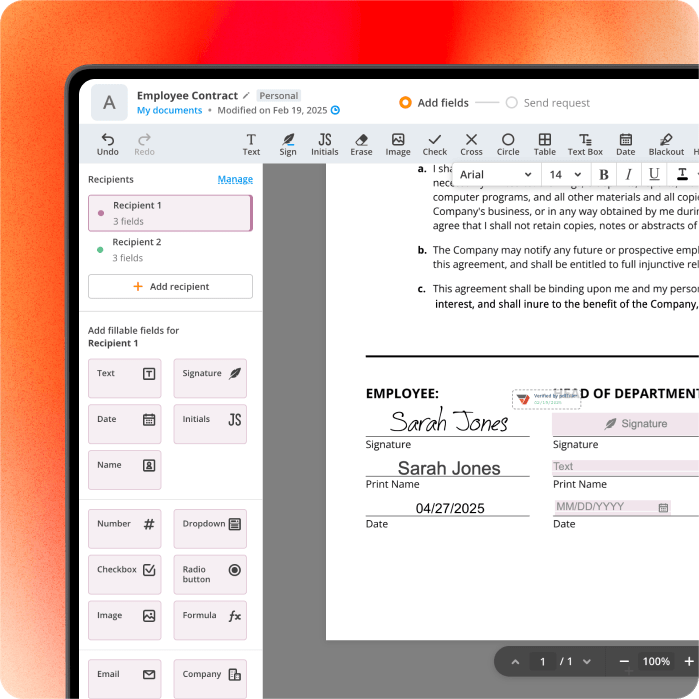
pdfFiller integrates seamlessly with Google Drive, allowing you to edit Google Drive documents with ease. To get started, connect your Google Drive account to pdfFiller. Once connected, you can open files directly from Google Drive, making it simple to access your documents. After editing, you can save changes back to Drive without any hassle. This functionality is available on any device, eliminating the need for installation and ensuring you can work from anywhere.
Filling, Editing, and Signing Google Drive Documents
To fill and sign documents directly from Google Drive, first, install the pdfFiller add-on from Google Workspace. After installation, authorize access to your Google Drive to enable editing capabilities. You can then open and edit Google Drive files in pdfFiller, making modifications as needed. Once you have completed your edits, save the finished documents back to Drive, ensuring your changes are preserved.
Filling, Editing, and Signing Dropbox Documents
To use pdfFiller with Dropbox, connect your Dropbox account to pdfFiller. You can then open files by selecting "Open with pdfFiller." After editing your documents, save them back to Dropbox for easy access. This integration also allows you to collaborate with team members efficiently, enhancing your document management process.
Filling, Editing, and Signing OneDrive Documents
Integrate pdfFiller with OneDrive by connecting your OneDrive account to pdfFiller. You can open OneDrive files in pdfFiller's editor, allowing you to make necessary edits. After editing, save your changes back to OneDrive, ensuring your documents are always up to date. This integration provides access to your documents from any device, making it convenient to work remotely.
Editing and Signing Xero Documents
To edit Xero documents using pdfFiller, you can directly edit invoices and reports from Xero. Collect e-signatures for your Xero documents easily, and automate your document workflows with pdfFiller. Additionally, you can access Xero data for pre-filling documents, streamlining your editing process.
pdfFiller and Salesforce Workflow Automation
With pdfFiller's integration with Salesforce, you can automate document workflows within Salesforce. Edit PDFs using data from Salesforce, making it easier to manage your documents. Collect e-signatures from Salesforce contacts to ensure your documents are signed promptly. This integration helps streamline your document processes, saving you time and effort.
Editing and Signing SharePoint Documents
To use pdfFiller with SharePoint, open SharePoint documents in pdfFiller for editing. After making changes, save them back to SharePoint, ensuring your documents are updated. Collaborate on documents with team members easily, and access your files from any device, enhancing your document management capabilities.
Sending and Signing Documents via Slack
Send documents for signing through Slack by integrating pdfFiller with your Slack account. You will receive notifications upon completion of the signing process, keeping you informed. Additionally, you can integrate with Zapier for automation, allowing for efficient collaboration with team members.
pdfFiller for Office 365 / Microsoft 365
Discover how to use pdfFiller with Office 365 by opening OneDrive documents as fillable PDFs. Edit and save changes back to OneDrive, ensuring your documents are always current. This integration allows you to access your documents from any device and collaborate with team members easily.
Integration Scenarios by Role, Platform, and Document Type
Consider practical scenarios for using integrations: a freelancer editing invoices in Google Drive can quickly make changes using pdfFiller. A small business managing contracts via Dropbox benefits from efficient document management through pdfFiller. An accountant using Xero for payroll documents can streamline their workflow by accessing and editing documents directly from Xero.
Limitations and Known Constraints
When using integrations, be aware of certain limitations. OAuth permission requirements must be met for each integration to function properly. Additionally, there are file size limits for cloud-imported documents, which may affect your editing capabilities. Supported Google Workspace editions may also vary, so ensure compatibility before proceeding.
Security and Data Handling
pdfFiller prioritizes data security by securely storing OAuth tokens. All data is protected with TLS encryption during transit, ensuring your documents are safe. A file retention policy is in place after processing, providing an additional layer of security for your sensitive information.
Comparison with Named Alternatives
pdfFiller offers seamless integration with Google Drive, making it a convenient choice for document editing. Unlike Adobe Acrobat, which lacks direct Google Drive integration, pdfFiller allows for easy access to your files. DocuSign focuses primarily on e-signatures, while pdfFiller provides a comprehensive document management solution.
Free vs. Paid Access for Platform Integrations
With pdfFiller, the free plan includes basic integrations, allowing you to get started without any cost. However, paid plans unlock advanced features that enhance your editing capabilities. Keep in mind that integration availability may vary depending on the plan you choose.
Summary and Next Steps
pdfFiller connects with multiple cloud services, allowing you to streamline your document workflows. Start using pdfFiller today to enhance your document management process and experience the benefits of efficient editing and signing.