Convert Excel to PDF and Reorder PDF for Macbook Pro For Free

Drop document here to upload
Select from device
Up to 100 MB for PDF and up to 25 MB for DOC, DOCX, RTF, PPT, PPTX, JPEG, PNG, JFIF, XLS, XLSX or TXT
Note: Integration described on this webpage may temporarily not be available.

Last updated on Sep 18, 2026

Convert Excel to PDF and Reorder PDF for Macbook Pro

Convert your Excel files to PDF quickly and easily using pdfFiller, accessible from any device without installation.

What is the Excel to PDF Conversion Tool?

The Excel to PDF conversion tool allows you to Convert Excel to PDF effortlessly. This tool is ideal for small businesses that need a reliable way to manage their digital documents. With pdfFiller, there is no software installation required, making it accessible from any device. The user-friendly interface ensures that anyone can navigate the tool without technical expertise. Additionally, it supports legally binding e-signatures, enhancing your document management capabilities.

Why Convert Excel to PDF?

Converting Excel files to PDF offers several advantages. First, it preserves formatting, ensuring that your data appears exactly as intended. Second, PDF files are easy to share, allowing you to send documents without worrying about compatibility issues. Third, PDFs provide universal compatibility across different devices and operating systems. Finally, converting to PDF is ideal for printing, as it maintains the integrity of your layout and design.

How to Access the Excel to PDF Tool

To access the tool to Convert Excel to PDF, you can use several methods. First, locate the dropdown menu on the pdfFiller homepage. Next, you can find the All Tools card, which provides a direct link to the conversion tool. Alternatively, you can access it through the document row menu. Importantly, no technical setup is required, making the process straightforward and efficient.

Uploading Your Excel Files

Uploading your Excel files for conversion is a simple process. The tool supports various file formats, ensuring flexibility in your document management. You can utilize the drag-and-drop functionality to easily upload files. Once uploaded, the system automatically converts your documents, and there are no size limits to worry about, allowing you to work with larger files without hassle.

Step-by-Step Guide to Convert Excel to PDF

  • Select the Excel file you wish to convert.
  • Choose PDF as the output format from the available options.
  • Click the convert button to initiate the conversion process.
  • Download the converted PDF file to your device.

Supported Output Formats

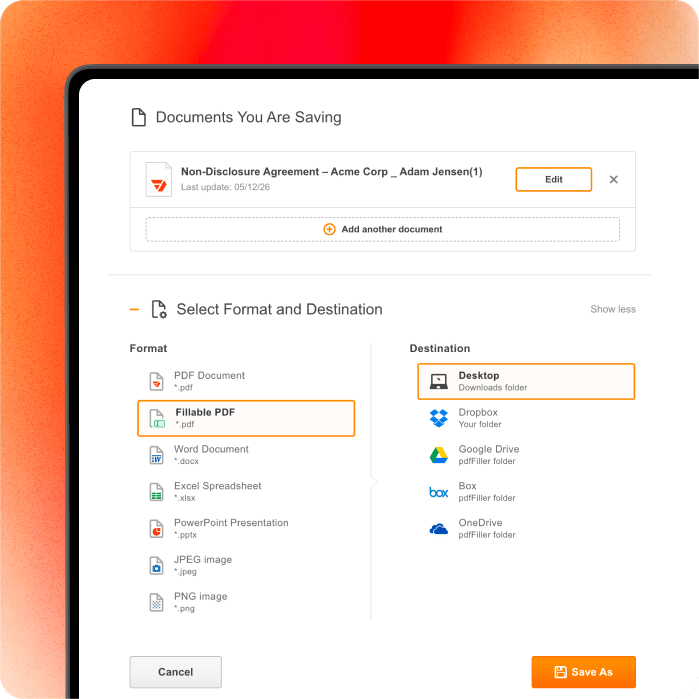
pdfFiller supports multiple output formats for your converted files. You can convert your documents to PDF, Word, Excel, and various image formats. This versatility allows you to manage your digital documents effectively, catering to different needs and preferences.

Quality of Converted Files

When you Convert Excel to PDF using pdfFiller, you can expect high-quality results. The layout fidelity is maintained, ensuring that your document looks professional. However, be aware that while some PDFs may be editable, others might have limitations due to OCR (Optical Character Recognition) capabilities. Quality assurance processes are in place to ensure that your converted files meet your expectations.

Comparing Excel to PDF Conversion with Other Methods

When considering how to Convert Excel to PDF, it's important to compare this method with alternatives. For instance, Adobe Acrobat offers comprehensive features but can be complex and costly for small businesses. In contrast, pdfFiller provides ease of use and cost-effectiveness, making it a better option for many. Additionally, the speed of conversion with pdfFiller is often superior, allowing you to complete tasks quickly and efficiently.

Scenarios for Using Excel to PDF Conversion

There are various scenarios where converting Excel to PDF is beneficial. For accountants, this conversion ensures accurate financial reporting and easy sharing of spreadsheets. Project managers can use PDFs for project plans and timelines, ensuring clarity and consistency. Marketing teams often convert Excel data into PDFs for presentations and reports, while legal documents require precise formatting that PDFs provide.

Security and Data Handling

Security is a top priority when using pdfFiller for document conversion. The tool employs server-side processing to handle your files securely. Data encryption is utilized to protect your information during the conversion process. Additionally, pdfFiller adheres to strict privacy policies, ensuring that your documents are handled with care and confidentiality.

Try most popular PDF tools

Discover a full set of tools to handle any document task.

Edit PDFs

Make quick PDF edits online.

Sign

Add legally binding signatures.

Merge

Combine multiple PDFs.

Request signatures

Send a document for signing.

Convert

Transform PDFs into other formats.

Rearrange

Change the order of pages.

Share

Send PDFs for review or editing.

Compress

Reduce PDF file sizes.

How to convert your PDF?

1. Upload your document

All-in-one PDF converter: Convert, edit, sign, and manage documents

  • Convert and edit docs in one place Upload your document, make quick edits online, and save it as a PDF, text document (DOCX), spreadsheet (XLSX), image (JPEG/PNG), or presentation (PPTX).
  • Equip yourself with powerful PDF tools Edit PDFs online almost as easily as Word documents. Add text, adjust formatting, replace content, insert images, and more.
  • eSign and send documents Sign documents on your own or send them to others for signatures, whether a single recipient or an entire group.
  • Annotate & collaborate Highlight important data, redact sensitive details, add sticky notes, and exchange comments in your PDFs. Then, instantly send documents for review or editing.
  • Collect data without chasing people down Create fillable PDF forms and let others complete them from any device. Publish forms online or share them via a direct link to capture data and signatures.
  • Store files securely in the cloud Organize your documents and templates in secure cloud storage and access them from anywhere. pdfFiller follows strict security regulations to help safeguard your data.

Who needs this?

Explore how professionals across industries use pdfFiller to convert PDFs online.

Real Estate

Real estate agents and brokers rely on pdfFiller to edit and annotate brochures, lease agreements, and contracts. They can easily convert documents to formats like JPEG, PDF, DOCX, or XLSX for quick sharing and signature collection.

  • Property listing brochures
  • Lease agreements
  • Sales contracts
  • Property management forms
Real Estate
  • G2 — Users Most Likely To Recommend
  • G2 — Grid Leader in Small-Business
  • G2 — High Performer
  • G2 — Regional Leader
  • G2 — Easiest To Do Business With
  • G2 — Best Meets Requirements
  • G2 — Best Support

pdfFiller scores top ratings on review platforms

pdfFiller is rated 4.6 out of 5 stars across 1,000+ G2 reviews.

Nice convenient Clearing house for forms
Ray S
I like it but I wish I could just change out a document using the same link to share without having to create a new document.
Monique
It was easy and made my life much easier.
Beth C
THIS PROGRAM IS VERY EASY TO USE AND VERY PROFESSIONAL! LOVE EVERY ASPECT OF IT!
CRYSTAL M
User friendly for those even with minimal form filling experience. I would highly recommend.
Anonymous Customer
I would like to express my satisfaction… I would like to express my satisfaction of the help that the guys from pdfFiller gave me with my problem with cancelling my subscription. They were very prompt and very efficient and were very user friendly. THANK YOU
Stephanie Hayden

Convert documents with a trusted solution

Try easy-to-use tools for all your document management needs.

pdfFiller workspace for creating, filling and managing PDF forms

Why convert documents with pdfFiller?

More than a PDF converter

Watch our PDF converter in action

Check out a quick video tutorial that shows how to convert any file into an editable PDF in three easy steps.

FAQs

If you can't find what you're looking for, please contact us anytime!

To convert Excel to PDF and reorder PDF files on your MacBook Pro, use pdfFiller's online platform. Start by uploading your Excel file to pdfFiller, then select the 'Convert to PDF' option. Once converted, you can use the 'Reorder Pages' feature to arrange your PDF pages as needed. This process is straightforward and ensures that your documents maintain their formatting. For best results, ensure your Excel file is well-organized before conversion, as this will help preserve the layout in the final PDF.

Using pdfFiller to convert Excel to PDF and reorder PDF files offers several advantages, including cross-platform compatibility and enhanced security protocols. pdfFiller allows you to easily manage your documents in a secure cloud environment, ensuring that sensitive information remains protected. Additionally, the platform supports various file formats, making it easy to convert and reorder documents without losing quality. For remote professionals and legal teams, this means streamlined workflows and improved document management efficiency.

Yes, it is safe to convert Excel to PDF and reorder PDF files using pdfFiller. The platform employs robust security protocols, including encryption and secure cloud storage, to protect your documents during the conversion process. Users can confidently upload sensitive files, knowing that their information is safeguarded. For added security, consider using pdfFiller's document automation features to manage access and permissions for your PDFs, ensuring that only authorized personnel can view or edit the files.

Yes, pdfFiller allows you to convert multiple Excel files to PDF and reorder them simultaneously on your MacBook Pro. Simply upload all the Excel files you wish to convert, and use the batch processing feature to convert them into PDFs in one go. After conversion, you can easily reorder the pages of each PDF using the intuitive drag-and-drop interface. This feature is particularly useful for legal teams and SMEs that handle numerous documents, saving time and increasing productivity.

If the formatting changes after converting Excel to PDF, you can use pdfFiller's editing tools to adjust the layout. Start by reviewing the converted PDF for any discrepancies. If you notice issues, pdfFiller allows you to edit text, images, and other elements directly within the PDF. Additionally, ensure your Excel file is formatted correctly before conversion—using standard fonts and avoiding excessive formatting can help maintain the original look. For best practices, always preview your PDF before finalizing it.

While pdfFiller is a powerful tool for converting Excel to PDF and reordering PDFs, there are some limitations to be aware of. For instance, very large Excel files may take longer to convert, and complex formulas or macros may not translate perfectly into the PDF format. Additionally, while you can reorder pages easily, extensive editing of the content may require a subscription to access advanced features. To mitigate these issues, consider breaking down large files into smaller sections before conversion.

pdfFiller enhances document automation while converting Excel to PDF and reordering by integrating features that streamline the entire process. Users can set up templates and automate repetitive tasks, such as converting and organizing documents based on specific criteria. This is particularly beneficial for remote professionals and legal teams who manage a high volume of documents. By utilizing these automation features, you can save time and reduce errors in document management, ensuring a more efficient workflow.

What businesses achieve with pdfFiller

Discover how you can benefit too.

Other software options offering customized branding have really extreme pricing. Compared to the monthly costs of PandaDoc, we are now saving unbelievable amounts of money.

B2B Services Message Direct

One tool. Every document task.

One workflow shouldn’t take five tools

Start free trial