Convert PPT to PDF and Reorder PDF for Macbook Pro
Convert your PowerPoint presentations to PDF effortlessly using pdfFiller on your MacBook Pro.
What is the PPT to PDF Conversion Tool?
The PPT to PDF conversion tool is designed to convert PPT files to PDF format quickly. This tool is ideal for presentations and documents, ensuring that your content is preserved accurately. One of the major benefits is that no software installation is required, making it easy to use directly on your MacBook Pro. This simplicity allows you to focus on your presentations without getting bogged down by complex software jargon.
Why Convert PPT to PDF?
Converting your PowerPoint presentations to PDF has several benefits. First, it preserves formatting and layout, ensuring that your slides look exactly as intended. PDFs are easy to share and print, making them a preferred choice for document sharing. Additionally, PDFs are universally accessible, which means anyone can view them regardless of the software they have. For business use, PDFs are also legally binding, adding an extra layer of security to your documents.
How to Access the Convert Tool
- Open the pdfFiller application on your MacBook Pro.
- Access the Done dropdown menu located at the top of the interface.
- Select the All Tools card for conversion options.
- Find the Document row and click on the More menu option.
- Ensure compatibility across devices for seamless access.
Steps to Convert PPT to PDF
- Upload your PPT file by clicking the upload button.
- Select PDF as the output format from the dropdown menu.
- Click the convert button to initiate the conversion process.
- Download the converted PDF file to your device.
- No IT setup is required, making it accessible for everyone.
Supported Output Formats
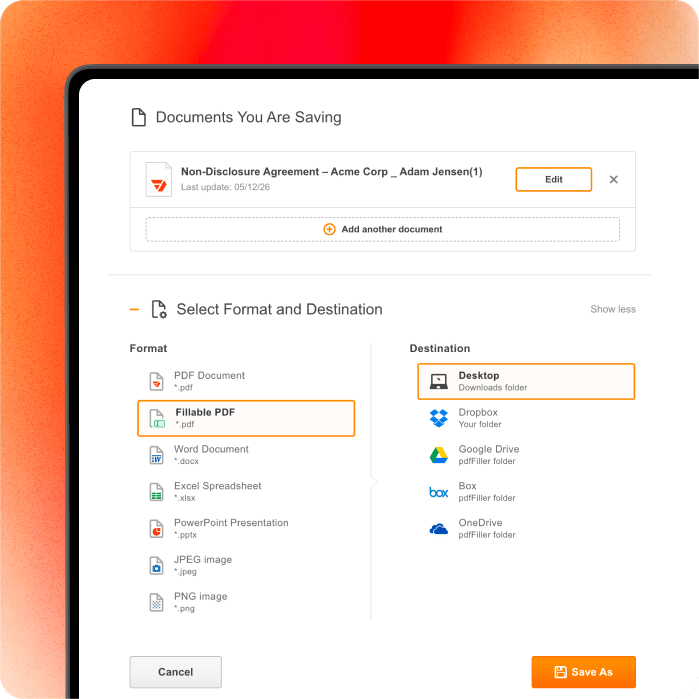
The primary output format supported is PDF (.pdf). Additionally, pdfFiller allows conversion to other formats such as Word, Excel, and Images. The availability of these formats may depend on your plan tier. Multi-page support is also provided for images, ensuring that all your content is captured effectively.
Input File Types for Conversion
For conversion, PPT files are accepted, allowing you to easily convert your presentations. Other formats such as Word, Excel, and Images can also be uploaded for conversion. The tool automatically converts files upon upload, ensuring a smooth workflow. Compatibility with various devices means you can convert files from anywhere.
What to Expect from Converted Files
When you convert PPT to PDF, you can expect high fidelity for native PDFs, ensuring that your documents look professional. However, be aware that OCR limitations may apply for scanned PDFs, which could affect text recognition. If you convert to Word format, the text will be editable, but complex layouts may vary from the original design.
Limitations of the Conversion Tool
There are some limitations to be aware of when using the conversion tool. Page count limits may apply depending on your plan tier, which could restrict the number of slides you can convert at once. Additionally, OCR availability is based on the plan you choose, and complex layouts may not convert accurately. Be mindful of restrictions that may apply when using named competitor tools.
Security and Data Handling
pdfFiller takes security seriously with its server-side conversion process. Data encryption is employed during transfer to protect your documents. The tool complies with privacy standards, ensuring that your information remains confidential. Importantly, there is no document retention post-conversion, so your files are not stored on their servers.
How Does pdfFiller Compare?
pdfFiller offers more templates compared to Adobe Acrobat, which provides extensive editing features but is more expensive. While Smallpdf has a user-friendly interface with essential tools, it has limited features compared to pdfFiller's comprehensive suite. ilovepdf focuses on basic PDF tasks but lacks flexibility in document management and templates.
Next Steps After Conversion
After converting your PPT to PDF, you can edit your PDF with pdfFiller to make any necessary changes. You can also sign documents digitally, ensuring a quick turnaround. Sharing your files via email or cloud storage is straightforward, and you can access templates for future use, streamlining your workflow.