Correct Texture in CSV
Correct text in your CSV files using pdfFiller's intuitive editing tools, accessible from any device.
What is Edit Mode for CSV Files?
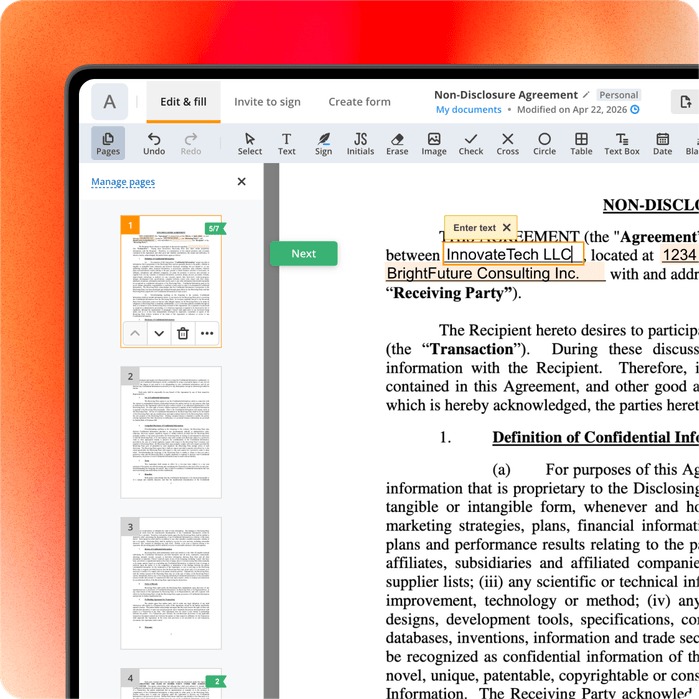
Edit Mode in pdfFiller allows users to modify text directly within CSV files. You can access this feature easily by clicking the Edit button. Once in Edit Mode, you can modify text blocks directly, making it simple to correct texture in CSV documents. This mode supports various formatting options, ensuring that your text appears as intended. With pdfFiller's user-friendly interface, you can avoid complicated software requirements that often accompany document editing.
How Does This Feature Solve Your Workflow Problems?
Correcting text in CSV files can often be a challenge for small businesses, especially when dealing with common issues like typos or outdated information. pdfFiller addresses these workflow problems by allowing direct editing without the need for file conversion. This feature is particularly beneficial for small business owners who need to ensure their documents are accurate and up-to-date. The ability to edit CSV files directly saves time and reduces frustration, making document correction a straightforward task.
Accessing Edit Mode for Your CSV Files
- Open your CSV file in pdfFiller.
- Click the Edit button located on the toolbar.
- Ensure your document is in an editable state.
- Navigate through the toolbar to access editing tools.
Editing Existing Text in Your CSV
To modify text directly in your CSV document, simply click on the text blocks you wish to edit. This allows you to navigate between elements easily and make necessary changes. Once you have finished editing, remember to save your changes to ensure that the correct texture in CSV is maintained. This straightforward process eliminates any confusing editing methods that can hinder productivity.
Adding New Text Blocks to Your CSV
In pdfFiller, you can insert new text into your CSV by adding free-floating text blocks. This feature provides initial formatting options that allow you to customize the appearance of the new text. You have the flexibility to place these text blocks anywhere in your document, ensuring that your content is organized and visually appealing. This capability enhances your document management process by allowing you to expand your CSV files as needed.
Removing Text from Your CSV Document
To delete unwanted text in your CSV, select the text you wish to remove and press the delete key. pdfFiller also provides an undo option, allowing you to revert changes if necessary. Maintaining clean documents is essential for effective communication, and knowing how to remove text efficiently contributes to this goal. This clear deletion process helps ensure that your CSV files remain accurate and professional.
Using the Whiteout Tool for Corrections
The Whiteout tool in pdfFiller allows you to cover text that needs correction without permanently deleting it. This tool differs from the Blackout feature, which completely obscures text. To apply the Whiteout tool, select the text you want to cover and choose the Whiteout option from the toolbar. This is particularly useful for making corrections while retaining the original content for reference.
Formatting Options for Your CSV Text
pdfFiller offers a variety of text formatting options for your CSV files. You can choose from different font families, adjust text sizes, and select various text colors. These formatting features allow you to enhance the visual appeal of your documents, ensuring that they are not only functional but also attractive. With these options, you can create documents that reflect your brand identity and meet your specific needs.
Find and Replace Functionality in CSV Editing
The Find & Replace functionality in pdfFiller enables you to locate specific text within your CSV files quickly. You can replace words or phrases with alternatives, streamlining the editing process. This efficiency is particularly beneficial for small business owners who need to make bulk changes to their documents. By utilizing this feature, you can ensure that your CSV files are consistently accurate and up-to-date.
Editing Native vs. Scanned CSV Files
When it comes to editing capabilities, there are significant differences between native and scanned CSV files. Native files allow for direct editing, making it easy to correct texture in CSV documents. In contrast, scanned files may have limitations that require Optical Character Recognition (OCR) for text editing. Understanding these differences is crucial for effective document correction, as it impacts how you approach editing tasks.
How Does pdfFiller Compare?
Adobe Acrobat offers advanced editing features but requires a subscription and complex setup. Tradeoff: Higher cost may not suit small businesses.
Foxit provides a range of editing tools but lacks the user-friendly interface of pdfFiller. Tradeoff: Steeper learning curve for new users.
Nitro is good for batch processing but can be expensive for small teams. Tradeoff: May not be cost-effective for infrequent users.