Create Brand Logo and Date in PDF
Add your brand logo to PDFs effortlessly using pdfFiller's tools.
What Branding Tools Do in pdfFiller
pdfFiller offers two layers of branding: document-level branding and workspace-level branding. Document-level branding allows you to add your brand logo to individual PDFs, while workspace-level branding applies your branding across all documents within your workspace. This ensures consistency and professionalism in your documents.
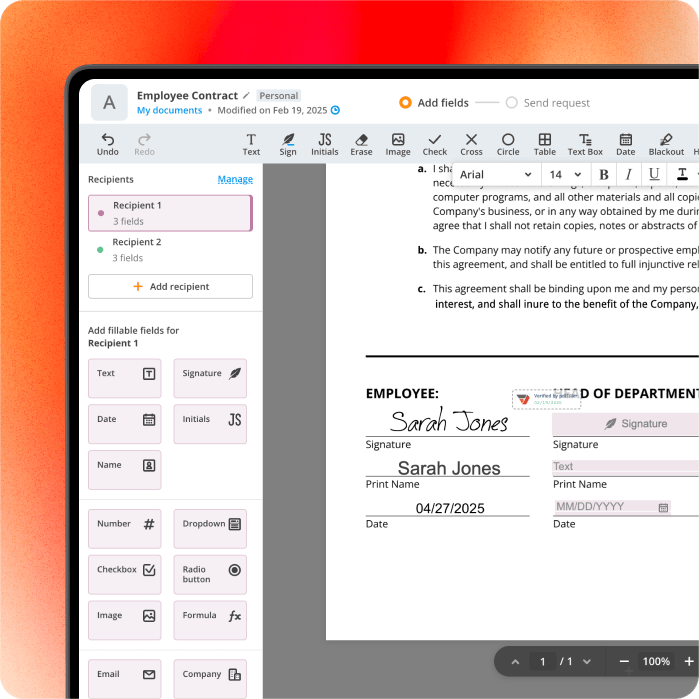
The Image Tool enables you to upload and place your logo directly onto your PDF, making it easy to personalize your documents. The Watermark Tool allows you to add a watermark to your PDFs, which can serve as a branding element or a security measure. Both tools are accessible without requiring any IT setup, making them user-friendly for small and medium-sized businesses.
Adding a Logo to a PDF
- Open the PDF document you want to edit in pdfFiller.
- Navigate to the toolbar and select the Image Tool.
- Upload your brand logo from your device.
- Click on the area of the PDF where you want to place the logo.
- Resize the logo by dragging the corners to fit your desired dimensions.
- Position the logo by clicking and dragging it to the preferred location on the PDF.
- Save your changes to ensure the logo is embedded in the document.
- Download or share the updated PDF with your brand logo included.
Applying a Watermark with the Watermark Tool
The Watermark Tool in pdfFiller allows you to apply either text or image watermarks to your documents. Text watermarks can be customized with different fonts and colors, while image watermarks let you use your logo or any other graphic. You can configure the size and transparency of the watermark to ensure it does not overpower the document content.
Additionally, you can set the page scope for the watermark, choosing whether it appears on all pages or just specific ones. This flexibility allows you to maintain brand visibility while ensuring your documents remain professional and readable.
Removing a Logo or Watermark from a Document
- Select the logo or watermark you wish to remove from the PDF.
- Press the delete key or click on the delete option in the toolbar.
- Confirm the removal of the logo or watermark when prompted.
- Save the document to finalize the changes.
Creating a Custom Email Signature
To set up a personalized email signature in pdfFiller, first, access the email signature settings from your account dashboard. You can customize your signature by adding your logo, contact information, and any other branding elements you wish to include. A well-designed email signature reinforces your brand identity and provides essential contact details.
Utilizing a custom email signature is important for maintaining professionalism in your communications and ensuring that your branding is consistent across all platforms.
Creating a Custom Email Footer
Setting up a custom email footer involves accessing the footer configuration settings in your pdfFiller account. You can add branding elements such as your logo or a tagline to the footer, enhancing your email's professional appearance. A custom footer can also include links to your website or social media profiles, providing additional branding opportunities.
The benefits of a custom footer include reinforcing your brand identity and providing recipients with easy access to your contact information and online presence.
Branding Scenarios by Role and Document Type
Here are a few practical branding scenarios that illustrate how different roles can utilize pdfFiller's branding tools:
- A marketing manager creating promotional PDFs can add a logo to enhance brand visibility and ensure consistency across marketing materials.
- A real estate agent can apply a watermark to property listings, ensuring that their branding remains visible while protecting the content from unauthorized use.
- A small business owner can create branded invoices by adding their logo and a custom footer with contact information, reinforcing professionalism in client communications.
- An HR professional can use document-level branding to personalize employee handbooks, ensuring that all materials reflect the company’s branding.
Browser and Device Compatibility
pdfFiller's branding tools are compatible with all major web browsers, including Chrome, Firefox, and Safari. You can access these tools from any mobile device, allowing you to add branding elements to your documents on the go. There are no installation requirements, making it easy to use pdfFiller from any location without technical setup.
Limitations and Known Constraints
When using pdfFiller's branding features, be aware of certain limitations. Supported image formats for logos include JPEG, PNG, and GIF. There are size limits for uploads, typically around 5MB per image. Additionally, some branding features may be restricted based on the plan tier you are subscribed to, so it's essential to check your plan details.
Security and Data Handling
pdfFiller employs TLS encryption to protect your documents during transmission. Document retention policies ensure that your files are securely stored and deleted according to compliance regulations. Understanding these security measures is crucial for maintaining the confidentiality of your documents while using branding tools.
How Does pdfFiller Compare?
pdfFiller stands out among competitors like Adobe Acrobat, which offers extensive branding features but often requires complex setups. In contrast, pdfFiller provides a straightforward interface with no IT setup required. Another competitor, Nitro PDF, offers similar branding tools but lacks the extensive template library that pdfFiller provides. Finally, Smallpdf is user-friendly but does not offer the same level of customization for branding elements.
Free vs. Paid Access for Branding Features
On the free plan, you can access basic branding features such as adding a logo to your PDFs. However, advanced features like custom watermarks and extensive branding options require a paid subscription. Upgrading to a paid plan provides additional benefits, including access to a wider range of templates and enhanced customization options for your branding needs.
Summary and Next Steps
In summary, pdfFiller offers both document-level and workspace-level branding tools that allow you to create a professional image for your documents. Explore related features such as editing and protecting your documents, and consider checking out the extensive library of templates available to enhance your branding efforts further.