Create Footer and Text in PDF
Add and edit text in your PDFs quickly and easily using pdfFiller's intuitive tools.
What is Edit Mode in pdfFiller?
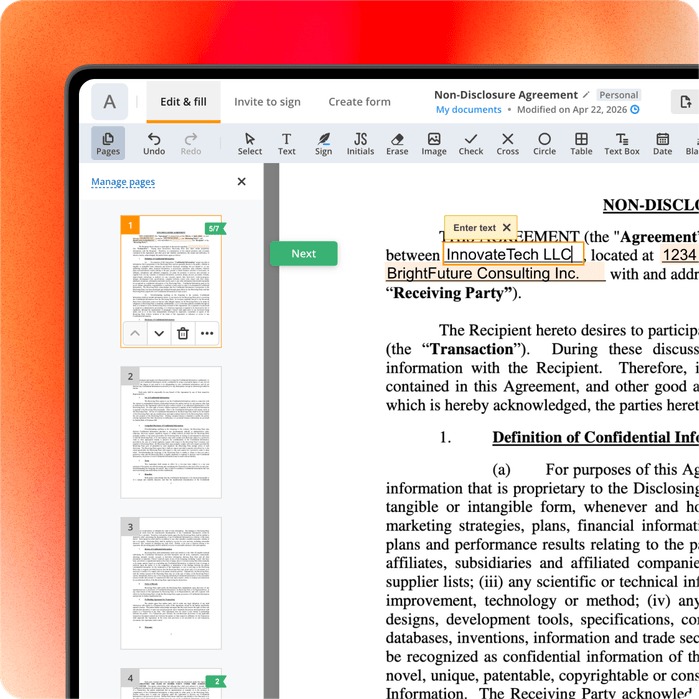
Edit Mode in pdfFiller allows you to directly modify document content without complex software requirements. You can access this feature via the Edit button located in the toolbar. Once in Edit Mode, you can make changes to native PDFs, enabling full editing capabilities. This means you can alter text, images, and other elements directly within your document. The process requires no technical setup, making it accessible for anyone looking to edit PDFs efficiently.
Why Edit PDFs Without Conversion?
Editing PDFs directly saves time by avoiding unnecessary conversion steps that can complicate document management. When you edit PDFs without conversion, you maintain document integrity, ensuring that the layout and formatting remain intact. This approach allows for immediate updates, which is particularly beneficial for small businesses that need to make quick changes to documents. By using pdfFiller, you can edit your PDFs swiftly, enhancing your overall productivity.
How to Access Edit Mode
- Click the Edit button, represented by a pencil icon, in the toolbar.
- Ensure that your document is in an editable format to proceed.
- Access Edit Mode from any device, including desktops, tablets, and smartphones.
- No installation is required; simply open your PDF in pdfFiller.
Editing Existing Text in Your PDF
- Click directly on the text blocks you wish to modify.
- Easily change the content by typing new text or deleting existing text.
- Navigate between text elements using your mouse or keyboard for efficient editing.
- This feature works effectively for native PDFs, allowing for seamless text modification.
Adding New Text Blocks in PDFs
- Insert free-floating text blocks anywhere on your PDF document.
- Set initial formatting options such as font size and style before adding text.
- Position the text precisely where you want it on the document for clarity.
- This feature is ideal for adding annotations or notes to your PDFs.
Removing Text from Your PDF
- Select the existing text you want to delete by clicking on it.
- Press the delete key on your keyboard for quick removal of the selected text.
- This method works for both native and scanned PDFs, ensuring flexibility.
- Removing unnecessary content is essential for keeping your documents up to date.
Using the Whiteout Tool for Corrections
The Whiteout tool in pdfFiller allows you to cover underlying content for corrections easily. This tool is different from blackout and erase options, as it provides a clean slate without permanently deleting the original text. It is ideal for making quick fixes while maintaining the document's overall structure. Using the Whiteout tool in Edit Mode is simple and effective, ensuring your corrections are clear and professional.
Formatting Text in Your PDF
In Edit Mode, you have various options to format text in your PDF. You can choose from different font families, sizes, and colors to match your document's style. Additionally, features like bold, italic, and underline are available to emphasize important information. Text alignment settings allow you to present your content in a visually appealing manner, enhancing the overall presentation of your document.
Find and Replace Text in Your PDF
The Find & Replace feature in pdfFiller enables you to locate specific text strings easily. You can substitute text across the entire document, which saves time, especially when working with large PDFs. This feature is available only in Edit Mode, making it a powerful tool for efficient document editing. By using Find & Replace, you can ensure consistency and accuracy in your text modifications.
Editing Native vs. Scanned PDFs
Understanding the differences between native and scanned PDFs is crucial for effective editing. Native PDFs allow for full text editing, enabling you to modify content directly. In contrast, scanned PDFs require Optical Character Recognition (OCR) for editing, which can limit your options. Different tools are available for each type, making it important to know which format you are working with for optimal document handling.
Next Steps After Editing Your PDF
After editing your PDF, you have several options for saving and sharing your work. You can choose from various export formats to meet your needs, ensuring compatibility with other tools. Integration with other software enhances your overall document workflow, allowing for seamless management of your files. By connecting your editing actions to broader workflows, you can improve efficiency and productivity in your document processes.