Create Header and Padding in PDF
Add headers and padding to your PDF documents easily using pdfFiller's intuitive editing tools.
What is Edit Mode in pdfFiller?
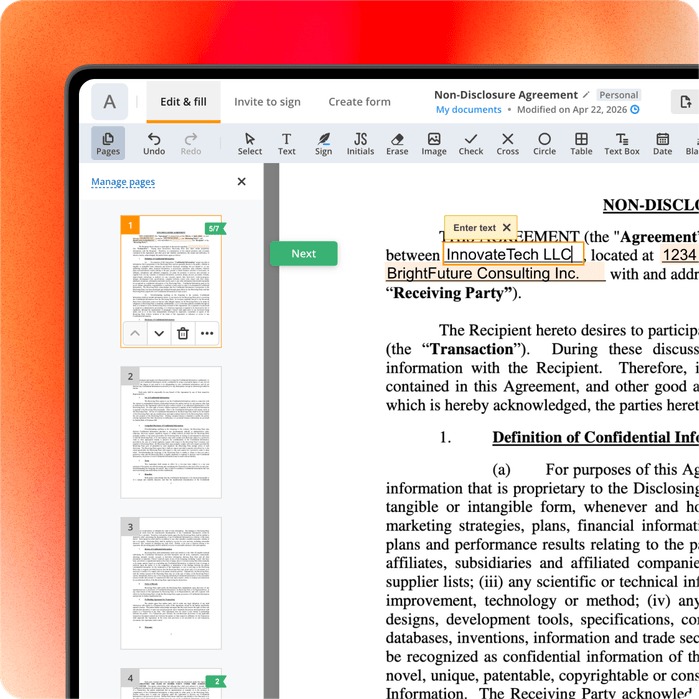
Edit Mode in pdfFiller provides a user-friendly interface that allows you to directly modify PDF content without any complex software requirements. You can access this mode by clicking the Edit button in the toolbar, which opens up various PDF editing tools. This mode supports a range of document types, enabling you to edit text, images, and other elements directly within your PDF. With pdfFiller, there is no need for IT setup, making it accessible for anyone looking to create headers and padding in PDF documents. The simplicity of this feature stands in contrast to competing tools that often require extensive technical knowledge.
How to Add a Header in Your PDF
- Click on the header area of your PDF document to initiate editing.
- Set the desired formatting options for your header, such as font style and size.
- Preview the changes in real-time to ensure it meets your expectations before saving.
- Save your document to apply the new header, which works seamlessly on any device.
Adding Padding to Your PDF
- Access the padding settings within Edit Mode to begin adjusting your document's layout.
- Adjust the padding for all sides of the document to create a balanced appearance.
- Preview layout changes in real-time to see how the adjustments affect your document.
- This feature is ideal for creating professional documents that require a polished look.
Why Use pdfFiller for PDF Editing?
pdfFiller stands out as a trusted solution for PDF editing, with over 68 million users relying on its capabilities. It offers more than 1 million templates, making it easy to find the right format for your needs. There are no hidden fees or technical setups required, allowing you to start editing immediately. Additionally, pdfFiller includes legally binding e-signatures, enhancing the document's credibility and usability.
Step-by-Step Instructions for Editing PDFs
- Open your PDF document in pdfFiller and click on the Edit button to enter Edit Mode.
- Follow the prompts to edit text, ensuring you select the correct text box for modification.
- Add images by clicking the image icon and uploading your desired file from your device.
- Save your changes by clicking the save icon, which ensures your edits are not lost.
- Export your edited PDF in various formats, maintaining compatibility with different file types.
Common Scenarios for PDF Editing
PDF editing is useful in various practical applications. For instance, you can create invoices for clients, ensuring that all necessary details are included. Updating contracts and agreements is another common scenario, allowing for quick modifications without starting from scratch. Additionally, customizing reports for presentations can enhance your professional image, while editing marketing materials helps maintain brand consistency across documents.
Browser Compatibility for pdfFiller
pdfFiller is designed to be accessible from any device, ensuring that you can edit your PDFs regardless of your operating system. It supports all major browsers, including Chrome, Firefox, and Safari, without the need for installation. The mobile-friendly interface allows you to edit documents on the go, making it convenient for busy professionals.
Limitations of Edit Mode
While pdfFiller's Edit Mode is powerful, there are some limitations to be aware of. For example, you cannot edit scanned PDFs without using Optical Character Recognition (OCR) technology. Additionally, font matching is done on a best-effort basis, which may not always yield perfect results. There are also restrictions on editing password-protected documents, and not all features are available in the free plan, which may limit functionality for some users.
Security Measures for Document Editing
pdfFiller prioritizes document security, implementing robust measures to protect user data. All documents are encrypted during transmission and storage, ensuring that sensitive information remains confidential. The platform complies with privacy regulations, giving you peace of mind when sharing documents. You also have control over document sharing, allowing you to manage who has access to your files.
Comparison with Other PDF Editors
When considering pdfFiller, it's essential to understand how it compares to other PDF editors. Adobe Acrobat offers extensive features but requires complex setup, resulting in higher costs and a steeper learning curve. Foxit is fast and efficient for basic editing tasks but can be less intuitive for new users. Nitro provides strong collaboration features for teams, but it may overwhelm individual users with its extensive options.
Next Steps for PDF Editing
After learning about editing with pdfFiller, you can start by accessing the platform and exploring its features. Begin editing by selecting from the available templates for quick modifications. You can also share documents for collaboration with colleagues, enhancing teamwork. If you require advanced features, consider upgrading your plan to unlock additional capabilities.