Create Header and Text Box in PDF For Free

Last updated on Oct 14, 2026

Create Header and Text Box in PDF

Create headers and text boxes in your PDF documents effortlessly using pdfFiller’s intuitive editing tools.

What is Edit Mode in pdfFiller?

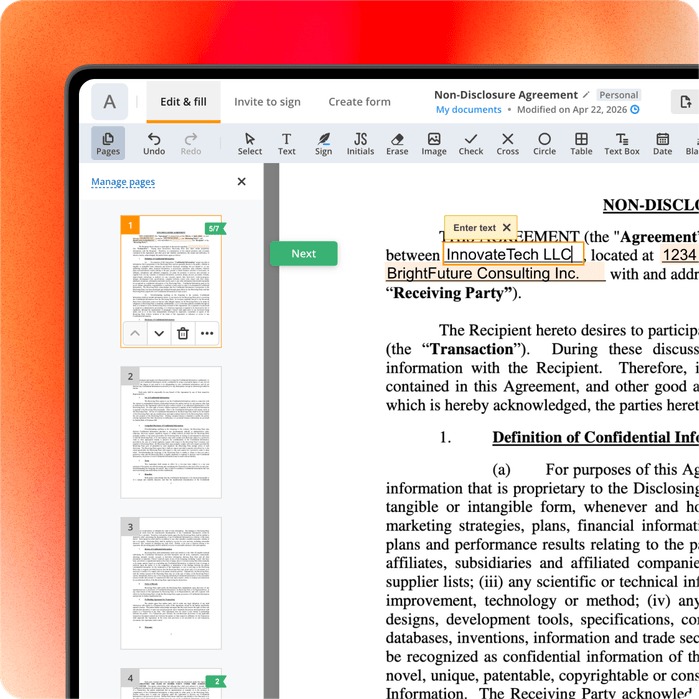
Edit Mode in pdfFiller allows you to modify your PDF documents easily. To create a header and text box in PDF, you can access this mode by clicking the Edit button after uploading your document. Within Edit Mode, you can modify text directly, ensuring that your document layout meets your needs. This mode supports various formats, making it versatile for different types of documents. By using pdfFiller's PDF editing tools, you can enhance your document layout without the need for complex software or technical knowledge.

How to Access Edit Mode

To enter Edit Mode in pdfFiller, follow these steps: First, upload your PDF document to the platform. Then, click the pencil icon to access Edit Mode. This feature is compatible with all browsers, allowing you to create a header and text box in PDF from any device. Ensure your document is uploaded correctly to utilize all editing features effectively.

Editing Existing Text in PDF

To modify existing text in your PDF, click on the text blocks you wish to edit. You can directly change the content within these blocks, allowing you to create a header and text box in PDF as needed. Navigate between elements easily to ensure that your document layout is coherent and professional. This straightforward process eliminates the need for advanced technical skills, making it accessible for small business documents.

Adding New Text Blocks

In pdfFiller, you can insert new text blocks anywhere in your PDF document. To create a header and text box in PDF, set your initial formatting preferences, such as font size and style. After inserting the text block, you can adjust its size and position to fit your layout perfectly. This flexibility allows you to create headers for invoices or contracts with ease.

Removing Text from PDF

To delete unwanted text from your PDF, simply select the text you wish to remove and press the backspace key. Confirm your changes to ensure that your document remains clean and professional. This straightforward method allows you to create a header and text box in PDF without cluttering your document layout.

Using the Whiteout Tool

The Whiteout tool in pdfFiller allows you to cover text with a white fill, effectively correcting errors in your document. This tool differs from the blackout option, as it maintains the document's layout while removing unwanted text. Use this feature to create a header and text box in PDF without leaving traces of previous content.

Formatting Text in Your PDF

pdfFiller offers various text formatting options to enhance your PDF documents. You can choose from different font families, sizes, and colors, as well as alignment options to ensure your document looks professional. When you create a header and text box in PDF, these formatting features help you achieve a polished appearance that aligns with your branding.

Find and Replace Text in PDF

To locate and replace text in your PDF, utilize the Find & Replace tool within pdfFiller. Specify the text strings you want to find and confirm the replacements. This feature is particularly useful when you need to create a header and text box in PDF while ensuring consistency throughout your document. Avoid complicated search methods to maintain efficiency.

Limitations of Edit Mode

While Edit Mode in pdfFiller is powerful, there are some limitations to be aware of. For instance, scanned PDFs may require OCR for editing, and font matching is not always guaranteed. Additionally, documents with password protection may restrict editing capabilities. Understanding these limitations will help you effectively create a header and text box in PDF without encountering unexpected issues.

Next Steps After Editing

After editing your PDF, it's essential to save your changes. pdfFiller allows you to share your document easily and offers various download formats. This ensures that you can create a header and text box in PDF and then distribute your finalized document efficiently, streamlining your workflow.

How Does pdfFiller Compare?

Adobe Acrobat offers extensive editing features but often comes with a higher price tag. Users may find the interface complex compared to pdfFiller.

Foxit is known for speed and efficiency, but lacks the extensive template library of pdfFiller. Users may miss out on ready-to-use templates.

Nitro provides solid editing capabilities but may require more technical setup. pdfFiller offers a no-setup solution that is more user-friendly.

Try most popular PDF tools

Discover a full set of tools to handle any document task.

Edit PDFs

Make quick PDF edits online.

Sign

Add legally binding signatures.

Merge

Combine multiple PDFs.

Request signatures

Send a document for signing.

Convert

Transform PDFs into other formats.

Rearrange

Change the order of pages.

Share

Send PDFs for review or editing.

Compress

Reduce PDF file sizes.

How to edit PDFs with pdfFiller

1. Upload or create

The online PDF editor that has it all

  • Edit PDFs without workarounds Quickly add, erase, replace, or reformat text in PDFs without converting files back and forth or using clunky desktop software. Our editor works on any device, allowing you to fill out forms and make edits wherever you are.
  • Add legally binding signatures Sign PDFs directly in the editor—no extra eSignature tools needed. Add your signature or initials after editing a contract or agreement and send it out to sign.
  • Make a lasting impression with your PDFs Add images, logos, tables, and watermarks to maintain a professional look of your documents on any device. Draw lines and arrows, insert checkmarks and shapes, or draw freehand to make quick markings or organize information.
  • Annotate and collaborate Highlight important data, redact sensitive details, add sticky notes, and exchange comments for speedy document reviews. Share files instantly to request edits, feedback, or approval—no need for email attachments.
  • Create fillable PDF forms Turn static PDFs into interactive fillable forms anyone can complete online. Drag and drop text boxes, signature fields, dropdowns, and checkboxes, then share your form via a link or publish it on your website.
  • Split, merge, and rearrange Edit and reorganize your PDFs in one place. Split a large PDF into bite-sized docs or merge separate files into one comprehensive document. Need a smaller file size? Compress your document with just one click!

Who needs this?

Explore how professionals across industries use pdfFiller to edit PDFs.

Education

Educators and administrators use pdfFiller to edit lesson plans, sign permission slips, and collaborate on curriculum updates. Create fillable forms for enrollment or evaluations, and organize PDFs with ease, all on one platform.

  • Lesson plans
  • Permission slips
  • Enrollment forms
  • Course registration forms
Education
  • G2 — Users Most Likely To Recommend
  • G2 — Grid Leader in Small-Business
  • G2 — High Performer
  • G2 — Regional Leader
  • G2 — Easiest To Do Business With
  • G2 — Best Meets Requirements
  • G2 — Best Support

pdfFiller scores top ratings on review platforms

pdfFiller is rated 4.6 out of 5 stars across 1,000+ G2 reviews.

A lot of features. Has been very helpful.
Marlene D
It's a very useful service that can be and will definitely be used year 'round, especially in a pinch!!! Thank you!
JOSHUA
What an excellent and amazing PDF working tool!
Olukoya O
by now is ok, then when I need more skills I would like to learn more.
Madelón B
The product solved my problem and I got… The product solved my problem and I got a refund without any difficulties when I forgot to cancel my monthly subscription.
Simen Mikkelsen
So far so good.. So far so good. Actually of every editable pdf or doc app out there, this one has by far so many options you can choose from to suit your editing needs
Robin L.

Edit PDFs with an all-in-one solution

Try easy-to-use tools for all your document management needs.

pdfFiller workspace for creating, filling and managing PDF forms

PDF editing is just the beginning

More than a PDF editor

Watch our PDF editor in action

Check out a quick video tutorial that shows how to edit any file into an editable PDF in three easy steps.

FAQs

If you can't find what you're looking for, please contact us anytime!

To create a header in a PDF document using pdfFiller, simply open your PDF file and select the 'Header' option from the editing tools. This allows you to insert text, images, or logos at the top of your document. After adding your header, you can adjust its size and position to ensure it fits well within your layout. For best results, consider using a consistent font style and size that matches your document's overall design. This method ensures that your headers are not only visually appealing but also maintain cross-platform compatibility, making your documents look professional across various devices.

To add a text box in a PDF using pdfFiller, first, open your document and navigate to the 'Text' tool in the editing panel. Click on the area where you want the text box to appear, and a new text box will be created. You can then type your content directly into the box. Adjust the size and font to match your document's style. For enhanced readability, use contrasting colors for the text and background. This feature is particularly useful for document automation, allowing you to create fillable forms that can be easily shared and completed by others.

Yes, pdfFiller allows you to customize the styles of both headers and text boxes in your PDF. After creating your header or text box, select it to access the formatting options. You can change the font type, size, color, and alignment. Additionally, you can add borders or background colors to your text box for better visibility. Customizing these elements not only enhances the aesthetic appeal of your document but also ensures that important information stands out, improving user engagement and comprehension.

Yes, you can create both a header and a text box simultaneously in pdfFiller. Start by adding your header first, then proceed to insert a text box wherever needed within the document. This allows you to organize your content effectively, making it easier for readers to navigate through the information. For optimal results, consider the flow of information; place the header at the top and use text boxes to highlight key points or instructions throughout the document. This structured approach enhances document clarity and usability.

When creating headers and text boxes in PDFs with pdfFiller, your documents are protected by robust security protocols. All edits, including the addition of headers and text boxes, are encrypted to ensure that your sensitive information remains confidential. Additionally, pdfFiller provides options for password protection and permission settings, allowing you to control who can view or edit your documents. This is especially important for legal teams and remote professionals who handle sensitive information and require secure, cloud-based document management.

To ensure that your headers and text boxes are mobile-friendly in PDFs, use pdfFiller’s responsive design features. When creating headers, keep them concise and avoid overly large fonts that may not display well on smaller screens. For text boxes, ensure that the text is legible and that the box is appropriately sized for mobile viewing. Preview your document on various devices to check for readability and layout issues. This attention to detail is crucial for remote professionals who need their documents to be accessible and user-friendly across all platforms.

When creating headers and text boxes in PDFs, avoid common mistakes such as using inconsistent fonts or sizes, which can make your document look unprofessional. Additionally, steer clear of overcrowding your header with too much information; instead, keep it simple and relevant. Ensure that text boxes are not placed too close to the edges of the document, as this can lead to cropping issues when printed or viewed on different devices. By following these guidelines, you can create clear, effective headers and text boxes that enhance your document's overall quality.

Transforming businesses with pdfFiller

Check out these success stories.

I was happy to do this for patients, but I simply didn't have 30–60 minutes to fill out each form. It was a true waste of resources to do it that way, and as a surgeon, my time is better spent in patient care, which was often delayed.

Marshall Orthopaedics

One tool. Every document task.

One workflow shouldn’t take five tools

Start free trial