Create Header and Text in PDF For Free

Drop document here to upload
Select from device
Up to 100 MB for PDF and up to 25 MB for DOC, DOCX, RTF, PPT, PPTX, JPEG, PNG, JFIF, XLS, XLSX or TXT

Last updated on Oct 14, 2026

Create Header and Text in PDF

Edit PDFs by adding headers and text directly in your browser.

What is Edit Mode in pdfFiller?

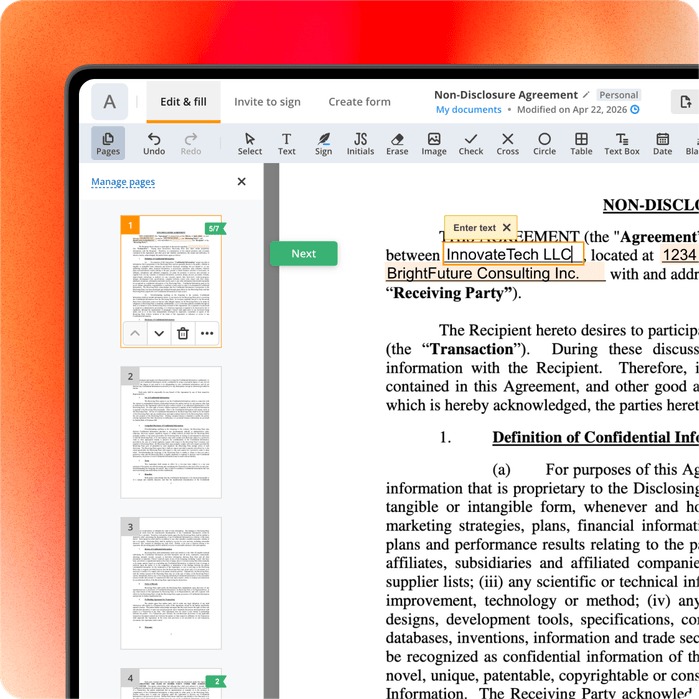
Edit Mode in pdfFiller provides a range of features and tools designed for easy PDF editing. You can access this mode by clicking the Edit button in the toolbar. Once in Edit Mode, you can modify text directly within the document, which allows for quick adjustments without needing to convert the PDF. This feature works on native PDFs, ensuring the best-effort font matching for a seamless editing experience. Importantly, no IT setup is required, making it accessible for anyone looking to edit PDFs efficiently.

How Does Edit Mode Solve Workflow Problems?

Edit Mode effectively addresses common challenges faced during PDF editing. It allows you to quickly correct or update existing text without the hassle of converting the document. This is particularly beneficial for small businesses that require fast edits to maintain productivity. By using pdfFiller, you eliminate the need for multiple tools, streamlining your document workflows and saving valuable time.

Accessing Edit Mode in pdfFiller

To access Edit Mode in pdfFiller, simply click the pencil icon located in the toolbar. Ensure that your document is in an editable format to utilize this feature. You can access Edit Mode from any device with internet access, and there is no installation needed, making it convenient for on-the-go editing.

Editing Existing Text in Your PDF

Editing existing text in your PDF is straightforward with pdfFiller. Click directly on the text blocks you wish to modify, and you can navigate between different text elements with ease. The editor supports various font styles and sizes, allowing you to maintain the document's aesthetic. This functionality works on both native and scanned PDFs, ensuring flexibility in your editing tasks.

Adding New Text Blocks to Your PDF

To insert new text into your PDF, you can add free-floating text blocks anywhere within the document. Begin by setting your initial formatting options, which is ideal for creating headers, footers, or annotations. Adjusting the position and style of these text blocks is simple, allowing for a customized document layout that meets your needs.

Removing Text from Your PDF

Removing unwanted text from your PDF is easy with pdfFiller. You can select and delete existing text blocks with just a few clicks. For corrections, you can use the whiteout feature, which allows you to cover text without permanently deleting it. Additionally, all changes are saved automatically, ensuring that your edits are secure and reliable across all document types.

Using the Whiteout Tool for Corrections

The whiteout tool in pdfFiller is effective for making corrections. It covers underlying content with a white fill, making it ideal for adjustments without permanent changes. This tool is different from blackout and erase functions, providing a simple way to apply corrections while maintaining the integrity of the document.

Formatting Text in Your PDF

In Edit Mode, you have access to various text formatting options. You can change the font family, size, and color to suit your preferences. Additionally, you can apply bold, italic, and underline styles as needed. Text alignment can also be adjusted, ensuring that both new and existing text meets your formatting requirements.

Using Find and Replace in Your PDF

The Find and Replace feature allows you to locate specific text strings within your PDF easily. You can replace old content with new text quickly, which is particularly useful for bulk edits in larger documents. This functionality works effectively in both native and scanned PDFs, enhancing your editing efficiency.

Editing Native vs. Scanned PDFs

Understanding the differences between editing native and scanned PDFs is crucial. Direct editing is available for native PDFs, allowing for straightforward modifications. In contrast, scanned PDFs require Optical Character Recognition (OCR) for text editing, which may not always yield perfect results. Annotation tools can still be used on scanned documents, but font matching is done on a best-effort basis.

Browser Compatibility and Access

pdfFiller is compatible with all major web browsers, ensuring that you can access your documents from any device with internet connectivity. No installation is required, making it easy to use on both Windows and Mac OS systems. This flexibility allows you to work on your PDFs from anywhere, enhancing your productivity.

Limitations of Edit Mode

While Edit Mode offers many features, there are limitations to be aware of. You cannot edit scanned PDFs without OCR, and there is no guaranteed font matching for modified text. Additionally, password-protected documents cannot be edited, and the editing capabilities are limited to text only, excluding images.

Security and Data Handling in pdfFiller

Security is a priority in pdfFiller. All documents are encrypted during editing, ensuring that your data remains safe. Once your session ends, no data is stored, complying with industry-standard security protocols. User privacy is taken seriously, making pdfFiller a trustworthy option for document editing.

How Does pdfFiller Compare?

pdfFiller offers a simpler and more affordable solution compared to other PDF editing tools. Unlike Adobe Acrobat, it does not require installation and is easier to use. It is also more user-friendly than Foxit and Nitro, making it an ideal choice for small businesses that need quick edits without the complexity of traditional software.

Next Steps for Editing PDFs

After mastering editing in pdfFiller, consider exploring additional features such as e-signatures and integrations with other tools to enhance your document workflows. With access to over 1 million templates for various document needs, you can start editing your PDFs today and streamline your business processes.

Try most popular PDF tools

Discover a full set of tools to handle any document task.

Edit PDFs

Make quick PDF edits online.

Sign

Add legally binding signatures.

Merge

Combine multiple PDFs.

Request signatures

Send a document for signing.

Convert

Transform PDFs into other formats.

Rearrange

Change the order of pages.

Share

Send PDFs for review or editing.

Compress

Reduce PDF file sizes.

How to edit PDFs with pdfFiller

1. Upload or create

The online PDF editor that has it all

  • Edit PDFs without workarounds Quickly add, erase, replace, or reformat text in PDFs without converting files back and forth or using clunky desktop software. Our editor works on any device, allowing you to fill out forms and make edits wherever you are.
  • Add legally binding signatures Sign PDFs directly in the editor—no extra eSignature tools needed. Add your signature or initials after editing a contract or agreement and send it out to sign.
  • Make a lasting impression with your PDFs Add images, logos, tables, and watermarks to maintain a professional look of your documents on any device. Draw lines and arrows, insert checkmarks and shapes, or draw freehand to make quick markings or organize information.
  • Annotate and collaborate Highlight important data, redact sensitive details, add sticky notes, and exchange comments for speedy document reviews. Share files instantly to request edits, feedback, or approval—no need for email attachments.
  • Create fillable PDF forms Turn static PDFs into interactive fillable forms anyone can complete online. Drag and drop text boxes, signature fields, dropdowns, and checkboxes, then share your form via a link or publish it on your website.
  • Split, merge, and rearrange Edit and reorganize your PDFs in one place. Split a large PDF into bite-sized docs or merge separate files into one comprehensive document. Need a smaller file size? Compress your document with just one click!

Who needs this?

Explore how professionals across industries use pdfFiller to edit PDFs.

Education

Educators and administrators use pdfFiller to edit lesson plans, sign permission slips, and collaborate on curriculum updates. Create fillable forms for enrollment or evaluations, and organize PDFs with ease, all on one platform.

  • Lesson plans
  • Permission slips
  • Enrollment forms
  • Course registration forms
Education
  • G2 — Users Most Likely To Recommend
  • G2 — Grid Leader in Small-Business
  • G2 — High Performer
  • G2 — Regional Leader
  • G2 — Easiest To Do Business With
  • G2 — Best Meets Requirements
  • G2 — Best Support

pdfFiller scores top ratings on review platforms

pdfFiller is rated 4.6 out of 5 stars across 1,000+ G2 reviews.

its pretty convenient and easy to figure out
nicole t
So far, so good. Will be sending out forms for completion soon.
Henry F
This program makes me look more professional !
Sandra W
Excellent support I did have a problem but the support dept were excellent to both respond and address the problem to my complete satisfaction
Bill Flynn
Just started using it Just started using it, but everything seems to be functioning optimally. Thus far a very good PDF filler.
carsonoconnell
It's very useful for filling up PDF forms
Cel

Edit PDFs with an all-in-one solution

Try easy-to-use tools for all your document management needs.

pdfFiller workspace for creating, filling and managing PDF forms

PDF editing is just the beginning

More than a PDF editor

Watch our PDF editor in action

Check out a quick video tutorial that shows how to edit any file into an editable PDF in three easy steps.

FAQs

If you can't find what you're looking for, please contact us anytime!

To create a header in a PDF document using pdfFiller, start by opening your PDF file in the editor. Click on the 'Header' option in the toolbar, then select 'Add Header'. You can customize the text, font, size, and alignment according to your needs. Once satisfied, save your changes. This feature allows you to maintain a consistent branding across documents, making it ideal for legal teams and remote professionals. For added efficiency, consider using templates to standardize headers across multiple documents.

To add text to a PDF in pdfFiller, open the document and click on the 'Text' tool in the editing toolbar. Click on the area where you want to insert text, and a text box will appear. Type your desired content, and you can adjust the font, size, and color. This straightforward process is essential for remote professionals needing quick edits. For enhanced readability, ensure that the text contrasts well with the background and is appropriately sized for the document's purpose.

Yes, you can customize the font and style of the header in your PDF using pdfFiller. After adding a header, select it to access formatting options where you can change the font type, size, color, and style (bold, italic, etc.). This flexibility is particularly useful for legal teams that require specific branding guidelines. Always preview your document after making changes to ensure that the header aligns with your overall design and is legible.

Yes, pdfFiller allows you to create multiple headers in a single PDF document. You can add different headers to various sections of your document by using the 'Add Header' function multiple times. This feature is beneficial for complex documents that require distinct sections, such as contracts or reports. To maintain clarity, ensure that each header is relevant to the section it precedes, enhancing the document's navigability for users.

To ensure the security of your headers and text in a PDF, utilize pdfFiller's built-in security features. After editing, you can password-protect your document or apply encryption settings to restrict access. This is crucial for legal teams handling sensitive information. Additionally, always save your work in a secure cloud environment to prevent unauthorized access. Regularly update your security protocols to align with best practices in document management.

Using pdfFiller for creating headers and text in PDFs offers several benefits, including ease of use, cross-platform compatibility, and robust editing features. The platform allows remote professionals to edit documents seamlessly from any device, ensuring that you can work efficiently regardless of location. Moreover, pdfFiller supports document automation, which can save time when dealing with repetitive tasks. For best results, familiarize yourself with the platform's features to maximize your editing efficiency.

Yes, pdfFiller supports real-time collaboration, allowing you to work with others while creating headers and text in a PDF. You can invite team members to view or edit the document simultaneously, making it ideal for legal teams and SMEs that require input from multiple stakeholders. To facilitate collaboration, use the commenting feature to discuss changes directly within the document. This ensures that all feedback is centralized, streamlining the editing process.

Transforming businesses with pdfFiller

Check out these success stories.

I was happy to do this for patients, but I simply didn't have 30–60 minutes to fill out each form. It was a true waste of resources to do it that way, and as a surgeon, my time is better spent in patient care, which was often delayed.

Marshall Orthopaedics

One tool. Every document task.

One workflow shouldn’t take five tools

Start free trial