Print Fax For Free

Drop document here to upload
Select from device
Up to 100 MB for PDF and up to 25 MB for DOC, DOCX, RTF, PPT, PPTX, JPEG, PNG, JFIF, XLS, XLSX or TXT

Last updated on Sep 10, 2026

Print Fax

Print documents, including faxes, directly from your browser with pdfFiller.

What Does the Print Feature Do?

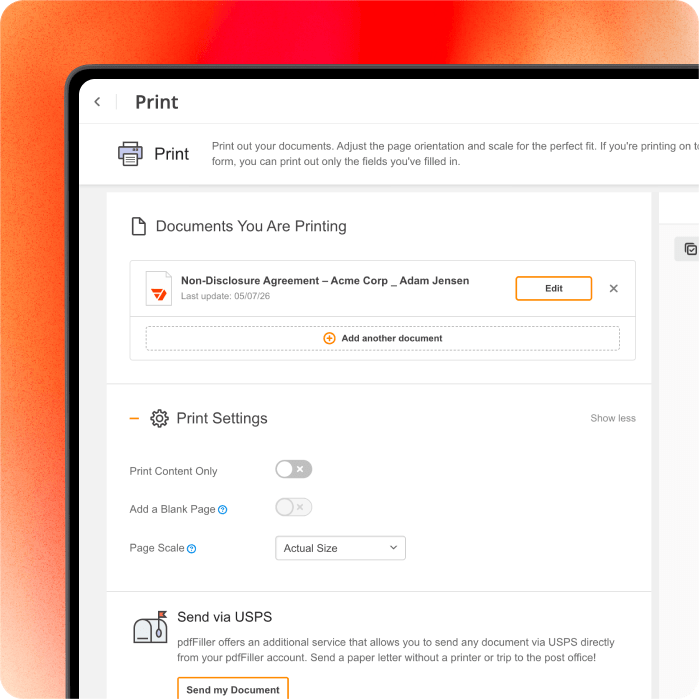
pdfFiller's print feature allows you to easily print documents, including faxes, without any complex setups. You can access this feature from both the My Docs section and the preview panel. Simply click the print button located in the top-right controls to initiate the printing process. This feature supports various document types and works seamlessly on any device, ensuring that you can print from your preferred browser without hassle.

How to Print a PDF Document

  • Locate the document you want to print in the My Docs section.
  • Click the Print button and select your desired printer from the list.
  • Confirm your print settings, including page range and number of copies.
  • Click Print to start the printing process.
  • This method works across all major browsers, ensuring compatibility.

Printing to PDF: Save as PDF

You can use the browser's Save as PDF option to save documents directly as PDFs. This feature does not require any additional software, making it accessible from any device. It's ideal for document sharing, allowing you to create a PDF version of your document quickly and easily.

Printing a PDF with Comments

When printing documents with annotations, ensure that comments are visible in the print output. You can access this feature through the print settings, which allows you to include various types of comments. This is particularly useful for collaborative documents where feedback is essential.

Printing Password-Protected PDFs

To print secured documents, you must have access to the document. pdfFiller does not bypass security measures, so you will need to follow standard print procedures. This is crucial for handling sensitive information securely.

Printing Double-Sided PDFs

To print documents on both sides, select the duplex option in the print dialog. This feature saves paper and reduces waste, making it available on most printers. It's especially beneficial for lengthy documents, contributing to environmental sustainability.

Printing Multiple PDF Files

You can select multiple documents in the My Docs section to print them at once. Click the Print button for batch processing, which saves time for large projects. This feature supports various file formats, allowing you to manage your documents efficiently.

Printing Fillable Forms

When printing fillable forms, ensure that all field data remains intact. Access this feature through the print settings to preserve the information entered in the forms. This is particularly useful for client-facing documents where accuracy is essential.

Printing from Specific Browsers and Devices

For browser-specific printing, follow the instructions for Chrome, Edge, and Firefox. This feature works on both Windows and Android devices, allowing mobile printing capabilities. Ensure your browser is up to date for optimal performance.

Printing for Teams and Organizations

pdfFiller offers streamlined processes for groups, making bulk printing considerations easier. This feature is ideal for collaborative projects, allowing team accounts to access printing options efficiently.

How to Print DOCX Documents

To print non-PDF files, open DOCX files in pdfFiller and follow standard print procedures. This method supports various document formats, making it ideal for office documents that need to be printed quickly.

Print Scenarios by Role and Document Type

Consider specific scenarios for different roles, such as accountants and consultants. For example, accountants may need to print invoices, while consultants might require reports. Each role may have different document types and specific print settings to enhance efficiency and accuracy.

Limitations and Known Constraints

Be aware of browser-specific print dialog behavior, as it can vary. Duplex support may also differ by printer, and there is a maximum file size for print operations. Some features may require a paid plan, so check your account details for access.

Security and Data Handling

pdfFiller employs TLS encryption during transit to ensure document security. There is a file retention and deletion timeline in place, along with compliance considerations for sensitive documents. Secure handling of uploaded files is a priority to protect your data.

Comparison with Adobe Acrobat and Smallpdf

Adobe Acrobat often requires a complex setup, whereas pdfFiller offers a simpler solution for users. Smallpdf has limited features compared to the comprehensive tools available in pdfFiller. The focus on user-friendly experience and cost-effectiveness makes pdfFiller a preferred choice for small and medium businesses.

Free vs. Paid Access for Printing

The free plan has limitations for printing, while paid plans offer additional features without hidden fees. Users can easily access printing options based on their selected plan tier, ensuring clarity in what is available.

Summary and Next Steps

In summary, pdfFiller provides various access points for printing documents, including faxes. Explore related features like group_convert to enhance your document management experience. With its ease of use, pdfFiller is designed to help you manage your printing needs efficiently.

Try most popular PDF tools

Discover a full set of tools to handle any document task.

Edit PDFs

Make quick PDF edits online.

Sign

Add legally binding signatures.

Merge

Combine multiple PDFs.

Request signatures

Send a document for signing.

Convert

Transform PDFs into other formats.

Rearrange

Change the order of pages.

Share

Send PDFs for review or editing.

Compress

Reduce PDF file sizes.

How to print, fax, or notarize a document

1. Upload or open your document

Print, fax, notarize, and store — all in one place

  • Print any document from anywhere Upload your PDF and send it to any printer — at the office, at home, or at a local print shop — directly from your pdfFiller account. No downloading, no formatting issues. Your document comes out exactly as it looks on screen.
  • Send a fax without a fax machine Some industries still run on fax — healthcare, legal, insurance, government. pdfFiller lets you send and receive faxes directly from your browser. Upload the document, enter the number, and it's gone. No hardware, no dedicated fax line, no extra subscription.
  • Get documents notarized online Notarization no longer means booking an appointment and driving across town. Connect with a commissioned notary online, complete the session by video, and get your document notarized in minutes — legally valid, fully digital.
  • Sign before you send Add your signature, initials, or date stamp directly inside your document—then print, fax, or share it. Sign a contract before faxing it to the bank, or add initials to a lease before sending it to a client. Draw, type, or upload once, then reuse it across any document.
  • Pull from any cloud, save back instantly Connect Google Drive, Dropbox, Box, or OneDrive and work with files directly — no downloading, no re-uploading. Pull a document, fill it, sign it, fax it, and save it back to the same folder it came from.

Who needs this?

Explore how professionals across industries use pdfFiller to edit PDFs.

Healthcare

Patient forms, referral requests, insurance claims — healthcare runs on paperwork that needs to move fast and stay compliant. Print intake forms directly from your account, fax referrals to specialists without a fax machine, and get consent forms notarized online without scheduling an in-person appointment. HIPAA-compliant storage keeps every document secure.

  • Patient intake and registration forms
  • Referral letters and specialist requests
  • Insurance claims and prior authorization forms
  • Consent forms requiring notarization
Healthcare
  • G2 — Users Most Likely To Recommend
  • G2 — Grid Leader in Small-Business
  • G2 — High Performer
  • G2 — Regional Leader
  • G2 — Easiest To Do Business With
  • G2 — Best Meets Requirements
  • G2 — Best Support

pdfFiller scores top ratings on review platforms

pdfFiller is rated 4.6 out of 5 stars across 1,000+ G2 reviews.

I like the product and how easy it is to use. PDF is the easiest document to use. Thank you for supplying such a wonderful product.
T James
Needed an AIA contract for a project and you supplied it. No future needs on the horizon. Thanks
Mike S
So far so good! I love the idea that I can create my own forms to sign and email among the members of my group!
Angela P
Perfect!! This is perfect for me! It saves time and prevents writer's cramps when having to complete several documents. I LOVE IT!!!
Jacquie R
its good its good, i will continue to use it.
rwshullandteach
Had a great experience with pdf filler Had a great experience with pdf filler. Been using it for 3 months without any issues. Will use it again in the future for sure. Recommend
Istvan Sandor

Print, fax, notarize, and store PDFs without the back-and-forth

No extra tools, no wasted time.

pdfFiller workspace for creating, filling and managing PDF forms

PDF editing is just the beginning

More than a PDF editor

What’s New in pdfFiller: AI, Editing, eSignatures & Document Management

Discover the latest pdfFiller features and new features designed to make document work easier for small businesses, teams, freelancers, and individuals. In this full feature walkthrough, you’ll see how to create, edit, fill, manage, store, and eSign documents for everyday workflows like resumes, contracts, HR forms, applications, invoices, onboarding paperwork, and more — all in one place.

FAQs

If you can't find what you're looking for, please contact us anytime!

You can easily print and fax documents with pdfFiller by utilizing its integrated features. Start by uploading your document to the pdfFiller platform. Once your document is ready, click on the 'Print' option to send it to your connected printer. For faxing, select the 'Fax' option, enter the recipient's fax number, and confirm the transmission. This seamless process allows remote professionals and legal teams to manage document workflows without needing separate applications. A practical tip is to ensure your printer settings are configured correctly to avoid delays in printing.

pdfFiller prioritizes document security by employing robust encryption protocols for both printing and faxing. When you print or fax a document, all data is transmitted securely to prevent unauthorized access. Additionally, pdfFiller complies with industry standards, ensuring that sensitive information remains protected throughout the process. For added security, consider using password protection for your documents before printing or faxing. This extra layer of security is essential for legal teams and SMEs handling confidential information.

Yes, pdfFiller is designed for cross-platform compatibility, allowing you to print and fax documents from any device, including desktops, tablets, and smartphones. Simply log into your pdfFiller account from your preferred device, upload your document, and use the print or fax features as needed. This flexibility is particularly beneficial for remote professionals who may need to manage documents on the go. To ensure smooth operation, make sure your device has a stable internet connection.

You can print and fax a wide variety of document types using pdfFiller, including PDFs, Word documents, and images. The platform supports multiple file formats, making it easy to handle everything from contracts to invoices. Once uploaded, you can edit these documents directly within pdfFiller before printing or faxing. A useful tip is to convert any non-PDF files to PDF format for consistent printing and faxing results, ensuring that the layout remains intact.

Yes, pdfFiller provides users with the ability to track the status of faxes sent through its platform. After sending a fax, you can check the 'Fax History' section in your account to see whether your fax was successfully delivered or if there were any issues. This feature is especially useful for legal teams that need to confirm the transmission of important documents. To enhance your tracking experience, keep a record of the recipient's fax number and any confirmation details provided by pdfFiller.

pdfFiller streamlines the printing and faxing process for remote teams by consolidating document management into a single cloud-based platform. Users can edit, eSign, and manage documents without switching between multiple applications. This integration reduces time spent on administrative tasks, allowing teams to focus on their core responsibilities. A practical tip for remote teams is to utilize pdfFiller's collaboration features, enabling team members to review and approve documents before printing or faxing, ensuring accuracy and efficiency.

Using pdfFiller for printing and faxing offers several advantages over traditional methods, including increased efficiency, cost savings, and enhanced security. Unlike traditional fax machines, pdfFiller eliminates the need for paper and ink, reducing operational costs. Additionally, the platform's cloud-based nature allows for easy access and management of documents from anywhere. For a practical tip, consider integrating pdfFiller with your existing document management systems to further streamline workflows and improve collaboration among team members.

What businesses achieve with pdfFiller

Discover how you can benefit too.

I tell my employees that if you need to have stuff filled out, hey, check out pdfFiller, that's what I use. Yes, I would and I do recommend it.

Hope Discovery ABA Services

One tool. Every document task.

One workflow shouldn’t take five tools

Start free trial