











Extract Text from PDF
Extract text from PDF documents quickly and easily using pdfFiller’s OCR tool.
What is OCR and How Does it Work?
OCR, or Optical Character Recognition, is a technology that converts different types of documents, such as scanned paper documents, PDF files, or images captured by a digital camera, into editable and searchable data. The process involves scanning the document and using software to recognize the characters in the image. This technology is essential for extracting text from PDF files, especially scanned PDFs, as it transforms them into editable text that can be modified and searched. By utilizing OCR, businesses can efficiently manage their scanned documents, making them more accessible and usable.
Why You Need OCR for Scanned PDFs
Scanned PDFs often present challenges for editing because they are essentially images of text rather than actual text files. This means that without OCR, you cannot easily extract text from PDF documents. Making PDFs editable allows small and medium-sized businesses to improve their workflows significantly. For instance, accountants can quickly modify financial reports, legal professionals can edit contracts, and educators can update teaching materials. The ability to convert scanned PDFs into editable text streamlines document management and enhances productivity.
How to Access OCR and Scan Tools in pdfFiller
To access OCR tools within pdfFiller, start by logging into your account. Navigate to the toolbar where you will find various document management features. You can access the OCR functionality without needing to open a specific document first. This allows you to quickly utilize the OCR capabilities to extract text from PDF files or scanned documents, making it convenient for users who need to manage multiple documents efficiently.
Step-by-Step Instructions for Running OCR
- Upload your scanned PDF document to pdfFiller.
- Select the language of the text in your document to ensure accurate recognition.
- Click on the OCR tool to initiate the text extraction process.
- Wait for the OCR process to complete; this may take a few moments depending on the document size.
- Review the extracted text for any errors or inaccuracies that may need correction.
- Save the document in your preferred format, such as PDF or Word.
- Download the edited document to your device for further use.
- Share the document directly from pdfFiller if needed.
Editing a Scanned PDF After OCR
Once you have extracted text from your PDF using OCR, you can edit the document easily. Start by entering Edit Mode in pdfFiller, where you can make changes to the text, add annotations, or modify formatting. After making the necessary edits, save your changes to ensure that the updated document is stored correctly. This two-step editing process allows for quick adjustments, making it ideal for professionals who need to maintain up-to-date documents.
Scanning Images and Photos to PDF
To convert images or photos to PDF, ensure that the image formats you are using are supported, such as JPEG or PNG. Upload your images to pdfFiller, and the platform will convert them into a PDF format. This process allows you to create a digital document from physical images, enabling you to extract text from PDF later if needed. The conversion process is straightforward and user-friendly, making it accessible for all users.
Extracting Text from Scanned Documents
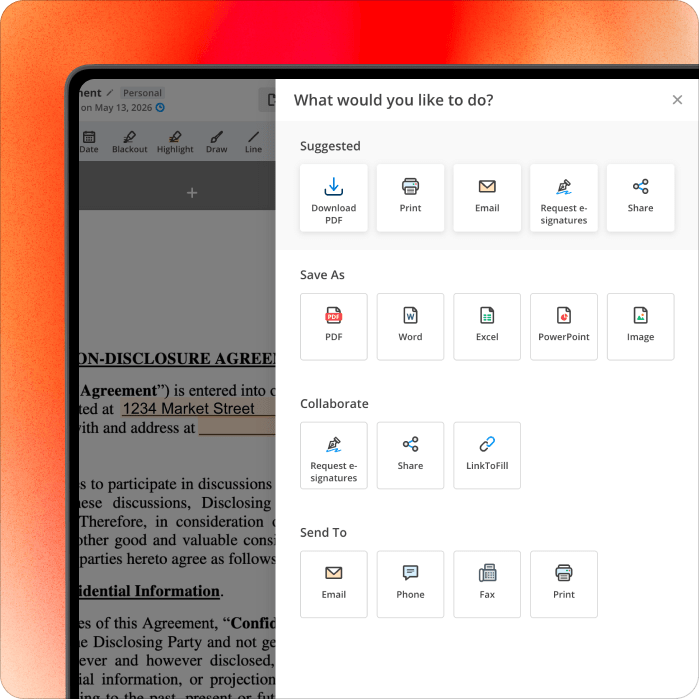
There are several methods for extracting text from scanned PDFs using pdfFiller. You can use the OCR tool to convert the entire document into editable text. Additionally, the Extract in Bulk feature allows you to select multiple documents for text extraction simultaneously. After the extraction, you can download the extracted data in various formats, making it easy to integrate into your existing workflows.
Clean Up and Sharpen Scanned PDFs
To improve the quality of your scanned PDFs, utilize the Clean Up tool available in pdfFiller. This feature offers options for sharpening the text and enhancing the overall clarity of the document. By cleaning up scanned PDFs, you increase the accuracy of text recognition during the OCR process, which is beneficial for ensuring that extracted text is as accurate as possible.
Limitations of OCR and Known Constraints
While OCR technology is powerful, it does have limitations. For instance, not all languages are supported, which can affect the accuracy of text extraction. Additionally, OCR may struggle with documents that have complex layouts or low-quality scans, leading to potential accuracy issues. File size limits may also restrict the types of documents you can process. Understanding these constraints helps set realistic expectations when using OCR for document conversion.
How Does pdfFiller Compare?
Adobe Acrobat offers robust OCR features, but can be costly for small businesses. Users may find it complex compared to pdfFiller.
Smallpdf provides basic OCR functionality, but lacks the comprehensive features of pdfFiller. It may not support bulk extraction effectively.
ABBYY FineReader is known for high accuracy, but its pricing may be prohibitive for SMBs. Users may prefer pdfFiller for its affordability and ease of use.