Convert Excel to PDF and Reorder PDF for Safari
Convert your Excel files to PDF quickly and reorder PDFs effortlessly using pdfFiller.
What Does the Excel to PDF Conversion Tool Do?
The Excel to PDF conversion tool allows you to convert Excel to PDF format easily. This tool is accessible via the Done dropdown and the All Tools card, making it convenient for quick document sharing. You do not need to install any software, which simplifies the process significantly. The tool is designed for users who want to manage their documents without the hassle of complex setups. With this tool, you can quickly convert your Excel files into PDFs, ensuring that your formatting remains intact and ready for sharing.
Why Format Matters in Document Workflows
Converting to PDF is essential for maintaining document integrity. A PDF preserves formatting and layout, which is crucial for professional presentations. When you convert Excel to PDF, it becomes easy to share and print your documents without worrying about alterations. PDFs also maintain security and accessibility, making them a preferred format for many business scenarios. This reliability in formatting ensures that your documents look exactly as intended, regardless of the device used to view them.
How to Access the Excel to PDF Conversion Tool
- Open pdfFiller in your web browser.
- Select the Done dropdown menu to find the conversion tool.
- Alternatively, use the All Tools card for quick access to the tool.
- Locate the document row and click on the More menu option to access the tool.
- No prior setup is needed to use this tool.
Uploading Documents for Conversion
To upload documents for conversion, you can utilize the drag and drop functionality available in pdfFiller. This feature supports multiple file types, allowing you to upload various documents easily. Once you upload your file, the system automatically initiates the conversion process. The user-friendly interface ensures that uploading documents is straightforward, making it accessible for everyone who needs to convert Excel to PDF.
Step-by-Step Instructions for Converting Excel to PDF
- Open pdfFiller and select the Excel to PDF conversion tool.
- Upload your Excel file by dragging it into the designated area.
- Choose PDF as the output format from the options provided.
- Click the convert button to start the conversion process.
- Once the conversion is complete, download the converted PDF file to your device.
Supported Output Formats for Conversion
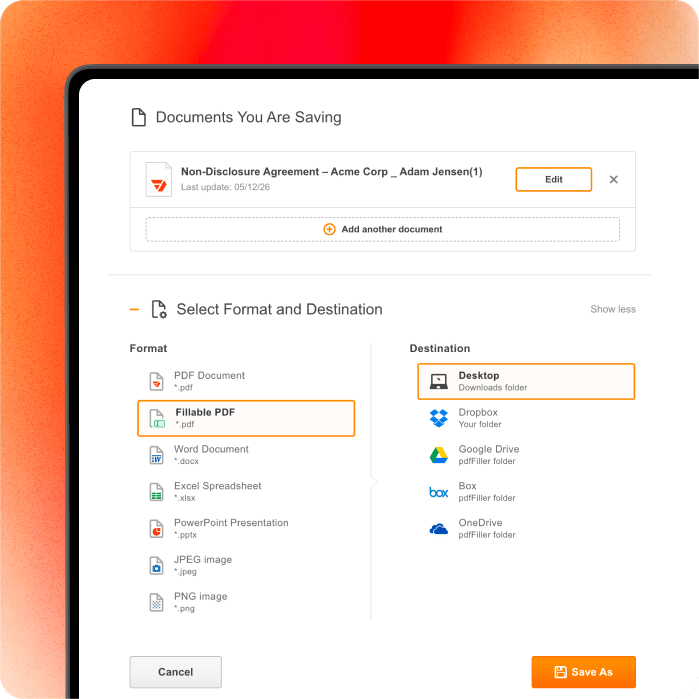
When you convert Excel to PDF, you can also choose from various output formats. Supported formats include PDF, Word (.docx), Excel (.xlsx), and PowerPoint (.pptx). Additionally, image formats such as .jpg and .png are also available for conversion. Be aware that plan-tier restrictions may apply, affecting the formats you can access. This compatibility with various software ensures that you can work with your documents in the format that best suits your needs.
What to Expect from the Converted PDF
The converted PDF files maintain high fidelity for native Excel files, ensuring that your documents look professional. However, scanned documents may require Optical Character Recognition (OCR) for accurate conversion. Keep in mind that layout fidelity may vary with complex formats, so always review your converted files. Additionally, text editability in converted files can vary, depending on the original content of the Excel file.
Comparing Conversion to Other Export Methods
When you choose to convert Excel to PDF, it differs significantly from using the Save As function. The conversion tool provides benefits such as preserving formatting and layout, which the Save As function may not guarantee. There are specific scenarios where conversion is preferable over compression, particularly when document integrity is crucial. Understanding these differences can help you choose the best method for your needs.
Real-World Scenarios for Excel to PDF Conversion
There are numerous practical use cases for the Excel to PDF conversion tool. For instance, sending invoices as PDFs ensures that clients receive documents in a professional format. Preparing reports for clients in PDF format allows for easy sharing and printing. Archiving important documents as PDFs helps maintain their integrity over time. Additionally, sharing data with stakeholders in PDF format ensures that the information remains consistent and secure.
Browser and Device Compatibility
The Excel to PDF conversion tool works on all major browsers, ensuring accessibility for everyone. It is compatible with both Mac and Windows operating systems, allowing you to convert documents regardless of your device. Mobile access is also available, making it easy to manage your documents on the go. Best of all, there is no installation required, so you can start converting files immediately.
Limitations and Known Constraints
While using the Excel to PDF conversion tool, there are some limitations to be aware of. Free users may encounter page count limits during conversion. Additionally, OCR availability for scanned files can vary, affecting the conversion quality. Complex layouts may not convert perfectly, so it’s advisable to review the output. Lastly, plan-tier differences in features may restrict access to certain functionalities.
Security and Data Handling During Conversion
Your document security is a top priority during the conversion process. All documents are processed on secure servers, ensuring that your data remains protected. There is no data retention after processing, which means your files are not stored on the server once the conversion is complete. Compliance with data protection regulations is maintained, and user privacy is upheld throughout the entire process.
Comparison with Other PDF Conversion Tools
pdfFiller stands out when compared to other PDF conversion tools. For instance, it is more user-friendly than Adobe Acrobat, making it easier for small and medium businesses to navigate. Unlike Smallpdf, pdfFiller has no hidden fees, ensuring transparency in pricing. Additionally, pdfFiller offers faster processing times compared to Nitro, which can be crucial for time-sensitive projects. Finally, pdfFiller simplifies document management more effectively than Foxit, providing a comprehensive solution for all your document needs.
Next Steps After Converting Your Excel File
After converting your Excel file to PDF, consider how to share your document effectively. You can explore options for editing or signing the PDF using pdfFiller's tools. Integrating your converted PDF with other pdfFiller tools can enhance your workflow, ensuring that you manage your documents efficiently. Following best practices for document management will help you maintain organization and accessibility in your digital workspace.