Customize Signature PDF
Customize your signature for PDF documents easily with pdfFiller's intuitive tools, allowing you to sign documents quickly and efficiently.
What is the Signature Tool?
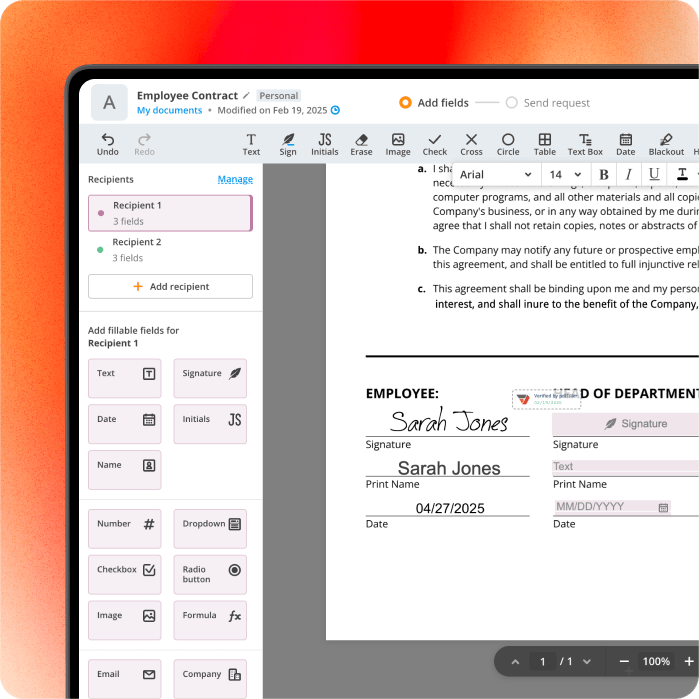
The signature tool in pdfFiller allows you to customize your signature for PDF documents. This tool distinguishes between self-signing your documents and sending them out for others to sign. You can access the signature feature via the Signature button located in the main editor toolbar. It is designed to be user-friendly, enabling you to create a legally binding electronic signature without any complex setup. The signatures you create are compliant with legal standards such as ESIGN, UETA, eIDAS, and GDPR, ensuring that your signed documents are valid and secure.
How Does This Tool Improve Your Workflow?
Using the signature tool improves your document workflows by allowing you to sign documents quickly and efficiently. You can integrate this tool into your existing processes without any technical barriers, making it accessible for small and medium-sized businesses. The intuitive interface ensures that you can manage your documents with ease, saving you time and effort in your daily operations.
Three Ways to Create a Signature
To customize your signature for PDF documents, pdfFiller offers three methods: Draw, Type, and Upload. Each method produces a legally binding signature, allowing you to choose based on your preference. Drawing your signature gives you a personal touch, typing allows for a clean, styled appearance, and uploading an image provides a quick solution if you already have a handwritten signature. All three methods are equally valid and can be used interchangeably based on your needs.
Drawing Your Signature
To draw your signature, use your mouse, touchpad, or stylus. This method allows for customization in color and line thickness, giving you the ability to create a signature that reflects your style. For best results, practice drawing your signature a few times to get comfortable with the tool. Once you're satisfied with your drawing, you can place it directly onto your document.
Typing Your Signature
To type your signature, select the font style and color that you prefer. This method allows you to create a signature that is both professional and visually appealing. You can easily adjust the placement of your typed signature within the document, ensuring it fits perfectly where you need it. This method is legally valid and provides a clean alternative for those who prefer not to draw.
Uploading a Signature Image
To upload a signature image, ensure that your file is in a supported format, such as PNG or JPEG. Follow the steps to upload your image, making sure it is clear and visible. A high-quality image will ensure that your signature looks professional on the document. This method is particularly useful if you have an existing handwritten signature that you want to use.
Adding Initials to Your Documents
You can add initials to your documents using the same three methods: Draw, Type, and Upload. Initials are important for many documents, providing a quick way to indicate your agreement or acknowledgment. Choose your preferred method to create and place your initials where needed in the document.
Customizing Your Signature Appearance
When customizing your signature, you have options for color and thickness. You can resize and reposition your signature after placing it on the document, ensuring it meets your preferences. This flexibility allows you to create a signature that not only looks good but also fits well within the context of your document.
Saving and Reusing Your Signature
To save your signature, follow the steps provided in the pdfFiller interface. You can set a default signature for future use, which streamlines the signing process for subsequent documents. This feature is particularly beneficial for professionals who frequently sign documents, as it eliminates the need for manual entry each time.
Legal Validity of Your Signature
Signatures created with pdfFiller comply with ESIGN, UETA, and eIDAS regulations, ensuring their legal validity. Each signed document receives an audit trail, which is crucial for maintaining a record of the signing process. Additionally, documents signed through pdfFiller are marked with a Verified by pdfFiller badge, further confirming their authenticity.
Scenarios for Using Your Signature
There are numerous scenarios where you might need to customize your signature for PDF documents. For instance, when signing a lease, you can quickly add your signature to finalize the agreement. Similarly, when authorizing contracts, your signature can be added swiftly to expedite the process. Completing forms often requires signatures, and having a customizable signature tool simplifies this task significantly.
How Does pdfFiller Compare?
DocuSign offers extensive features but often requires complex setups, which can be overwhelming for small businesses. Adobe Acrobat Sign is known for its robust capabilities, but may come with higher costs and a steeper learning curve. Dropbox Sign provides basic features but lacks the comprehensive template library and ease of use found in pdfFiller.
Next Steps
Now that you know how to customize your signature for PDF documents, you can integrate this action into the broader pdfFiller workflow. Start by filling out your documents, then sign them, and finally share them with others. This streamlined process will help you manage your documents more efficiently.