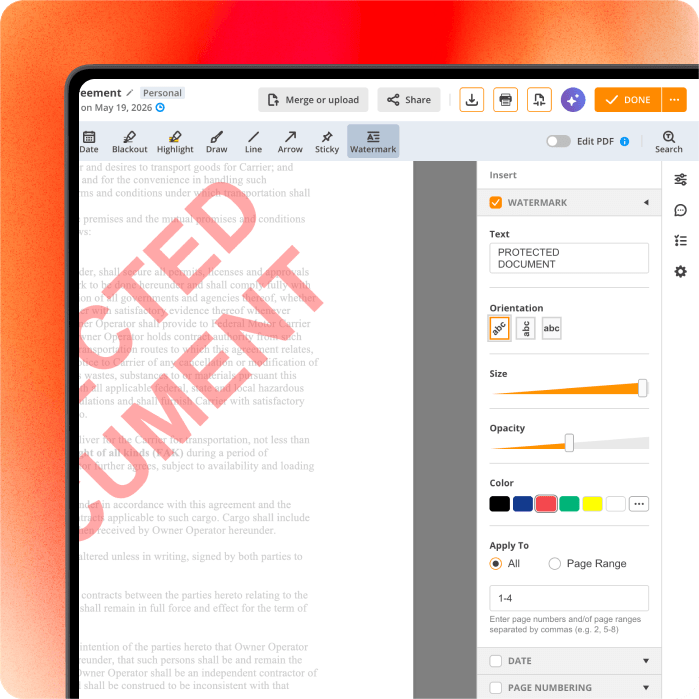
Highlight Watermark and Checkbox in PDF For Free

Drop document here to upload
Select from device
Up to 100 MB for PDF and up to 25 MB for DOC, DOCX, RTF, PPT, PPTX, JPEG, PNG, JFIF, XLS, XLSX or TXT

Last updated on Oct 16, 2026

Highlight Watermark and Checkbox in PDF

Add watermarks to your PDFs easily with pdfFiller's intuitive tools.

What is the Watermark Tool?

The watermark tool is a feature that allows you to add visual elements to your PDF documents for branding or confidentiality purposes. There are two types of watermarks you can use: text and image watermarks. Text watermarks allow you to overlay custom text, while image watermarks let you use logos or other graphics. You can access the watermark tool via Tools → Watermark in pdfFiller. Customization options are available, enabling you to adjust the size, transparency, and placement of your watermarks to suit your document's needs.

How Does Watermarking Improve Document Workflows?

Watermarking can significantly enhance your document management processes. By adding watermarks, you can protect sensitive information, ensuring that unauthorized users cannot misuse your documents. Additionally, watermarks enhance brand visibility, making your documents easily recognizable. They are particularly useful for drafts and proposals, helping to indicate the status of documents while maintaining a professional appearance.

How to Add a Text Watermark

  • Open your PDF document in pdfFiller.
  • Select the watermark tool from the Tools menu.
  • Enter your custom text in the designated field.
  • Adjust the size of the text to fit your document layout.
  • Set the transparency level to ensure the text does not overpower the content.
  • Choose whether to apply the watermark to specific pages or all pages.
  • Preview the watermark to see how it looks on your document.
  • Click 'Apply' to add the text watermark to your PDF.

How to Add an Image Watermark

  • Open your PDF document in pdfFiller.
  • Navigate to the watermark tool in the Tools menu.
  • Upload the image you want to use as a watermark from your device.
  • Customize the size of the image to fit your document appropriately.
  • Adjust the placement of the image on the page as needed.
  • Ensure the opacity settings are correct to maintain document readability.
  • Preview the image watermark to confirm its appearance.
  • Click 'Apply' to add the image watermark to your PDF.

Customizing Your Watermark

You can customize the appearance of your watermark to better fit your document's style. Options include changing the size, color, and rotation of the watermark. Additionally, you can adjust transparency levels to achieve the desired effect. Before applying changes, it's essential to preview them to ensure they align with your expectations. This customization helps maintain a professional look while ensuring your branding is visible.

Applying Watermarks to Specific Pages

When applying watermarks, you can control which pages receive the watermark. Options include applying it to the current page, all pages, or selecting a custom range of pages. The selection process is straightforward: simply specify your choice in the watermark tool settings. Understanding the scope of where your watermark appears is crucial for maintaining document integrity and clarity.

Editing or Removing a Watermark

  • Open your PDF document in pdfFiller.
  • Access the watermark tool again from the Tools menu.
  • Select the existing watermark you wish to modify.
  • Make the necessary changes to the watermark settings.
  • To delete a watermark, choose the delete option in the watermark tool.
  • Confirm the deletion to remove the watermark entirely from your document.
  • Save your document to ensure all changes are applied.

Applying a Date Stamp

  • Open your PDF document in pdfFiller.
  • Select the date stamp tool from the Tools menu.
  • Choose where you want to insert the date stamp in your document.
  • Customize the date format according to your preferences.
  • Adjust the placement and font of the date stamp as needed.
  • Preview the date stamp to ensure it appears correctly.
  • Click 'Apply' to add the date stamp to your document.

Adding Page Numbers to Your Document

  • Open your PDF document in pdfFiller.
  • Navigate to the page numbering tool in the Tools menu.
  • Select where you want the page numbers to appear on the pages.
  • Choose the format for the page numbers, such as numerical or Roman numerals.
  • Adjust the placement of the page numbers to fit your document layout.
  • Preview the page numbers to ensure they are correctly formatted.
  • Click 'Apply' to add page numbers to your document.

Understanding Bates Numbering

Bates numbering is a method used primarily for legal documents to assign unique identifiers to each page. To apply Bates numbers, you need to access the Bates numbering tool in pdfFiller. You can customize the prefixes and suffixes for the Bates numbers to fit your requirements. This numbering is essential in legal and archival contexts, ensuring that documents can be easily referenced and organized.

Browser Compatibility for Watermarking

pdfFiller's watermarking tool is compatible with various browsers and operating systems, ensuring accessibility for all users. You can access the tool from mobile devices as well, allowing for document editing on the go. No installation is required, making it easy to use from any device with internet access.

Limitations of the Watermark Tool

While the watermark tool offers many features, there are some limitations to be aware of. Supported image formats for watermarks include JPEG and PNG, while the maximum file size for uploads is typically limited to 5MB. Additionally, the opacity range for watermarks is between 0% and 100%, which may affect how visible your watermark appears on the document.

Security and Data Handling

pdfFiller prioritizes data security during the watermarking process. All documents are handled with TLS encryption, ensuring that your information remains secure. The platform also has clear file retention and deletion policies, complying with data protection standards to safeguard your documents throughout their lifecycle.

Free vs. Paid Watermarking Features

When comparing free and paid watermarking features, it's essential to understand the differences. Free plans typically offer basic watermarking capabilities, while paid plans provide additional customization options and features. Upgrading to a paid plan can enhance your watermarking experience, allowing for more flexibility and control over your documents.

How Does pdfFiller Compare?

pdfFiller stands out among competitors like ilovepdf, Smallpdf, and Adobe Acrobat due to its user-friendly interface and comprehensive features. Unlike ilovepdf, which offers limited customization, pdfFiller provides extensive options for watermarking. Smallpdf may have faster processing times, but pdfFiller's integration with other document management tools offers a significant advantage. Adobe Acrobat is known for its robust features, but pdfFiller is more affordable for small and medium businesses.

Next Steps After Watermarking

After watermarking your document, you have several options to consider. You can sign documents electronically, share them with colleagues or clients, and track the document's status for better workflow management. These next steps ensure that your documents remain organized and accessible, enhancing your overall productivity.

Try most popular PDF tools

Discover a full set of tools to handle any document task.

Edit PDFs

Make quick PDF edits online.

Sign

Add legally binding signatures.

Merge

Combine multiple PDFs.

Request signatures

Send a document for signing.

Convert

Transform PDFs into other formats.

Rearrange

Change the order of pages.

Share

Send PDFs for review or editing.

Compress

Reduce PDF file sizes.

How to add a watermark to a PDF?

1. Upload

Brand your documents with custom watermarks

  • Add a final touch after editing Add stamps, dates, and page or bates numbering to ensure PDFs are secure and professional. Customize watermarks by adjusting size, orientation, color, and transparency.
  • Clarify your contracts Avoid confusion when sending documents for review or signing. Stamp them as "Draft", "Final" or "Copy" to add clarity and indicate versions during contract negotiations.
  • Share with confidence Protect documents with watermarks before sharing. Ensure everyone who has access knows their status and owner.
  • Organize at a glance Add watermarks to see which documents are "Drafts", "For Review", or "Archived", saving you from opening the wrong version.

Who uses this tool?

Learn how professionals use pdfFiller to brand and protect their documents.

Business Owners

Protect intellectual property and maintain brand consistency across all documents. Add a company name to proposals to enhance branding or apply a custom text watermark to internal documents to indicate their status before sharing.

  • Business plans
  • Pitch decks
  • Internal memos
  • Marketing materials
Business Owners
  • G2 — Users Most Likely To Recommend
  • G2 — Grid Leader in Small-Business
  • G2 — High Performer
  • G2 — Regional Leader
  • G2 — Easiest To Do Business With
  • G2 — Best Meets Requirements
  • G2 — Best Support

pdfFiller scores top ratings on review platforms

pdfFiller is rated 4.6 out of 5 stars across 1,000+ G2 reviews.

Had problem with using the program had a chat with Sam he sent me the form i needed perfect experience
Alvin O
Worth the small investment. Extremely simple to use.
Shibu M. J
Excellent application! Extremely useful when on-line in my browser and when off-line at my desk.
RC
GOOD SERVICE GREAT HELP, WOULD ADVISE TO ANYONE
BAKERS AUTO P
Works well for someone not that savvy with tax forms. You can go back in and make corrections, etc. even when not quite finished.
Dorothy T
It is a great tool to use all round and… It is a great tool to use all round and very easy to use.
Johanna Newman

Watermark PDFs with a trusted, all-in-one solution

Try pdfFiller for all your document management needs.

pdfFiller workspace for creating, filling and managing PDF forms

Why trust pdfFiller to watermark your documents?

All-in-one solution

Watch PDF watermarking in action

Check out this video tutorial to learn how to protect and personalize your PDFs with custom watermarks.

FAQs

If you can't find what you're looking for, please contact us anytime!

To highlight a watermark in a PDF, simply open the document in pdfFiller and select the 'Highlight' tool from the toolbar. This allows you to emphasize the watermark visually. For best results, adjust the opacity settings to ensure the watermark remains visible while still being highlighted. This feature is particularly useful for legal teams needing to draw attention to important branding or copyright information in their documents. Additionally, ensure that your PDF is saved securely to maintain the integrity of the highlighted watermark.

Adding a checkbox in a PDF is straightforward with pdfFiller. Start by opening your PDF and navigating to the 'Form Fields' section. Select 'Checkbox' from the options and click on the area of the document where you want the checkbox to appear. You can customize its size and properties to fit your needs. This feature is essential for remote professionals and SMEs who require interactive forms for client feedback or legal approvals. Remember to save your document after making these changes to ensure they are preserved.

Yes, pdfFiller allows you to highlight multiple watermarks in a single PDF file. Open your document and use the 'Highlight' tool for each watermark you wish to emphasize. This is particularly useful for documents that contain several watermarks, such as contracts or agreements that require multiple approvals. After highlighting, consider using the 'Comment' feature to add notes or explanations next to each highlighted watermark, enhancing clarity for all parties involved.

Removing a watermark from a PDF after highlighting it is not directly supported in pdfFiller, as watermarks are often integral to the document's identity. However, if you have the original document, you can edit or remove the watermark before exporting it as a PDF. For legal teams, it’s crucial to maintain the integrity of documents, so always ensure you have the necessary permissions before making such changes. If the watermark is not essential, consider creating a version of the document without it for internal use.

To ensure the security of your highlighted PDFs with watermarks, utilize pdfFiller's built-in encryption features. After highlighting watermarks, you can set permissions to restrict editing or sharing of the document. Additionally, consider using password protection for sensitive documents, especially those containing legal information or client data. This way, you maintain control over who can view or modify the highlighted content, which is vital for remote professionals managing confidential materials.

Checkboxes in PDF forms enhance user interaction and data collection efficiency. By incorporating checkboxes, you allow users to make selections easily, which is particularly beneficial for surveys, consent forms, and contracts. In pdfFiller, you can customize checkboxes for various purposes, ensuring they align with your document's needs. This feature is invaluable for SMEs and legal teams looking to streamline workflows and improve document automation. Always test your forms to ensure that the checkboxes function correctly before distribution.

Yes, you can highlight and add checkboxes simultaneously in a PDF using pdfFiller. Start by highlighting the necessary text or watermark, then proceed to add checkboxes where needed. This dual functionality is particularly useful for creating interactive documents that require both visual emphasis and user input, such as contracts or agreements. Ensure that both features are clearly visible and functional to enhance the user experience and maintain document integrity.

Transforming businesses with pdfFiller

Check out these success stories.

I was happy to do this for patients, but I simply didn't have 30–60 minutes to fill out each form. It was a true waste of resources to do it that way, and as a surgeon, my time is better spent in patient care, which was often delayed.

Marshall Orthopaedics

One tool. Every document task.

One workflow shouldn’t take five tools

Start free trial