Make Image Smaller Than 1 MB
Compress images to under 1 MB using pdfFiller’s easy-to-use tool. Perfect for sharing documents without sacrificing quality.
What is the Compress Tool?
The Compress tool in pdfFiller allows you to make images smaller, ensuring they meet specific size requirements for digital documents. This tool is particularly useful for small and medium-sized businesses that often share documents online. You can access the Compress tool directly from the editor header or through the All Tools dashboard, making it easy to find and use. Whether you need to optimize images for email attachments or document sharing, the Compress tool provides a straightforward solution without the need for technical jargon.
Why Compress Images?
Reducing image size online is essential for maintaining efficient document workflows. Large files can hinder email attachments and lead to complications when sharing documents. By compressing images, you can avoid these issues and ensure that your documents are easily shareable. The benefits of compression include faster upload times and improved accessibility for recipients, which is crucial for small businesses aiming to maintain professionalism in their communications.
How to Access the Compress Tool
You can easily access the Compress tool in pdfFiller through two main paths. First, locate the Compress button in the editor header when you have an active editing session. Alternatively, you can find it in the All Tools dashboard, which does not require an open document. This flexibility allows you to make images smaller without any complicated navigation.
Uploading Images for Compression
To compress images to under 1 MB, you first need to upload them to pdfFiller. The platform supports various formats, including JPEG, PNG, and GIF. You can upload images directly from your device or import them from cloud storage services. Be aware that certain formats may undergo conversion behavior before compression, so ensure your images are in a compatible format for optimal results.
Steps to Compress an Image
- Open pdfFiller and log into your account.
- Access the Compress tool from the editor header or All Tools dashboard.
- Upload the image you want to compress.
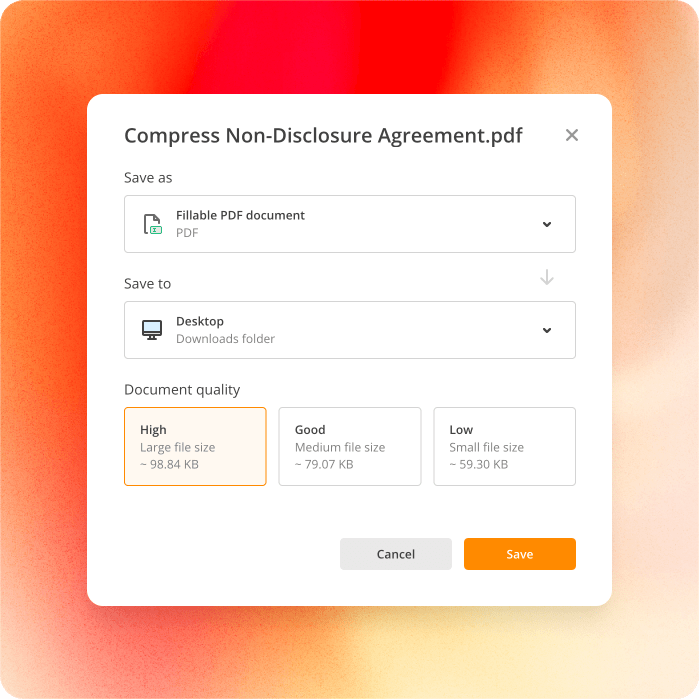
- Select the desired compression quality level: High, Medium, or Low.
- Click on the Compress button to initiate the process.
- Wait for the compression to complete; this may take a few moments.
- Review the compressed image for quality and size.
- Download the compressed image to your device.
Choosing the Right Compression Quality
When you reduce image size online, selecting the appropriate compression quality is crucial. pdfFiller offers three levels: High, Medium, and Low. The High setting minimizes visual changes while achieving modest size reduction, making it ideal for images where quality is paramount. The Medium setting strikes a balance between size and quality, while the Low setting maximizes size reduction but may impact image fidelity. Choose based on your specific needs and how the images will be used.
What Changes After Compression?
After you make images smaller, certain aspects of the image will change. The compression process primarily affects embedded images, which may lose some visual quality. However, the text, structure, and form fields of your document remain intact. This ensures that while the image size is reduced, the essential content of your document is preserved for effective document sharing.
Expected File Size Reduction
When you compress images to under 1 MB, the expected file size reduction can vary based on the content type. For example, image-heavy PDFs typically see significant size reductions, while text-only PDFs may yield minimal changes. It's important to set realistic expectations, as already-optimized files will see near-zero reduction. Understanding these variations can help you plan your document management strategy effectively.
Downloading Your Compressed Image
Once your image has been compressed, you can easily download it. pdfFiller provides straightforward download options, allowing you to save the compressed image directly to your device. If the file is still too large after compression, consider revisiting the quality settings or using additional compression methods. Proper file management will ensure that your documents are ready for sharing without unnecessary delays.
Comparing Compression Methods
pdfFiller's Compress tool offers unique advantages compared to other size-reduction methods like Delete Pages, Split, and Save As. While Delete Pages removes content, and Split divides documents, the Compress tool specifically targets image size reduction without altering the document's structure. This focused approach allows for efficient document management, making pdfFiller a preferred choice for small businesses.
Scenarios for Image Compression
Consider a freelance graphic designer who frequently sends large image files to clients. By using pdfFiller's Compress tool, they can easily make images smaller, ensuring timely delivery without sacrificing quality. Similarly, a small business owner preparing marketing materials can compress images for email campaigns, enhancing the likelihood of successful delivery. Digital marketers also benefit from compression, as smaller images improve website loading times and user experience.
Supported Formats for Compression
pdfFiller supports a variety of formats for image compression, including JPEG, PNG, and GIF. When you upload images, the platform automatically handles format conversions as needed. This compatibility ensures that you can effectively reduce image size online without worrying about unsupported formats. Always check the format guidelines to ensure a smooth compression process.
Security and Compliance Considerations
Security is a top priority when using the Compress tool. pdfFiller employs encryption during the compression process to protect your data. Additionally, the platform adheres to compliance certifications, ensuring that user data is handled responsibly. This commitment to security allows small and medium-sized businesses to use pdfFiller with confidence, knowing their documents are safe during compression.
Next Steps After Compression
After compressing your images, consider how this process integrates with your broader document management workflows. You can use the compressed images in various applications, such as email attachments or online sharing. Explore additional tools within pdfFiller to enhance your document management experience further. If you need assistance, pdfFiller offers user support options to help you navigate any challenges.
How Does pdfFiller Compare?
Smallpdf offers similar compression features but lacks the extensive template library of pdfFiller. Users may find fewer customization options. ilovepdf provides basic compression but does not integrate as seamlessly with document management workflows, offering limited features compared to pdfFiller. Adobe Acrobat is a powerful tool with advanced features, but it comes with a higher price tag and complexity that may not suit small businesses. Users may prefer pdfFiller for its simplicity and affordability.