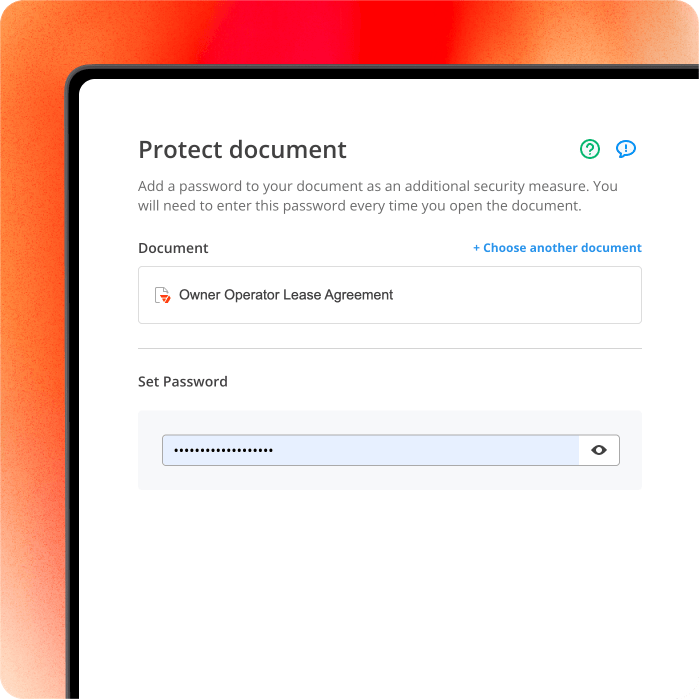
Remove Password from PDF and Password Protect PDF
Protect your PDFs by adding passwords in minutes with pdfFiller's easy-to-use tools.
What is Protect Document?
pdfFiller's Protect Document feature allows you to add a password to open a PDF, ensuring that only authorized individuals can access your sensitive information. This feature can be applied to the entire document or specific pages, providing flexibility based on your needs. The user-friendly interface is designed for small and medium-sized businesses (SMBs), making it easy to implement without requiring complex software. Additionally, pdfFiller offers legally binding e-signatures, enhancing the security and validity of your documents. This straightforward approach avoids the confusion often associated with competing tools, allowing you to focus on securing your PDFs efficiently.
How to Access the Protect Document Feature
- Navigate to the Tools menu in your pdfFiller account.
- Select the Protect Document option from the available tools.
- This feature is accessible on all devices, including desktops and mobile devices.
- No IT setup is required, making it easy for anyone to use.
Steps to Add a Password to a PDF
- Select the document you want to protect from your files.
- Enter your desired password that will be required to open the PDF.
- Choose the page scope for protection, whether for the entire document or specific pages.
- Click Apply to secure the document with the password you set.
How to Open a Password-Protected PDF
- Enter the correct password when prompted to access the document.
- Access the PDF via the pdfFiller link or by downloading it locally.
- Ensure compatibility with all devices to avoid access issues.
- No additional software is needed to open the password-protected PDF.
Protecting Specific Pages vs. Entire Document
When using pdfFiller, you can choose between full document protection or selecting specific pages for targeted security. Full document protection is ideal for comprehensive security, while protecting specific pages allows for flexibility in sharing information. Each method has its benefits, depending on the nature of the document and the intended audience. For example, a contract may require full protection, while a report might only need certain sensitive sections secured. Understanding these options helps you make informed decisions about document security.
Using the Confidential Folder for Secure Storage
pdfFiller offers a Confidential Folder feature that enhances document security. This includes phone verification for access, ensuring that only authorized users can view sensitive files. You can set custom password protection for documents stored in this folder, providing an additional layer of security. The Confidential Folder isolates document visibility, hiding sensitive documents from main lists, which helps maintain privacy and organization. This feature is particularly useful for businesses handling confidential information.
Creating a Read-Only PDF for Recipients
To restrict editing for shared documents, use the Protect Document feature to set the PDF to read-only. This ensures that recipients cannot make any changes to the document, which is ideal for contracts and agreements that require legal binding. By creating a read-only PDF, you maintain control over the content and ensure that the original terms are preserved. This method is particularly beneficial for legal documents where alterations could lead to disputes.
Password Protection on Download vs. Shared Link
Understanding the differences in password protection methods is crucial. When you download a PDF, the password protection applies directly to the file, ensuring that only those with the password can open it. In contrast, when sharing a link, the password protection is tied to the access method, which may affect how recipients interact with the document. Each approach has its own security considerations, impacting document accessibility and user experience.
When to Password-Protect a PDF
Password protection is essential in various scenarios, particularly for legal contracts and agreements that require confidentiality. HR documents and employee records often contain sensitive information that should be safeguarded. Financial records, such as tax forms, also necessitate protection to prevent unauthorized access. Personal identification documents should always be secured to protect against identity theft. Recognizing these situations helps ensure that sensitive information remains protected.
Browser and Device Compatibility for Password Protection
pdfFiller's password protection features are compatible with a wide range of browsers, ensuring that you can secure your documents regardless of the platform. Mobile device compatibility is also a key consideration, allowing you to manage your PDFs on the go. Differences in user experience may arise depending on the browser or device used, so it's recommended to use the latest versions for optimal performance. Following these guidelines ensures a smooth experience when protecting your PDFs.
Limitations and Known Constraints of Password Protection
While pdfFiller offers robust password protection, there are limitations to be aware of. The maximum password length may restrict the complexity of your chosen password. Additionally, page-range protection availability can vary, so it's important to check which options are applicable to your documents. The encryption standards applied to password protection ensure a level of security, but understanding the behavior differences for downloads versus shared links is essential for effective document management.
Next Steps to Secure Your PDFs
Start protecting your PDFs today with pdfFiller's Protect Document feature. No software installation is required, and you can access the tools from any device. Join over 68 million users who are securing their documents efficiently and effectively. With pdfFiller, you can ensure that your sensitive information remains safe while enjoying the benefits of easy document management.
How Does pdfFiller Compare?
pdfFiller offers a more user-friendly interface for SMBs, while ilovepdf may have more complex features. pdfFiller's straightforward password protection is ideal for quick use.
pdfFiller provides a comprehensive document management solution, whereas Smallpdf focuses primarily on PDF tasks. Users may find pdfFiller's all-in-one approach more beneficial.
pdfFiller is designed for small businesses with no IT setup, while Adobe Acrobat is more suited for enterprise users. The cost-effectiveness of pdfFiller is a significant advantage for SMBs.