Save PDF as Google Forms
Convert your PDF documents into Google Forms quickly and easily.
What is the PDF to Google Forms Conversion Tool?
The PDF to Google Forms conversion tool allows you to save PDF as Google Forms effortlessly. This tool converts PDFs directly to Google Forms without requiring any technical setup. It is particularly ideal for creating surveys and collecting data, making it accessible for anyone, regardless of their technical expertise. You can use this tool on any device, ensuring that you can manage your forms from anywhere. Unlike other solutions that may require complex software requirements, this tool is straightforward and user-friendly.
Why Convert PDF to Google Forms?
Converting your PDF to Google Forms offers several advantages for data collection. First, Google Forms are easy to share with respondents, allowing for quick feedback collection. Additionally, the data collected automatically populates in Google Sheets, simplifying data analysis. You can customize form fields to suit your specific needs, enhancing the user experience. The user-friendly interface of Google Forms makes it accessible for everyone, ensuring that you can gather information efficiently.
How to Access the Conversion Tool
To access the conversion tool in pdfFiller, follow these steps:
- Select the "Done" dropdown menu after uploading your PDF document.
- Click on the "All Tools" card to find the conversion options.
- Locate the document row and select the "More" menu option.
- No installation is needed to access the conversion tool.
Steps to Convert PDF to Google Forms
Follow these steps to save PDF as Google Forms:
- Upload your PDF document to pdfFiller.
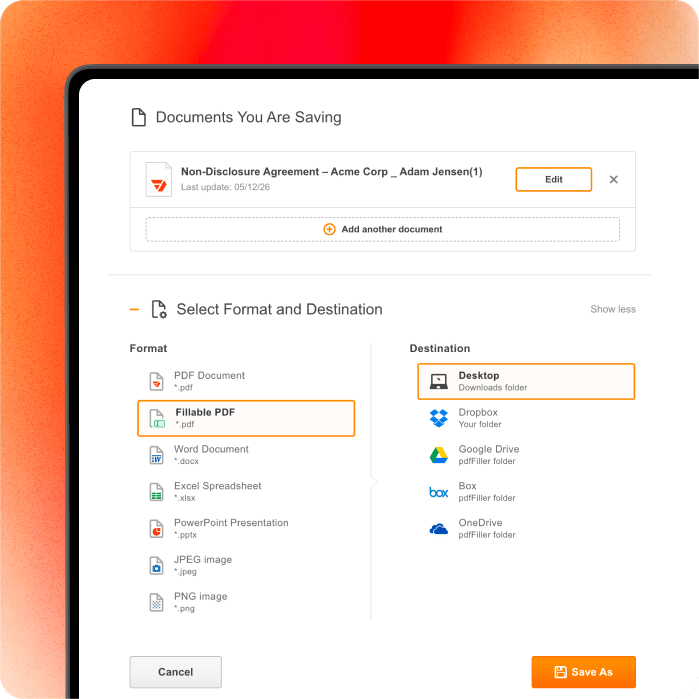
- Select the conversion option for Google Forms.
- Review and edit the form to ensure it meets your requirements.
- Save your Google Form and share it with your intended audience.
Supported Output Formats
The primary output format for the conversion tool is Google Forms. However, pdfFiller also supports other formats, ensuring compatibility with various document types. Depending on your plan tier, you may have access to different output formats, allowing you to choose the best option for your needs.
Common Scenarios for Conversion
There are several common scenarios where converting PDFs to Google Forms can be beneficial:
- Creating surveys for customer feedback to improve products and services.
- Collecting event registrations efficiently through online forms.
- Gathering data for research projects, simplifying the data collection process.
- Streamlining internal processes by converting existing forms into digital formats.
Browser Compatibility
The conversion tool is compatible with various browsers, ensuring that you can access it from both Mac and Windows devices. Mobile access is also available, allowing you to convert PDFs on the go. There is no installation required, making it easy to use across different platforms.
Limitations of the Conversion Tool
While the conversion tool is highly effective, it does have some limitations. For instance, page count limits may apply based on your subscription plan. Additionally, OCR (Optical Character Recognition) is only available for scanned PDFs, which may affect the conversion quality. Complex formatting in your original PDF may also pose challenges during the conversion process, and certain file types may not be supported.
Security and Data Handling
pdfFiller prioritizes the security of your documents during the conversion process. The tool employs secure server-side processing and data encryption measures to protect your information. Privacy policies are in place to ensure user control over document access, giving you peace of mind when using the conversion tool.
How Does pdfFiller Compare?
When comparing pdfFiller with other tools, several key differences emerge:
Adobe Acrobat offers extensive features but requires a subscription and complex setup. Tradeoff: Higher cost for advanced tools.
Smallpdf provides basic PDF tools but lacks the comprehensive features of pdfFiller. Tradeoff: Limited functionality for serious users.
Nitro is good for PDF editing but does not offer direct conversion to Google Forms. Tradeoff: Less user-friendly for non-technical users.
Next Steps for Your Document Workflows
After converting your PDF to Google Forms, consider integrating this process with other pdfFiller features to enhance your document management efficiency. You can utilize templates for faster workflows and explore additional tools that pdfFiller offers for comprehensive document handling.