Unlock PDF and Protect PDF from Copying for Website
Protect your PDF files with a password using pdfFiller's simple tools.
What is Protect Document?
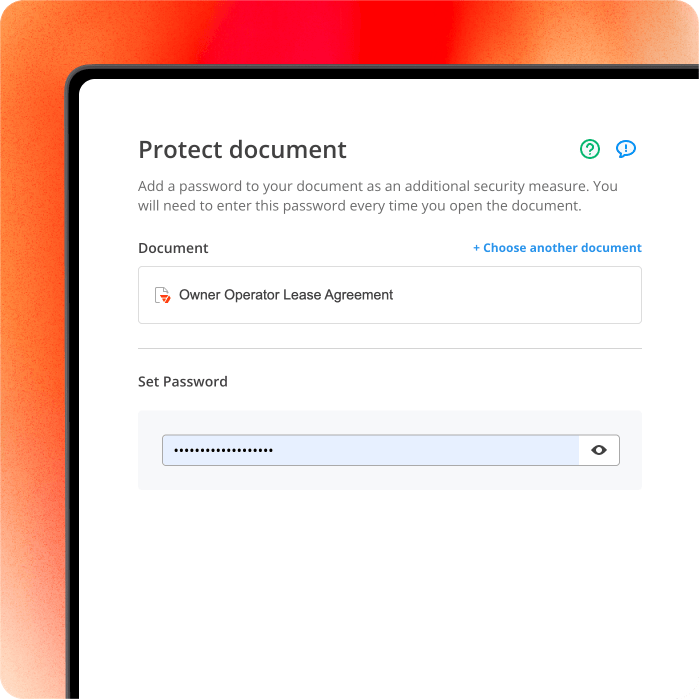
The Protect Document feature in pdfFiller allows you to Protect PDF files by adding a password to open them. This feature can be applied to the entire document or specific pages, ensuring that sensitive information remains secure. With a user-friendly interface, you can easily navigate through the options without the need for complex software requirements or IT setup. This means you can focus on securing your documents without getting bogged down by technical details.
How to Access Protect Document
To access the Protect Document feature, simply navigate to the Tools menu within pdfFiller. The user interface is designed for easy navigation, allowing you to find the feature quickly. This functionality is available on all devices, ensuring that you can protect your PDFs wherever you are. There is no need for additional software, making the process straightforward and efficient.
Steps to Add a Password to a PDF
- Select the document you wish to protect and determine the page scope.
- Enter your desired password that will be required to open the PDF.
- Click the Apply button to secure the document with the password.
- Receive confirmation that the protection has been successfully applied.
How to Open a Password-Protected PDF
To access your secured PDFs, enter the known password when prompted. You can do this via the pdfFiller interface, which is compatible with all devices. This means you can open your password-protected PDFs without needing any additional software, ensuring a smooth experience.
Protecting Specific Pages vs. Entire Document
When using the Protect Document feature, you have the option to choose between protecting the full document or specific pages. This flexibility allows you to tailor document security based on your needs. For example, you might want to protect sensitive sections of a report while leaving other parts accessible. This user control over document security ensures that you can manage access effectively.
Using the Confidential Folder for Secure Storage
pdfFiller offers a Confidential Folder for secure storage of sensitive documents. Access to this folder requires phone verification, ensuring that only authorized users can view the contents. You can set a custom password for access, which hides documents from main lists, providing enhanced privacy for your files. This feature is particularly useful for storing confidential documents that require an extra layer of security.
Creating a Read-Only PDF for Recipients
To share PDFs securely, you can set documents to a read-only state. This protects sensitive information while allowing clients to view the content without making changes. By maintaining control over document access, you can ensure that your important files are shared securely and appropriately.
Password Protection on Download vs. Shared Link
When sharing PDFs, you can implement password protection for both downloads and shared links. This gives you control over who can access your documents. Understanding the differences in security measures between these two methods is essential for effective document management and sharing. Best practices for sharing include clearly communicating access requirements to recipients.
When to Password-Protect a PDF
Password protection is essential for various scenarios, including legal contracts and agreements, HR and financial documents, and personal identification forms. Securing sensitive data in these contexts helps prevent unauthorized access and potential data breaches, making it a crucial step in document management.
Browser and Device Compatibility for Password Protection
pdfFiller's password protection features are compatible with a wide range of browsers and mobile devices. This ensures a consistent user experience across platforms, allowing you to secure your PDFs without limitations. You can confidently use these features regardless of the device you are on.
Limitations and Known Constraints of Password Protection
While the Protect Document feature is effective, there are some limitations to be aware of. For instance, there is a maximum password length, and page-range protection may not be available for all document types. Additionally, understanding the encryption standards used can help you assess the security of your protected PDFs. It's important to consider these factors when implementing password protection.
Comparison of pdfFiller with Other Tools
How does pdfFiller compare with other tools? When looking at alternatives like ilovepdf and Smallpdf, pdfFiller stands out with its in-app secure storage feature, which is not available in ilovepdf. While Smallpdf offers similar functionalities, it can be limited in template options compared to pdfFiller. Adobe Acrobat is known for its comprehensive features but often comes with a higher price tag, making it less accessible for small businesses.
Next Steps to Secure Your PDFs
Start using the Protect Document feature today to secure any PDF in minutes. With no software installation required, you can join millions of satisfied users who trust pdfFiller for their document management needs. Protecting your documents has never been easier.