Convert PNG to PDF and Lock PDF for Microsoft Edge
Convert your PNG images to PDF format quickly and easily using pdfFiller, accessible from any device without installation.
What is the PNG to PDF Conversion Tool?
The PNG to PDF conversion tool allows you to convert PNG images to PDF format without the need for software installation. This tool is ideal for professionals who require a quick and efficient way to manage their digital documents. By using this tool, you can convert images to PDF seamlessly, ensuring that your files are universally accepted and easy to share. It supports multiple formats, making it versatile for various image types.
Why Convert PNG to PDF?
Converting PNG files to PDF offers several advantages. First, PDF is a universally accepted format, making it easier to share documents across different platforms. Additionally, PDFs maintain image quality, ensuring that your visuals look professional in presentations. This format is also ideal for printing, as it preserves the integrity of your images. Overall, converting PNG to PDF simplifies document sharing and enhances your workflow efficiency.
How to Access the PNG to PDF Conversion Tool
- Open pdfFiller in your web browser.
- Click on the "Done" dropdown menu at the top of the page.
- Select the "All Tools" card to view available options.
- Locate the "More" menu in the document row.
- Access the PNG to PDF conversion tool without requiring a login.
Steps to Convert PNG to PDF
- Upload your PNG file to the pdfFiller platform.
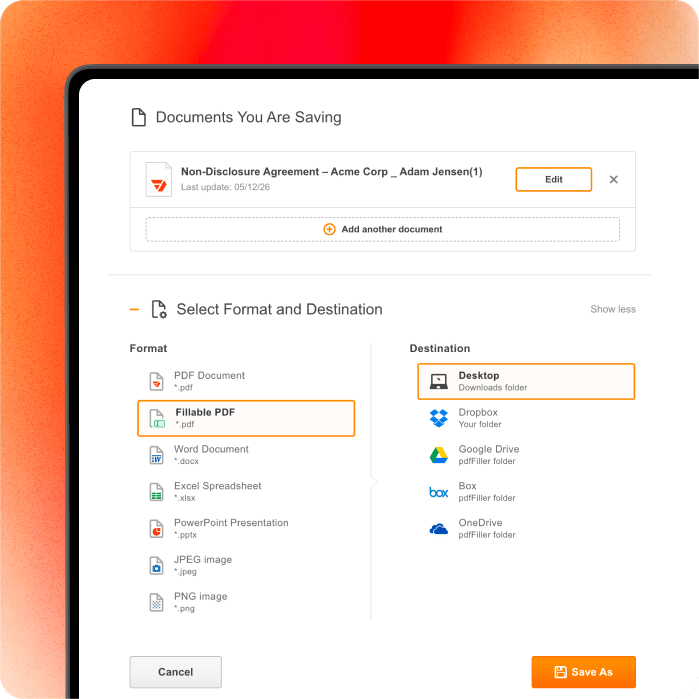
- Select PDF as the desired output format for conversion.
- Click the "Convert" button to initiate the process.
- Download your newly created PDF file once the conversion is complete.
Supported Output Formats
- PDF format for document sharing and printing.
- Word documents for easy editing and collaboration.
- Excel files for data management and analysis.
- PowerPoint presentations for effective visual communication.
- Various image formats for flexible usage.
Input File Types Accepted
- PNG files for high-quality image conversion.
- JPG files for standard image processing.
- GIF files for animated image support.
- BMP files for bitmap image conversion.
- TIFF files for high-resolution images.
Conversion Quality Expectations
When you convert PNG to PDF, you can expect high fidelity for native images, ensuring that your visuals retain their quality. For scanned images, Optical Character Recognition (OCR) may be applied to enhance text readability. However, layout fidelity may vary depending on the complexity of the original image. Overall, the image quality is maintained throughout the conversion process, making it suitable for professional use.
Limitations of the Conversion Tool
While the PNG to PDF conversion tool is highly effective, there are some limitations to be aware of. Page count limits may apply depending on the plan you are using, which could restrict larger documents. Additionally, OCR availability may vary, affecting the conversion of scanned images. Complex formatting challenges may also arise, particularly with intricate designs or layouts.
Security Measures During Conversion
pdfFiller ensures document security during the conversion process through secure server-side processing. Your data is encrypted to protect your privacy, and there is no document retention after the conversion is complete. This commitment to privacy compliance means you can convert PNG to PDF with confidence, knowing your information is secure.
How Does pdfFiller Compare?
Adobe Acrobat offers extensive features for PDF editing but requires a subscription. Tradeoff: Higher cost for advanced features.
Smallpdf provides a user-friendly interface for quick conversions but may have file size limits. Tradeoff: Limited functionality in the free version.
ilovepdf offers various PDF tools but lacks advanced editing features. Tradeoff: Basic tools may not meet all user needs.