Lock PDF and Convert PDF to PNG for Microsoft Edge
Lock your PDF documents with a password using pdfFiller to ensure security and confidentiality while working from any device.
What is PDF Password Protection?
Password protection is a security feature that restricts access to PDF documents by requiring a password to open or modify them. This is particularly important for businesses that handle sensitive information, such as financial records or legal contracts. By locking PDFs, you ensure that only authorized individuals can view or edit the content, thereby maintaining confidentiality. pdfFiller offers an easy-to-use solution for locking PDFs, allowing you to secure your documents without complicated processes. With its intuitive interface, you can quickly add password protection to your files, making it an ideal choice for professionals and small businesses alike.
How to Access the Protect Document Feature
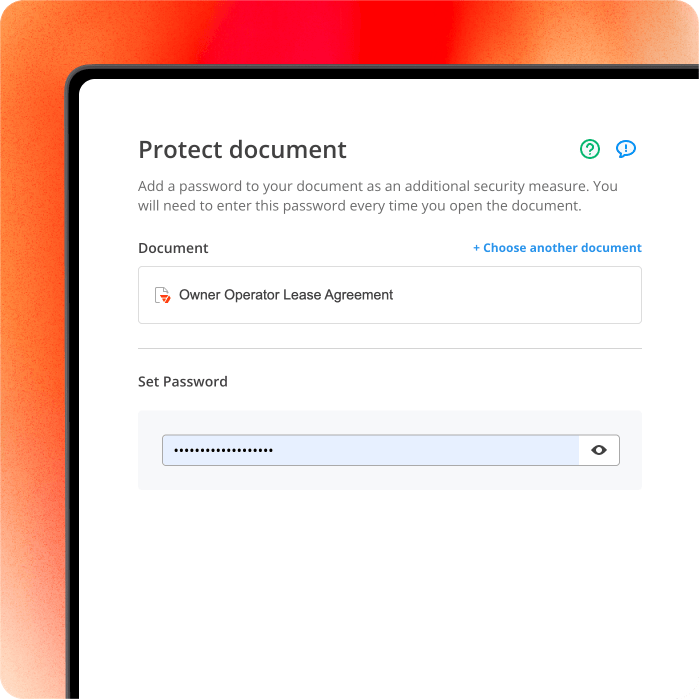
To lock a PDF using pdfFiller, first, log into your account on the pdfFiller website. From the dashboard, navigate to the 'Protect Document' feature, which can be found in the tools menu. This feature is compatible with all devices, ensuring that you can secure your documents whether you are on a desktop, tablet, or smartphone. This functionality is particularly beneficial for professionals in various roles, such as HR managers or legal advisors, who need to protect sensitive documents regularly.
Steps to Lock a PDF Document
- Open the PDF file you want to secure in pdfFiller.
- Select the 'Protect Document' option from the toolbar.
- Enter a strong password that meets security requirements.
- Confirm the password by re-entering it in the provided field.
- Choose any additional security settings, such as restricting editing or printing.
- Click 'Apply' to lock your PDF document with the chosen password.
- Save the locked PDF to your device or cloud storage.
- Test the password protection by reopening the PDF to ensure it requires the password.
How to Unlock a Password-Protected PDF
- Open the locked PDF file in pdfFiller.
- When prompted, enter the correct password to access the document.
- If you forget the password, check for any password recovery options available.
- Be aware that without the password, access to the document is restricted.
- Common issues include entering the wrong password or not having the necessary permissions.
Protecting Specific Pages vs. Entire Document
When locking a PDF, you can choose to protect specific pages or the entire document. Protecting specific pages allows for targeted security, which is useful for documents that contain both sensitive and non-sensitive information. For example, a financial report may have confidential sections that require protection while leaving other pages accessible. On the other hand, locking the entire document is ideal for comprehensive security, ensuring that all content remains confidential. Understanding these options helps you tailor your document management strategy to meet your specific needs.
The Confidential Folder Feature
pdfFiller offers a Confidential Folder feature that adds an extra layer of security to your sensitive documents. To access this feature, navigate to your account settings and enable the Confidential Folder option. This feature requires a verification process to ensure that only authorized users can access the documents stored within. It is particularly beneficial for roles that handle sensitive information, such as HR professionals or legal advisors, providing a secure environment for confidential storage.
Creating a Read-Only PDF for Recipients
To share PDFs securely, you can create a read-only version of your document. Start by locking the PDF with a password, then adjust the settings to restrict editing. This ensures that recipients can view the document but cannot make any changes. This method is particularly useful for business documents like contracts or reports, where maintaining the original content is crucial. By sharing read-only PDFs, you protect your intellectual property while allowing others to access necessary information.
Password Protection on Download vs. Shared Link
When sharing PDFs, you have the option to apply password protection either on the download link or directly within the document. Password protection on download means that users must enter a password to download the file, which can be useful for sensitive documents shared via email. Conversely, applying protection directly to the document ensures that anyone accessing the file, regardless of how they receive it, must enter a password. Each method has its benefits and drawbacks, depending on your specific security needs and the context in which the document is shared.
Use Cases for Password-Protecting PDFs
Password protection is essential for various document types, including HR documents, legal contracts, and financial records. For instance, HR professionals often need to secure employee records to comply with privacy regulations. Similarly, legal advisors may require password protection for contracts to prevent unauthorized access. Understanding when to use password protection helps ensure that sensitive information remains confidential and secure.
Limitations of PDF Password Protection
While password protection is a valuable security measure, it does have limitations. For example, if a password is forgotten, accessing the document can become impossible without recovery options. Additionally, some older PDF readers may not support advanced password protection features, potentially limiting accessibility for certain users. Being aware of these constraints helps you make informed decisions about document management and security.
How Does pdfFiller Compare?
Adobe Acrobat offers extensive features for PDF management but can be costly for small businesses. Users may find it complex compared to pdfFiller.
Smallpdf provides basic PDF tools but lacks the comprehensive features of pdfFiller, especially for document security. It may not meet the needs of businesses requiring robust security.
ilovepdf is a user-friendly option for basic tasks but does not offer the same level of security features as pdfFiller. Users may miss out on advanced protection options.