Save PDF as Photo For Free

Drop document here to upload
Select from device
Up to 100 MB for PDF and up to 25 MB for DOC, DOCX, RTF, PPT, PPTX, JPEG, PNG, JFIF, XLS, XLSX or TXT
Note: Integration described on this webpage may temporarily not be available.

Last updated on Oct 13, 2026

Save PDF as Photo

Convert your PDF files into images quickly and easily using pdfFiller.

What is the PDF to Photo Conversion Tool?

The PDF to Photo conversion tool allows you to save PDF as photo by converting PDF files to popular image formats like JPG and PNG. This tool is ideal for sharing images easily across various platforms. One of the significant benefits is that no software installation is required, making it accessible from any device with internet connectivity. Users can convert their documents without the complexity often associated with competing solutions, ensuring a straightforward experience.

Why Convert PDF to Image?

Converting PDFs to images can be beneficial for several reasons. First, images are easier to share on social media, allowing for broader distribution of content. Additionally, these images are useful for presentations and reports, where visual appeal is crucial. Extracting images from PDFs can also be done seamlessly, preserving the original visual formatting. This conversion ensures that the integrity of the document's design is maintained, making it more effective for various uses.

How to Access the Conversion Tool

You can easily access the conversion tool by navigating to the Done dropdown menu in pdfFiller. It is available in the All Tools section, allowing you to find it quickly. Additionally, you can access the Document row More menu option to locate the conversion feature. This accessibility ensures that you can convert your files from any device without complicated navigation.

Steps to Convert PDF to Image

  • Open your PDF file in pdfFiller.
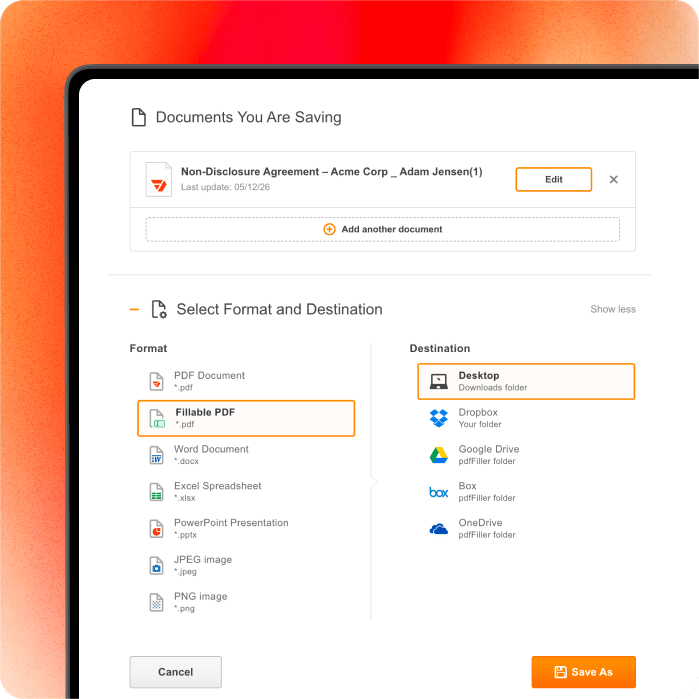
  • Select the 'Save As' option from the menu.
  • Choose your desired image format, either JPG or PNG.
  • Click on the download button to retrieve the converted file.

Supported Output Formats

When using pdfFiller to save PDF as photo, you can convert your files into JPEG (.jpg) and PNG (.png) formats. These conversion options are available depending on your plan tier, ensuring you have the flexibility to choose the format that best suits your needs.

Input Formats Accepted for Conversion

The conversion tool accepts various input formats for conversion to PDF, including PDF files, Word documents, Excel spreadsheets, and image files such as JPG and PNG. This versatility allows you to work with different types of documents, enhancing your workflow.

Conversion Quality Expectations

Quality expectations for the conversion process can vary based on the file type. For instance, OCR may be required for scanned PDFs to ensure accurate text recognition. Additionally, the image quality for multi-page PDFs may differ, and complex layouts might not convert perfectly. Understanding these factors will help you set realistic expectations for the output quality.

Limitations of the Conversion Tool

While the conversion tool is effective, there are some limitations to be aware of. Page count limits may apply, which could restrict the number of pages you can convert at once. Furthermore, complex formatting may not convert accurately, and OCR availability is dependent on your plan tier. File size restrictions may also exist, so it's essential to check these before starting your conversion.

Security and Data Handling

When using pdfFiller, you can be assured of security and data handling practices. The server-side conversion ensures your privacy, as documents are deleted after processing. This secure handling of sensitive information complies with data protection standards, giving you peace of mind while converting your files.

Next Steps After Conversion

After converting your PDF to an image, you have several options to consider. You can edit your image using pdfFiller's editing tools, share it directly via email or social media, or combine it with other documents. Additionally, storing the image in the cloud allows for easy access whenever needed, enhancing your document management workflow.

Try most popular PDF tools

Discover a full set of tools to handle any document task.

Edit PDFs

Make quick PDF edits online.

Sign

Add legally binding signatures.

Merge

Combine multiple PDFs.

Request signatures

Send a document for signing.

Convert

Transform PDFs into other formats.

Rearrange

Change the order of pages.

Share

Send PDFs for review or editing.

Compress

Reduce PDF file sizes.

How to convert your PDF?

1. Upload your document

All-in-one PDF converter: Convert, edit, sign, and manage documents

  • Convert and edit docs in one place Upload your document, make quick edits online, and save it as a PDF, text document (DOCX), spreadsheet (XLSX), image (JPEG/PNG), or presentation (PPTX).
  • Equip yourself with powerful PDF tools Edit PDFs online almost as easily as Word documents. Add text, adjust formatting, replace content, insert images, and more.
  • eSign and send documents Sign documents on your own or send them to others for signatures, whether a single recipient or an entire group.
  • Annotate & collaborate Highlight important data, redact sensitive details, add sticky notes, and exchange comments in your PDFs. Then, instantly send documents for review or editing.
  • Collect data without chasing people down Create fillable PDF forms and let others complete them from any device. Publish forms online or share them via a direct link to capture data and signatures.
  • Store files securely in the cloud Organize your documents and templates in secure cloud storage and access them from anywhere. pdfFiller follows strict security regulations to help safeguard your data.

Who needs this?

Explore how professionals across industries use pdfFiller to convert PDFs online.

Real Estate

Real estate agents and brokers rely on pdfFiller to edit and annotate brochures, lease agreements, and contracts. They can easily convert documents to formats like JPEG, PDF, DOCX, or XLSX for quick sharing and signature collection.

  • Property listing brochures
  • Lease agreements
  • Sales contracts
  • Property management forms
Real Estate
  • G2 — Users Most Likely To Recommend
  • G2 — Grid Leader in Small-Business
  • G2 — High Performer
  • G2 — Regional Leader
  • G2 — Easiest To Do Business With
  • G2 — Best Meets Requirements
  • G2 — Best Support

pdfFiller scores top ratings on review platforms

pdfFiller is rated 4.6 out of 5 stars across 1,000+ G2 reviews.

So far PDFFiller is meeting my current needs and saving me time and money. I am pretty sure there are other features that I could take advantage of if I actually knew what they were. I welcome a webinar to learn more.
Dr. Liezette A
I enjoy this it helps with all of my work documents but there are a few things I would like to see be fixed which were the erasing button.
Jazmynn
pdf Filler is so easy to use and I… pdf Filler is so easy to use and I highly recommended
Da'Vonne Duncan
Great Service I enjoy the service, it's easy to navigate via computer or phone.
tsadiyahbatyah
Pretty Neat Pretty Neat, useful for filling pdfs
Felix Lovelace
Great application Great application, really helpful to edit some PDF data.
Ari P

Convert documents with a trusted solution

Try easy-to-use tools for all your document management needs.

pdfFiller workspace for creating, filling and managing PDF forms

Why convert documents with pdfFiller?

More than a PDF converter

Watch our PDF converter in action

Check out a quick video tutorial that shows how to convert any file into an editable PDF in three easy steps.

FAQs

If you can't find what you're looking for, please contact us anytime!

To save a PDF as a photo using pdfFiller, simply upload your PDF document to the platform, select the 'Export' option, and choose 'Image' as your output format. This process allows you to convert each page of the PDF into a high-quality image file, such as JPEG or PNG. For best results, ensure your PDF is optimized for image conversion by checking the resolution settings before exporting. This method is particularly useful for remote professionals who need to share visual content quickly.

When using pdfFiller, you can save a PDF as several image formats, including JPEG, PNG, and TIFF. This flexibility allows you to choose the format that best suits your needs, whether for web use, printing, or sharing with colleagues. To select the format, simply navigate to the 'Export' feature after uploading your PDF and choose your preferred image type. This capability is essential for legal teams needing to present documents visually while maintaining document integrity.

Yes, saving a PDF as a photo on pdfFiller is secure. The platform employs advanced security protocols, including encryption and secure cloud storage, to protect your documents during the conversion process. When you save a PDF as a photo, your data remains confidential and is not accessible to unauthorized users. For added security, consider using password protection on your images if they contain sensitive information. This is particularly important for SMEs handling confidential client data.

Absolutely! pdfFiller is designed to be cross-platform compatible, allowing you to save a PDF as a photo directly from your mobile device. Simply download the pdfFiller app, upload your PDF, and follow the same steps to export it as an image. This feature is invaluable for remote professionals who need to work on-the-go and require quick access to document management tools. Ensure your app is updated for the best performance.

Saving a PDF as a photo offers several benefits, including easier sharing, enhanced visual presentation, and compatibility with various platforms. By converting your PDF into an image, you can easily share it on social media, embed it in presentations, or use it in marketing materials without losing quality. This is particularly useful for legal teams who need to present evidence visually. Additionally, images can be more accessible for clients who may not have PDF viewing software.

To ensure high-quality images when saving a PDF as a photo, adjust the resolution settings in pdfFiller before exporting. Aim for a resolution of at least 300 DPI (dots per inch) for print-quality images, or 72 DPI for web use. This adjustment will help maintain clarity and detail in your images. Additionally, consider using the 'Preview' feature to check the quality before finalizing your export. This is crucial for professionals who need to maintain a polished appearance in their documents.

Yes, you can edit your PDF before saving it as a photo in pdfFiller. The platform offers a range of editing tools, including text modification, annotation, and image insertion. Once you have made your desired changes, you can then proceed to save the PDF as a photo. This feature is particularly beneficial for remote professionals and legal teams who need to ensure that all information is accurate and up-to-date before sharing visual content.

What businesses achieve with pdfFiller

Discover how you can benefit too.

Other software options offering customized branding have really extreme pricing. Compared to the monthly costs of PandaDoc, we are now saving unbelievable amounts of money.

B2B Services Message Direct

One tool. Every document task.

One workflow shouldn’t take five tools

Start free trial