Modifica il testo in un file Gratuito

Trascina qui il documento per caricarlo
Seleziona dal dispositivo
Fino a 100 MB per PDF e fino a 25 MB per DOC, DOCX, RTF, PPT, PPTX, JPEG, PNG, JFIF, XLS, XLSX o TXT

Ultimo aggiornamento il Nov 13, 2024

Edit Text in PDF

Edit text in your PDF documents quickly and easily using pdfFiller.

What is Edit Mode in pdfFiller?

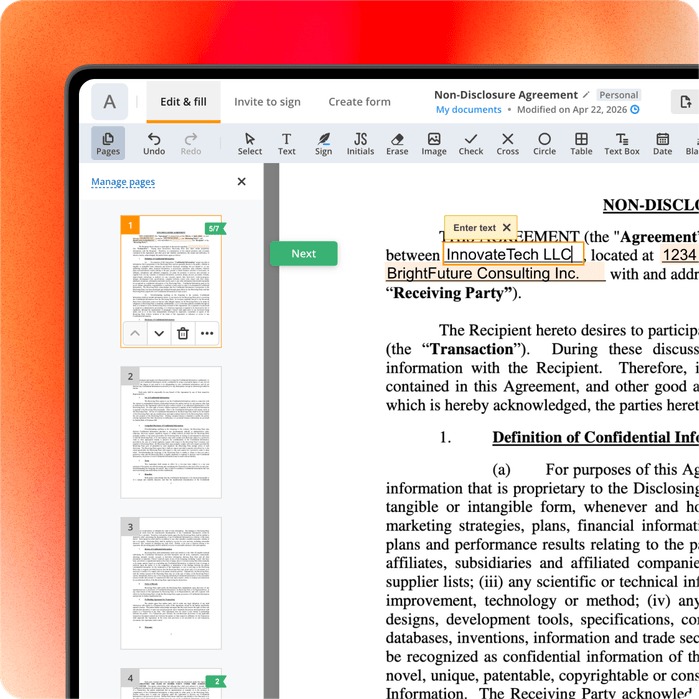
Edit Mode in pdfFiller allows you to modify existing text directly within your PDF documents. You can access this feature via the Edit button in the toolbar, enabling direct modification of document content without the need for conversion. Unlike annotation tools, which only allow comments or highlights, Edit Mode is designed for full text editing. This feature is compatible with native PDFs, ensuring that you can work with your documents as they were originally created.

How to Access Edit Mode

To enter Edit Mode for text editing, click the pencil icon located in the toolbar. Ensure that your document is in an editable state; otherwise, you will not be able to make changes. For optimal performance, use supported browsers, as pdfFiller operates entirely online with no installation required. This makes it accessible for small and medium-sized businesses looking for a straightforward solution to modify PDF text.

Editing Existing Text in PDF

To edit text in PDF documents, simply click on the text block you wish to modify. You can navigate between text elements easily, allowing for efficient adjustments. pdfFiller provides best-effort font matching for native PDFs, ensuring that your edits blend seamlessly with the original document style. If you make a mistake, you can easily undo changes, giving you the flexibility to refine your document without stress.

Adding New Text Blocks

To add text to your PDF, insert free-floating text blocks anywhere on the page. You can set initial formatting options, such as font size and style, before placing the text. Adjust the position of the text as needed to fit your document layout. This feature is particularly useful for adding annotations or notes, enhancing the overall functionality of your PDF documents.

Removing Text from PDF

To delete unwanted text in a PDF document, select the text you wish to remove and confirm the deletion action. This process is straightforward, and you have the option to undo the deletion if needed. This capability is especially useful for document corrections, ensuring that your PDFs remain accurate and up-to-date.

Using the Whiteout Tool

The Whiteout tool in pdfFiller allows you to cover underlying content with a white fill, effectively hiding it from view. This tool differs from the Blackout tool, which permanently removes content. Whiteout is ideal for temporary corrections, as it is easy to apply and remove, providing flexibility in document editing.

Text Formatting Options

When editing text in PDF documents, you have access to various text formatting options. You can choose from different font families, sizes, and colors to match your document's style. Features such as bold, italic, and underline are available, along with text alignment controls. These formatting options can be applied to both new and existing text, allowing for a cohesive look throughout your document.

Find and Replace Text in PDF

To locate and replace text strings in your PDF, utilize the Find & Replace feature. This allows you to quickly find specific text strings and replace them with new text easily. The feature is applicable to the entire document, making it a powerful tool for efficient text management within your PDFs.

Editing Native vs. Scanned PDFs

Editing capabilities differ between native and scanned PDFs. Native PDFs allow for full text editing, enabling you to modify text directly. In contrast, scanned PDFs require Optical Character Recognition (OCR) for text editing, which may limit your editing options. For scanned documents, you can use annotation tools to add comments or notes, but understanding these limitations is crucial for effective document management.

Next Steps After Editing

After editing your PDF, remember to save changes before exiting the document. You can share edited documents easily with colleagues or clients. Additionally, consider compliance with eIDAS standards when sharing documents that require digital signatures. Utilizing templates for future documents can also streamline your workflow, making it easier to manage your PDF documents effectively.

How Does pdfFiller Compare?

Adobe Acrobat offers comprehensive editing features but can be complex for small businesses, requiring more technical knowledge and a higher cost.

Foxit provides a lightweight alternative with good editing capabilities; however, its interface is less intuitive compared to pdfFiller.

Nitro focuses on business users with robust PDF editing tools, which can be overwhelming for casual users looking for simplicity.

Prova gli strumenti PDF più popolari

Scopri un set completo di strumenti per gestire qualsiasi attività con i documenti.

Modifica PDF

Apporta rapidamente modifiche ai PDF online.

Firma

Aggiungi firme legalmente valide.

Unisci

Combina più PDF.

Richiedi firme

Invia un documento per la firma.

Converti

Trasforma i PDF in altri formati.

Riorganizza

Modifica l’ordine delle pagine.

Condividi

Invia PDF per revisione o modifica.

Comprimi

Riduci le dimensioni dei file PDF.

Come modificare i PDF con pdfFiller

1. Carica o crea

L'editor PDF online che ha tutto

  • Modifica i PDF senza soluzioni alternative Aggiungi, cancella, sostituisci o riformatta rapidamente il testo nei PDF senza convertire i file avanti e indietro o utilizzare software desktop ingombranti. Il nostro editor funziona su qualsiasi dispositivo, permettendoti di compilare moduli e apportare modifiche ovunque tu sia.
  • Aggiungi firme legalmente vincolanti Firma i PDF direttamente nell'editor—nessun strumento di eSignature extra necessario. Aggiungi la tua firma o le tue iniziali dopo aver modificato un contratto o un accordo e invialo per la firma.
  • Fai un'impressione duratura con i tuoi PDF Aggiungi immagini, loghi, tabelle e filigrane per mantenere un aspetto professionale dei tuoi documenti su qualsiasi dispositivo. Disegna linee e frecce, inserisci segni di spunta e forme, o disegna a mano libera per fare segni rapidi o organizzare informazioni.
  • Annota e collabora Evidenzia dati importanti, oscura dettagli sensibili, aggiungi note adesive e scambia commenti per revisioni documentali rapide. Condividi file istantaneamente per richiedere modifiche, feedback o approvazione—non è necessario allegare email.
  • Crea moduli PDF compilabili Trasforma PDF statici in moduli interattivi compilabili che chiunque può completare online. Trascina e rilascia caselle di testo, campi per la firma, menu a discesa e caselle di controllo, quindi condividi il tuo modulo tramite un link o pubblicalo sul tuo sito web.
  • Dividi, unisci e riordina Modifica e riorganizza i tuoi PDF in un unico posto. Dividi un grande PDF in documenti di dimensioni ridotte o unisci file separati in un unico documento completo. Hai bisogno di una dimensione file più piccola? Comprimi il tuo documento con un solo clic!

Chi ha bisogno di questo?

Esplora come i professionisti di vari settori utilizzano pdfFiller per modificare i PDF.

Istruzione

Educatori e amministratori utilizzano pdfFiller per modificare i piani di lezione, firmare i moduli di autorizzazione e collaborare sugli aggiornamenti del curriculum. Crea moduli compilabili per l'iscrizione o le valutazioni e organizza i PDF con facilità, tutto su un'unica piattaforma.

  • Piani di lezione
  • Moduli di autorizzazione
  • Moduli di iscrizione
  • Moduli di registrazione del corso
Istruzione
  • G2 — Users Most Likely To Recommend
  • G2 — Grid Leader in Small-Business
  • G2 — High Performer
  • G2 — Regional Leader
  • G2 — Easiest To Do Business With
  • G2 — Best Meets Requirements
  • G2 — Best Support

pdfFiller ottiene le migliori valutazioni sulle piattaforme di recensioni

pdfFiller ha una valutazione di 4,6 su 5 stelle in oltre 1.000 recensioni su G2.

This service is a lifesaver. If, like me you don't have original adobe software and only occasionally have to fill in PDf's, PDFfiller has made life easier. So simple to use - brilliant!
Philip B
Great for what I needed it for Needed to complete nursery registration forms for my daughters (which were emailed to me in PDF format), but have no access to a printer, so really appreciate software like this! Was quickly able to complete, and then email back to the nursery.If you are someone who regular needs to complete PDF's online, then you would really benefit from this.Was slightly confusing to begin with, but quickly got my head around it.
JadeDrew
I had some slight issues on my 1st… I had some slight issues on my 1st attempt as there were fields in different locations than a previous edition of this form, but easily was able to correct the overwriting of several fields. Worked beautifully on several previous (new) documents.
Eugene Engebretson
It's good At first it can be a little overwhelming with all the options but once you get the hang of it is pretty essay. I really like that it saves all your files too, just in case.
Rose G.
Great resource This looks like a great source. My situation become more complicated than anticipated and I had the need for an attorney. Otherwise, this would have worked great.
Cheryl C.
Great Software and very easy to use and… Great Software and very easy to use and setup for others to electronically sign the pdf forms.
Gaurav Kamdar

Modifica i PDF con una soluzione tutto-in-uno

Prova strumenti facili da usare per tutte le tue esigenze di gestione dei documenti.

pdfFiller workspace for creating, filling and managing PDF forms

La modifica dei PDF è solo l'inizio

Più di un editor PDF

Il nostro editor PDF in azione

Guarda questo rapido video tutorial che mostra come modificare qualsiasi file in un PDF modificabile in tre semplici passaggi.

Domande frequenti

Se non riesci a trovare ciò che stai cercando, contattaci pure in qualsiasi momento!

Per modificare la texture in un file di testo utilizzando pdfFiller, carica il tuo documento e utilizza gli strumenti di editing per selezionare il testo desiderato. Puoi cambiare la texture del testo modificando il colore, il carattere e lo sfondo. Un consiglio utile è di utilizzare il formato PDF per garantire che le modifiche siano mantenute quando il file viene condiviso o stampato.

pdfFiller supporta vari formati di file, tra cui PDF, DOCX e TXT, per la modifica della texture. Quando carichi un file, assicurati che sia in uno di questi formati per sfruttare al meglio le funzionalità di editing. Ricorda che i file PDF offrono la migliore compatibilità per la modifica della texture e la preservazione del layout.

Sì, puoi modificare la texture in un file di testo senza perdere la formattazione originale utilizzando pdfFiller. Quando apporti modifiche, il sistema mantiene la struttura del documento. Ti consiglio di utilizzare la funzione 'Anteprima' per visualizzare le modifiche prima di salvare il file finale.

Per garantire la sicurezza dei tuoi file mentre modifichi la texture in pdfFiller, utilizza le impostazioni di privacy e sicurezza offerte dalla piattaforma. Assicurati di attivare la crittografia e di utilizzare password per proteggere i documenti sensibili. Inoltre, controlla le impostazioni di condivisione per limitare l'accesso ai tuoi file.

Sì, pdfFiller consente di modificare la texture di più file di testo contemporaneamente utilizzando la funzione di editing batch. Questa opzione è utile per le aziende che necessitano di modifiche uniformi su documenti simili. Ti consiglio di organizzare i file in cartelle per facilitare la gestione e l'accesso durante il processo di editing.

pdfFiller offre vari strumenti per la modifica della texture in un file di testo, tra cui opzioni per cambiare il colore, il carattere e lo stile del testo. Puoi anche aggiungere sfondi e immagini per migliorare l'aspetto visivo del documento. Un consiglio è di esplorare le opzioni di personalizzazione per rendere il tuo documento più professionale.

Dopo aver modificato la texture in un file di testo con pdfFiller, puoi facilmente convertirlo in PDF selezionando l'opzione 'Esporta come PDF'. Questo garantisce che tutte le modifiche siano mantenute e che il file sia pronto per la condivisione. Ricorda di controllare le impostazioni di esportazione per ottimizzare la qualità del PDF finale.

Trasformare le aziende con pdfFiller

Leggi queste storie di successo.

Ero felice di farlo per i miei pazienti, ma semplicemente non avevo 30-60 minuti per compilare ogni modulo. Era un vero spreco di risorse farlo in quel modo, e come chirurgo, il mio tempo è meglio impiegato nella cura del paziente, che spesso veniva ritardata.

Marshall Orthopaedics

One tool. Every document task.

One workflow shouldn’t take five tools

Start free trial