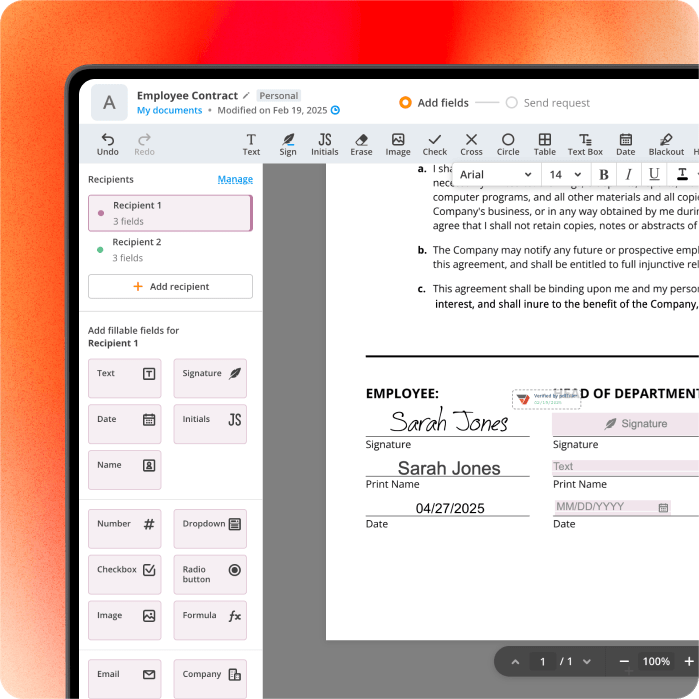
Rename PDF in Microsoft Edge
Rename PDF documents easily in Microsoft Edge without needing technical skills.
What is Renaming a PDF?
Renaming a PDF refers to the process of changing the file name of a Portable Document Format file. This action is essential for effective document management, especially for small and medium-sized businesses that handle numerous files. A well-named PDF helps in organizing documents, making it easier to locate and reference them later. For instance, a legal document named "Contract_2023" is more identifiable than a generic title like "Document1." Renaming PDFs can significantly enhance the workflow within an organization, ensuring that employees can quickly find the files they need without confusion.
Why Use Microsoft Edge for PDF Management?
Microsoft Edge offers several built-in features that make it an excellent choice for managing PDFs. Its user-friendly interface allows users to open, view, and rename PDF files without needing additional software. Compared to other browsers, Edge provides a straightforward experience that is particularly beneficial for small businesses. The accessibility of Edge ensures that employees can manage documents efficiently, reducing the time spent on file organization and enhancing productivity.
Steps to Rename a PDF in Microsoft Edge
- Open Microsoft Edge and navigate to the PDF file you want to rename.
- Right-click on the PDF file icon in your file explorer.
- Select "Rename" from the context menu that appears.
- Type the new name for your PDF file, ensuring it is descriptive and clear.
- Press "Enter" to save the new name.
- Open the renamed PDF in Microsoft Edge to confirm the change.
- If needed, adjust the file location for better organization within your folders.
- Consider implementing a consistent naming convention for future PDFs to enhance file management.
Managing PDF Files Efficiently
Effective management of PDF files involves adopting best practices that streamline document workflows. Small businesses should consider implementing folder structures that categorize documents logically, making retrieval easier. Tagging systems can also be beneficial, allowing for quick searches based on keywords. Additionally, maintaining version control is crucial, especially for legal documents, to ensure that the most current files are always accessible. These strategies not only improve organization but also reduce the administrative burden on employees.
Common Issues When Renaming PDFs
Users may encounter several common issues when renaming PDFs. One frequent problem is receiving error messages indicating that the file is open in another program, preventing renaming. To resolve this, ensure that the PDF is closed in all applications. Another issue might arise from using unsupported characters in the file name, which can lead to complications. Users should avoid special characters like /, \, or * when naming files. By being aware of these potential pitfalls, small businesses can streamline their document management processes.
Renaming PDFs for Legal Documents
Renaming PDFs is particularly important in legal contexts where compliance with regulations is critical. Accurate naming conventions ensure that legal documents are easily identifiable and accessible. For example, a case file named "Smith_v_Jones_2023" provides clarity and context that is vital in legal proceedings. Additionally, proper naming helps maintain compliance with digital signature standards, ensuring that documents are recognized as valid and trustworthy. Small businesses in the legal field must prioritize accuracy in naming to avoid potential legal complications.
Tips for Effective Document Organization
To achieve effective document organization, small businesses should implement several practical tips. Establishing a clear folder structure can help categorize documents logically, making them easier to find. Utilizing tagging systems allows for quick searches based on relevant keywords, enhancing accessibility. Furthermore, adopting consistent naming conventions for files can significantly improve organization. For instance, including dates or project names in file names can provide immediate context, aiding in quicker retrieval when needed.
Alternatives to Microsoft Edge for PDF Renaming
While Microsoft Edge is a convenient option for renaming PDFs, there are alternatives worth considering. Adobe Acrobat offers advanced PDF editing features but requires a subscription, which may not be feasible for all small businesses. Foxit Reader provides a range of PDF tools but can be complex for non-technical users. Smallpdf is a user-friendly online tool for PDF management, though it lacks the integrated browser capabilities that Edge provides. Each option has its pros and cons, and businesses should choose based on their specific needs.
Conclusion and Next Steps
In summary, renaming PDFs in Microsoft Edge is a straightforward process that can significantly enhance document management for small businesses. By following the steps outlined above, employees can easily rename their files, ensuring better organization and accessibility. We encourage you to try using Microsoft Edge for your PDF management needs and explore its features further. For additional resources on document management and organization, consider visiting pdfFiller for more information.