











Extract Text from PDF
Extract text from scanned PDFs quickly using pdfFiller's OCR tools.
What is OCR and How Does It Work?
OCR, or Optical Character Recognition, is a technology that converts different types of documents, such as scanned paper documents, PDF files, or images captured by a digital camera, into editable and searchable data. This technology is essential for extracting text from PDF documents, especially when dealing with scanned PDFs, which are images of text rather than actual text files. The primary difference between native PDFs and scanned PDFs lies in their format; native PDFs contain selectable text, while scanned PDFs consist of images that require OCR to convert them into editable text.
Understanding OCR is crucial for anyone needing to extract text from PDF documents, as it allows for the transformation of non-editable content into a format that can be modified and shared. pdfFiller utilizes OCR technology to enhance the user experience by making it easier to extract text from scanned PDFs, thus simplifying document workflows and enabling users to edit and share documents efficiently.
Why You Need OCR for Scanned PDFs
Editing scanned PDFs can be challenging due to their image-based nature. Without OCR, users face significant hurdles in converting these documents into editable formats. The inability to edit scanned documents can slow down workflows, leading to inefficiencies in tasks such as data entry, document revision, and collaboration.
By converting scanned documents into editable text using OCR, users can unlock numerous benefits. For instance, a small business owner can quickly edit invoices or contracts, while a student can extract text from lecture notes for easier study. Real-world scenarios for OCR use include transforming printed reports into digital formats for analysis or extracting text from historical documents for archiving purposes.
How to Access OCR Tools in pdfFiller
- Open pdfFiller and log into your account.
- Locate the toolbar at the top of the interface.
- Click on the "All Tools" panel to view available features.
- Select the OCR tool from the list of options presented.
- Choose the language for OCR processing to ensure accurate text recognition.
Steps to Extract Text from a Scanned PDF
- Upload the scanned PDF file to pdfFiller by clicking the "Upload" button.
- Once uploaded, select the OCR tool to initiate the text extraction process.
- Wait for the OCR process to complete, which may take a few moments depending on the document size.
- Review the extracted text for accuracy and make any necessary edits directly in pdfFiller.
- Save the edited document in your desired format for future use or sharing.
Cleaning Up Scanned PDFs Before OCR
Improving the quality of scanned PDFs before applying OCR can significantly enhance the accuracy of text extraction. Using Clean Up filters available in pdfFiller, users can adjust the brightness, contrast, and sharpness of scanned images. This step is vital, as higher scan quality leads to better OCR results, reducing the likelihood of errors in the extracted text.
To sharpen scanned images, navigate to the Clean Up tool within pdfFiller, and follow the prompts to adjust the image settings. Ensuring that the scanned document is clear and legible will facilitate a smoother OCR process and yield more reliable results.
Extracting Text in Bulk from Scanned Documents
- Select the templates you wish to use for bulk extraction from the pdfFiller interface.
- Upload multiple scanned files by clicking the "Upload" button and selecting all relevant documents.
- Initiate the OCR process for all selected documents simultaneously.
- Once the extraction is complete, download the extracted data in your preferred format, such as a spreadsheet.
Converting Scanned PDFs to Editable Formats
To convert scanned PDFs to editable formats like Word or Excel, begin by selecting the OCR tool in pdfFiller. This process is essential, as it allows users to transform scanned images into text that can be easily edited. After the OCR process is complete, users can choose their desired output format, ensuring that the resulting document meets their needs for further editing or sharing.
Output options after conversion may include various file types, allowing for flexibility in how the extracted content is utilized. This capability is particularly beneficial for professionals who require quick access to editable documents for collaboration or presentation purposes.
Security and Data Handling in pdfFiller
pdfFiller prioritizes document security through the implementation of TLS encryption, ensuring that all data transferred is secure. Additionally, the platform adheres to strict document retention policies, safeguarding user information and maintaining compliance with relevant regulations. Understanding these security measures is crucial for small and medium-sized businesses that handle sensitive information in their documents.
By utilizing pdfFiller, businesses can trust that their scanned PDFs and extracted data are managed with the highest level of security, allowing them to focus on their core operations without worrying about data breaches.
How Does pdfFiller Compare?
Adobe Acrobat offers advanced OCR features but at a higher price point. Users may find it complex compared to pdfFiller, which provides a more user-friendly interface.
Smallpdf provides basic OCR capabilities but lacks the extensive template library of pdfFiller, which may not meet all business needs.
ABBYY FineReader is known for its accuracy but requires more technical setup, unlike the user-friendly pdfFiller. This can be a barrier for small and medium-sized businesses looking for straightforward solutions.
Next Steps After Extracting Text
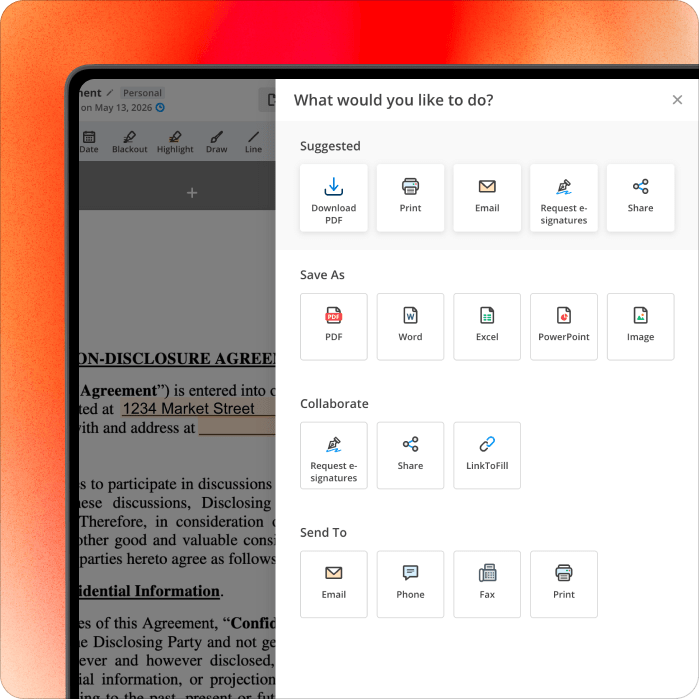
After extracting text from a scanned PDF, users can edit the extracted content directly within pdfFiller. This feature allows for quick adjustments and modifications, ensuring that the final document meets specific requirements. Additionally, users can explore various sharing options for the extracted content, facilitating collaboration with colleagues or clients.
Integrating the extracted text with other pdfFiller features, such as e-signatures or form filling, can further enhance document workflows. By leveraging these capabilities, small and medium-sized businesses can streamline their processes and improve overall efficiency.