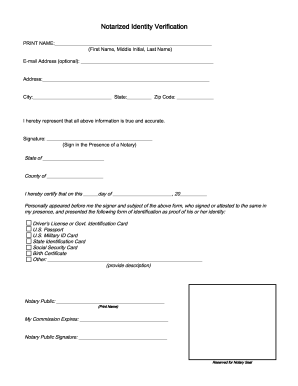
Shipping Quote Form Templates - Page 3



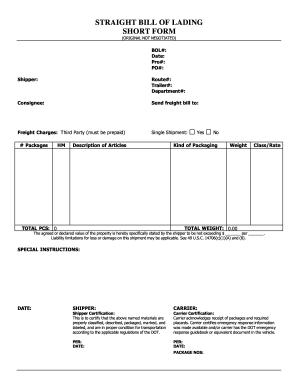

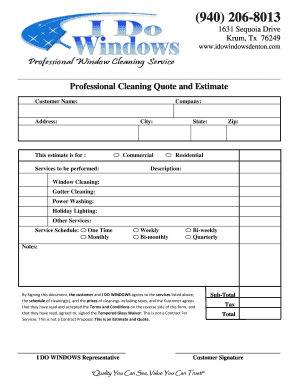



What are Shipping Quote Form Templates?
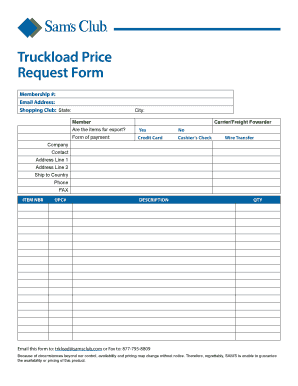
Shipping quote form templates are pre-designed forms that businesses use to gather information from customers or clients in order to provide accurate shipping quotes. These templates help streamline the process by standardizing the information collected and ensuring that all necessary details are included.
What are the types of Shipping Quote Form Templates?
There are several types of shipping quote form templates available, including:
Standard Shipping Quote Form Template
International Shipping Quote Form Template
Freight Shipping Quote Form Template
Customizable Shipping Quote Form Template
How to complete Shipping Quote Form Templates
Completing shipping quote form templates is easy and straightforward. Here are the steps to follow:
01
Fill in your contact information, including your name, email address, and phone number.
02
Provide details about the shipment, including the origin and destination addresses, dimensions and weight of the package, and any special handling instructions.
03
Indicate the preferred shipping method and urgency of delivery.
04
Review the information you have entered to ensure accuracy.
05
Submit the completed form to receive a shipping quote.
pdfFiller empowers users to create, edit, and share documents online. Offering unlimited fillable templates and powerful editing tools, pdfFiller is the only PDF editor users need to get their documents done.
Video Tutorial How to Fill Out Shipping Quote Form Templates
Thousands of positive reviews can’t be wrong
Read more or give pdfFiller a try to experience the benefits for yourself
Questions & answers
How do you make a quote form?
You can create a solid, professional quote in five easy steps: Select a Quote Template. Add Client Details. Add an Itemized List of Services or Goods Provided. Specify Your Terms and Conditions. Include Any Extra Details.
How do you make a quote step by step?
2. Enter all the necessary information Your company name and logo. Your contact information. Your customer's company information. Your customer's contact information. A quote number for ease of reference. Date of issue, which is especially important if your quote has an expiration date, as it usually should.
Is there a quote template on word?
Though Microsoft Word offers default templates, if you wish to use one of them, just click quotations in the “Available Office Templates,” which is on the left pane of the New Document task pane. you still can find templates aside from what MS Word has.
How do you write a quote form?
Select a Quote Template. The easiest way to begin is by choosing a predefined, professional-looking template that covers all the standard elements of a quote. Add Client Details. Add an Itemized List of Services or Goods Provided. Specify Your Terms and Conditions. Include Any Extra Details.
How do you write a delivery quote?
5 Steps to Write a Delivery Quotation Step 1: Add the Month Details. Make a monthly column in the business quotation template. Step 2: Add the Details of the Business. Step 3: Add the Customer Details. Step 4: Add a Detailed Section. Step 5: Add a Total Section.
How do you write a quote template?
In this article, we'll cover: Select a Template. Add Client Information. Enter the Quote Number. Include a Date of Issue. Enter Products or Services. Add Terms and Conditions. Include Notes. Add Optional Details.