Adjust Watermark and Comment Box in PDF For Free

Last updated on Oct 15, 2026

Adjust Watermark and Comment Box in PDF

Adjust watermarks and comment boxes in your PDF documents easily with pdfFiller.

What is the Watermark Tool?

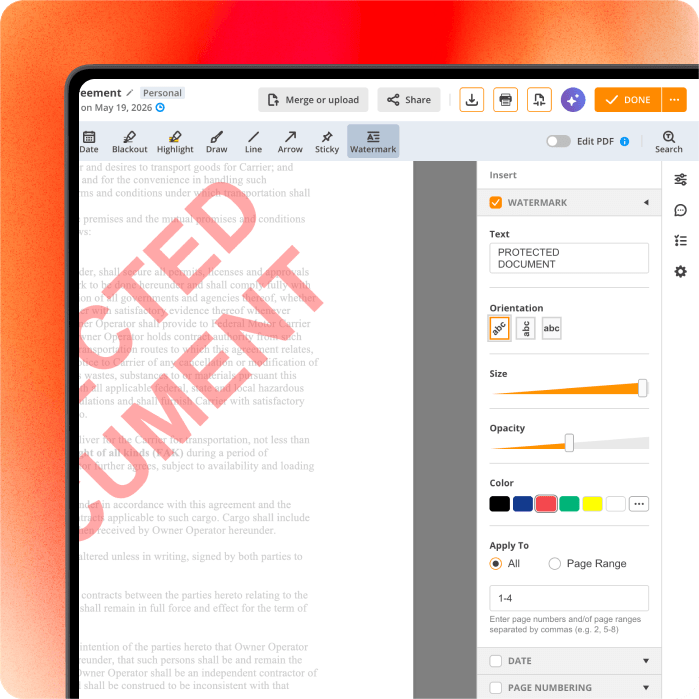
The watermark tool allows you to adjust watermarks in your PDF documents, providing a way to brand and protect your files. There are two types of watermarks available: text and image. Text watermarks can display custom messages, while image watermarks can feature logos or other graphics. Both types come with various customization options such as size, color, and transparency. You can access the watermark tool through the Tools menu in pdfFiller, making it easy to incorporate watermarks into your PDF editing process.

How Does This Feature Solve Workflow Problems?

The watermark tool addresses several workflow challenges. It protects sensitive information by marking documents as confidential, which can deter unauthorized use. Additionally, it enhances branding before sharing by ensuring your company’s identity is visible on all documents. This feature also streamlines document management, allowing you to maintain a consistent look across all your PDFs, which is particularly beneficial for document branding in professional settings.

How to Add a Text Watermark

  • Open your PDF document in pdfFiller and navigate to the Tools menu.
  • Select the watermark tool option to begin adding a watermark.
  • Enter your custom text for the watermark in the designated field.
  • Adjust the size of the text to fit your document layout.
  • Choose a color for the text that contrasts well with your document background.
  • Decide on the placement of the watermark on the page.
  • Apply the watermark to specific pages or all pages as needed.
  • Preview the document to ensure the watermark appears as desired, then save your changes.

How to Add an Image Watermark

  • Access the watermark tool from the Tools menu in pdfFiller.
  • Select the option to upload an image for your watermark.
  • Ensure the image is in a supported format, such as PNG or JPEG.
  • Customize the image by adjusting its size and transparency.
  • Choose the placement of the image watermark on the document pages.
  • Apply the watermark to all pages or select specific pages for application.
  • Review the document to confirm the watermark looks as intended.
  • Save the document with the newly added image watermark.

Customizing Your Watermark Appearance

You can customize your watermark settings to better fit your document's design. Adjust the size of the watermark to ensure it is visible but not overpowering. Modify the color to match your branding, and set the transparency level to create a semi-transparent overlay that does not distract from the document content. Additionally, you can rotate the watermark to achieve the desired angle and apply it to all pages or only specific ones, allowing for greater flexibility in your document presentation.

Editing or Removing a Watermark

  • Reopen the watermark tool from the Tools menu in pdfFiller.
  • Select the existing watermark you wish to modify.
  • Make the necessary changes to the text or image watermark settings.
  • To delete a watermark, choose the delete option within the watermark tool.
  • Confirm the deletion to remove the watermark from your document.
  • Review the document to ensure the watermark has been successfully edited or removed.
  • Save your changes to finalize the document.

Applying a Date Stamp to Your Document

To add a date stamp across your document, access the date stamp feature within the Tools menu. You can select from various format and placement options to ensure the date appears prominently. Enter a custom date if needed, and configure the font style and transparency to match your document's aesthetics. This feature is particularly useful for legal documents where the date of creation or modification is critical.

Adding Page Numbers to Your PDF

To implement page numbering, navigate to the page numbering feature in the Tools menu. You can choose the placement and format options for the page numbers, ensuring they are easily visible. Customize the font and style to align with your document's design, and select sequential numbering methods to maintain order throughout the document.

Understanding Bates Numbering for Legal Use

Bates numbering is a method used primarily in legal contexts to assign unique identifiers to documents. This system allows for efficient organization and retrieval of legal documents. You can customize the prefix and suffix for Bates numbers to suit your needs, making it easier to reference specific documents in legal proceedings. Understanding its applications can significantly enhance your document management practices.

Browser Compatibility and Access

pdfFiller is designed to work across various supported browsers and operating systems. You can access the watermark tool from any device without the need for installation, making it convenient for users who work remotely or on different devices. Mobile access capabilities ensure that you can manage your PDF documents on the go, maintaining productivity regardless of your location.

Next Steps After Watermarking

After watermarking your documents, you can proceed to sign them digitally using pdfFiller's e-signature feature. This allows you to finalize documents quickly and securely. Additionally, consider your options for sharing watermarked PDFs, whether through email or cloud storage. Tracking document changes is also essential to maintain version control and ensure all stakeholders are informed of updates.

How Does pdfFiller Compare?

Compared to ilovepdf, pdfFiller offers advanced customization options for watermarks, making it more user-friendly for small businesses. While ilovepdf provides basic watermarking features, it lacks the depth of customization found in pdfFiller.

When looking at Smallpdf, pdfFiller stands out by supporting both text and image watermarks, whereas Smallpdf is limited to text-only options. This limitation can hinder branding efforts for businesses that rely on visual identity.

In contrast to Adobe Acrobat, pdfFiller provides essential PDF editing features, including watermarking, at a lower cost. Adobe Acrobat's comprehensive features may be overwhelming for small businesses seeking straightforward solutions.

Try most popular PDF tools

Discover a full set of tools to handle any document task.

Edit PDFs

Make quick PDF edits online.

Sign

Add legally binding signatures.

Merge

Combine multiple PDFs.

Request signatures

Send a document for signing.

Convert

Transform PDFs into other formats.

Rearrange

Change the order of pages.

Share

Send PDFs for review or editing.

Compress

Reduce PDF file sizes.

How to add a watermark to a PDF?

1. Upload

Brand your documents with custom watermarks

  • Add a final touch after editing Add stamps, dates, and page or bates numbering to ensure PDFs are secure and professional. Customize watermarks by adjusting size, orientation, color, and transparency.
  • Clarify your contracts Avoid confusion when sending documents for review or signing. Stamp them as "Draft", "Final" or "Copy" to add clarity and indicate versions during contract negotiations.
  • Share with confidence Protect documents with watermarks before sharing. Ensure everyone who has access knows their status and owner.
  • Organize at a glance Add watermarks to see which documents are "Drafts", "For Review", or "Archived", saving you from opening the wrong version.

Who uses this tool?

Learn how professionals use pdfFiller to brand and protect their documents.

Business Owners

Protect intellectual property and maintain brand consistency across all documents. Add a company name to proposals to enhance branding or apply a custom text watermark to internal documents to indicate their status before sharing.

  • Business plans
  • Pitch decks
  • Internal memos
  • Marketing materials
Business Owners
  • G2 — Users Most Likely To Recommend
  • G2 — Grid Leader in Small-Business
  • G2 — High Performer
  • G2 — Regional Leader
  • G2 — Easiest To Do Business With
  • G2 — Best Meets Requirements
  • G2 — Best Support

pdfFiller scores top ratings on review platforms

pdfFiller is rated 4.6 out of 5 stars across 1,000+ G2 reviews.

Life safer in completing forms for the State of Maryland.
Anonymous Customer
I needed to translate text in a choral file and I only have Acrobat Reader on my computer. PDFfiller did exactly what I wanted it to do.
R. Freeman
Useful inexpensive way to file back year forms. Wish the forms auto calculated fields but it's free so I can't complain to much
Dave R
I appreciate the prompt communication and assistance in resolving my concern immediately without any hassles.
Livesell P
I love the features I've used so far and looking forward to use more
Angela
New to this software but appears to be want I needed... New to this software but appears to be want I needed working with the many aspects of PDF's for our website. PDF Filler offered an excellent annual rate. I am concerned a little about getting to involved with them. You see it happen often after one year with service providers the rates start increasing. Than you need to find a new service to merge your existing business with. We'll see. Overall though the company has been excellent.
Daniel S.

Watermark PDFs with a trusted, all-in-one solution

Try pdfFiller for all your document management needs.

pdfFiller workspace for creating, filling and managing PDF forms

Why trust pdfFiller to watermark your documents?

All-in-one solution

Watch PDF watermarking in action

Check out this video tutorial to learn how to protect and personalize your PDFs with custom watermarks.

FAQs

If you can't find what you're looking for, please contact us anytime!

To adjust the watermark in a PDF using pdfFiller, start by uploading your document to the platform. Once uploaded, navigate to the 'Edit' section and select 'Watermark' from the options. Here, you can modify the text, font, size, and position of the watermark. For a more customized look, consider adjusting the opacity and rotation. This feature allows you to maintain brand consistency while ensuring your document remains secure. A practical tip is to preview the changes before saving to ensure the watermark appears as intended.

To modify the comment box in a PDF, first open your document in pdfFiller. Click on the 'Comment' tool to access the comment box options. You can resize, reposition, and change the color of the comment box to enhance visibility. Additionally, you can add text or annotations directly within the box. This flexibility is crucial for collaborative projects, allowing team members to provide feedback efficiently. Remember to save your changes to ensure that all comments are retained in the final document.

Yes, you can adjust both the watermark and comment box simultaneously in pdfFiller. After uploading your PDF, use the 'Edit' tool to access the watermark settings and the 'Comment' tool for the comment box. This simultaneous editing capability streamlines your workflow, especially for legal teams and remote professionals who need to ensure document clarity and security. A helpful tip is to utilize the 'Preview' function after making adjustments to confirm that both elements are correctly aligned before finalizing your document.

When adjusting watermarks and comment boxes in PDFs, pdfFiller employs robust security protocols to protect your documents. All changes are encrypted, ensuring that sensitive information remains confidential. Additionally, you can set permissions to control who can view or edit the document. This is particularly important for SMEs and legal teams handling sensitive data. To enhance security further, consider using password protection for your PDFs after making adjustments. This ensures that only authorized users can access the modified document.

Yes, pdfFiller offers cross-platform compatibility for adjusting watermarks and comment boxes in PDFs. You can access the platform from any device—be it a desktop, tablet, or smartphone—allowing you to make adjustments on the go. This flexibility is essential for remote professionals who need to manage documents from various locations. To ensure a seamless experience, always use the latest version of your browser or the pdfFiller app. This will help you avoid compatibility issues and enhance your document editing efficiency.

To ensure that your watermark does not obscure important content in the PDF, adjust its opacity and position carefully. In pdfFiller, you can set the watermark to a lighter opacity, making it less intrusive while still visible. Additionally, consider placing the watermark in a corner or along the edges of the document. This strategic placement helps maintain the document's readability. A practical tip is to use the 'Preview' feature to see how the watermark interacts with the text before finalizing your edits.

Using pdfFiller for watermark and comment box adjustments offers several benefits, including user-friendly tools and cloud-based access. The platform allows for easy customization of both elements, ensuring your documents reflect your brand while facilitating collaboration. Moreover, pdfFiller's secure environment ensures that all changes are protected, which is crucial for legal teams and SMEs. A key advantage is the ability to track changes and comments, making it easier to manage document revisions and maintain version control.

Transforming businesses with pdfFiller

Check out these success stories.

I was happy to do this for patients, but I simply didn't have 30–60 minutes to fill out each form. It was a true waste of resources to do it that way, and as a surgeon, my time is better spent in patient care, which was often delayed.

Marshall Orthopaedics

One tool. Every document task.

One workflow shouldn’t take five tools

Start free trial