Create Watermark and Time in PDF
Quickly create a watermark in your PDF to protect and brand your documents.
What is the Watermark Tool?
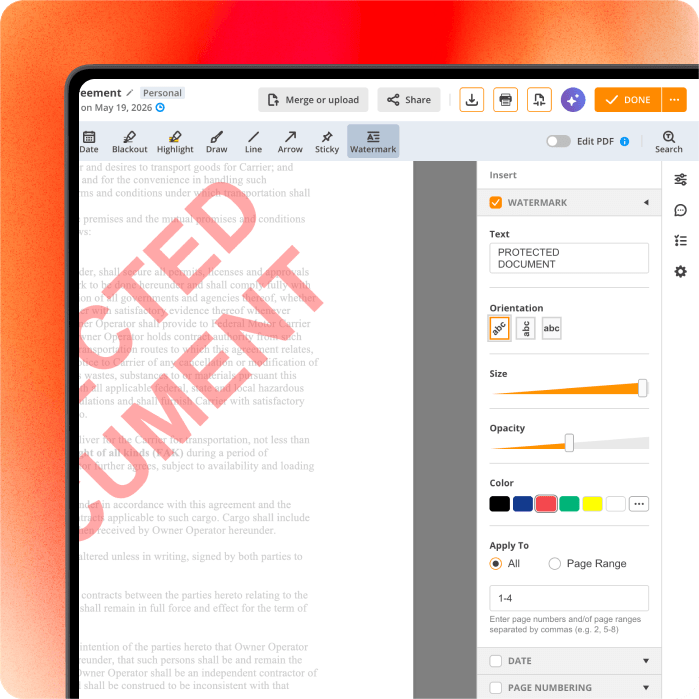
The watermark tool is a feature that allows you to create a watermark in your PDF documents. It provides options for both text and image watermarks, enabling you to choose how you want to brand your files. You can apply a semi-transparent overlay that helps protect your intellectual property while enhancing brand visibility. Access the watermark tool via Tools → Watermark to start using it effectively.
Why Use Watermarks in Your PDFs?
Watermarking your documents offers several benefits. First, it protects your intellectual property by clearly indicating ownership. Second, it enhances brand visibility, making your documents easily recognizable. Additionally, watermarks can indicate the status of a document, such as marking it as a draft, which is particularly useful for legal documents and proposals.
How to Add a Text Watermark
- Open your PDF document in the PDF editor.
- Navigate to the watermark tool in the menu.
- Select the option to add a text watermark.
- Enter your custom text in the provided field.
- Choose the desired size and color for your text.
- Adjust the transparency settings to make the watermark visible yet unobtrusive.
- Preview the watermark to ensure it appears as intended.
- Apply the watermark to your document and save your changes.
How to Add an Image Watermark
- Open your PDF document in the PDF editor.
- Access the watermark tool from the menu.
- Select the option to upload an image watermark.
- Choose the image file you want to use as a watermark.
- Customize the size and opacity of the image for better visibility.
- Decide on the placement of the watermark on the document.
- Preview the watermark to ensure it fits well with your content.
- Apply the watermark and save your document.
Customizing Your Watermark
Customizing your watermark allows you to adjust its appearance to better suit your branding needs. You can modify the size and color of the watermark text or image. Additionally, you can change the opacity and rotation to create a unique look. The page scope options let you decide whether the watermark appears on all pages or just specific ones, giving you greater control over your document's presentation.
Applying Watermarks to Specific Pages
When using the watermark tool, you have the option to apply watermarks to specific pages in your PDF. You can choose to watermark only the current page or select all pages. If you want to target specific pages, you can enter a custom page range to ensure the watermark appears exactly where you want it.
Editing or Removing a Watermark
- Open your PDF document in the PDF editor.
- Navigate back to the watermark tool in the menu.
- Select the option to edit the existing watermark.
- Make the necessary changes to the watermark settings.
- If you want to remove the watermark, choose the delete option.
- Confirm your changes and save the document.
Using Date and Page Number Stamps
In addition to watermarks, you can add date and page number stamps to your PDF documents. To add a date stamp, navigate to the stamping feature and select the date format you prefer. For page numbering, choose the page number option and specify the format. These features help keep your documents organized and provide important context for readers.
How Does pdfFiller Compare?
pdfFiller offers a user-friendly interface with no IT setup, while Adobe Acrobat can be complex and costly. Tradeoff: Adobe may have more advanced features but requires more technical knowledge.
pdfFiller provides a comprehensive document solution with extensive templates, while Smallpdf focuses on individual tools. Tradeoff: Smallpdf may be simpler but lacks the all-in-one functionality.
pdfFiller includes watermarking as part of a broader suite, whereas ilovepdf is more limited in features. Tradeoff: ilovepdf may be free but lacks the depth of pdfFiller's offerings.
Next Steps After Watermarking
After adding a watermark, you can proceed to sign and share your documents. Utilize the built-in e-signature feature to ensure your documents are legally binding. Additionally, you can track the status of your documents to manage your workflow effectively. This integration helps streamline your document management process, making it easier to handle various tasks in one place.