Highlight Watermark and Bookmark in PDF
Add watermarks to your PDFs easily with pdfFiller's intuitive tool.
What is the Watermark Tool?
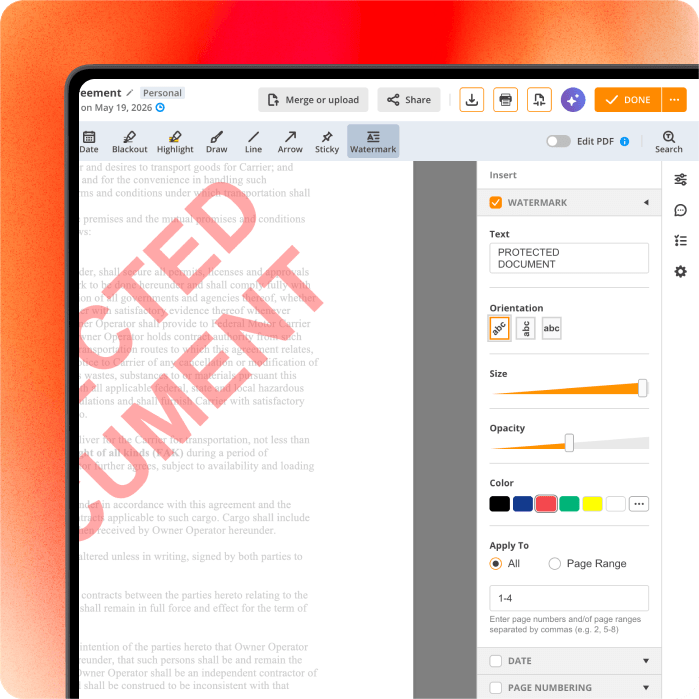
The watermark tool is a feature that allows you to add identifying marks to your PDF documents. With this tool, you can choose from various watermark types, including text and image options. The tool offers customization features, enabling you to adjust the appearance of your watermarks to fit your branding needs. Additionally, it includes document-wide stamping tools, allowing you to apply your watermark across all pages of a document effortlessly.
How Does Watermarking Solve Workflow Issues?
Watermarking plays a significant role in enhancing document management. It is essential for branding documents, as it helps establish your identity and promotes recognition. Furthermore, watermarking protects sensitive information by indicating that the document is confidential. This practice also streamlines document sharing, making it clear to recipients that the document is official and should be treated with care.
How to Add a Text Watermark
- Open your PDF document in pdfFiller.
- Select the watermark tool from the toolbar.
- Choose the option to add a text watermark.
- Enter your custom text in the provided field.
- Adjust the size of the text using the size options available.
- Select the color for your text watermark.
- Decide whether to apply the watermark to the current page or all pages.
- Click 'Apply' to add the text watermark to your document.
How to Add an Image Watermark
- Open your PDF document in pdfFiller.
- Access the watermark tool from the toolbar.
- Select the option to add an image watermark.
- Upload the image you want to use as a watermark.
- Customize the image settings, including size and opacity.
- Choose the placement of the image watermark on the page.
- Decide whether to apply the watermark to the current page or all pages.
- Click 'Apply' to finalize the image watermark on your document.
Customizing Your Watermark Appearance
You can adjust the appearance of your watermark to meet your specific needs. Start by changing the size and color of the watermark to ensure it aligns with your branding. Additionally, you can set transparency levels to make the watermark less intrusive. Rotating the watermark can also enhance its visual appeal and ensure it fits well within the document layout.
Applying Watermarks to Specific Pages
With pdfFiller, you have control over where watermarks appear in your documents. You can choose to apply the watermark only to the current page or across all pages in the document. Custom page range settings allow you to specify which pages should feature the watermark, providing flexibility in how you present your documents. This selective application helps maintain a professional look while ensuring important pages are marked appropriately.
Editing or Removing a Watermark
- Open your PDF document in pdfFiller.
- Access the watermark tool from the toolbar.
- Select the existing watermark you wish to edit.
- Make the necessary modifications to the watermark settings.
- To delete a watermark, select the delete option in the watermark tool.
- Confirm the deletion to remove the watermark from your document.
- Click 'Apply' to save the changes made to your document.
Applying a Date Stamp to Your Document
- Open your PDF document in pdfFiller.
- Navigate to the watermark tool in the toolbar.
- Select the option to add a date stamp.
- Choose the format for the date stamp from the available options.
- Set the placement for the date stamp within the document.
- Decide whether to apply the date stamp to all pages or specific ones.
- Click 'Apply' to add the date stamp to your document.
Adding Page Numbers to Your Document
- Open your PDF document in pdfFiller.
- Select the watermark tool from the toolbar.
- Choose the option to add page numbers.
- Specify the format for the page numbers you want to use.
- Set the placement of the page numbers on the document pages.
- Decide whether to apply page numbers to all pages or a selected range.
- Click 'Apply' to insert the page numbers into your document.
Using Bates Numbering for Legal Documents
- Open your PDF document in pdfFiller.
- Access the watermark tool from the toolbar.
- Select the Bates numbering option.
- Enter the starting number for your Bates sequence.
- Customize the format for the Bates numbers as needed.
- Choose the placement for the Bates numbers within the document.
- Click 'Apply' to add Bates numbering to your legal documents.
Browser Compatibility for Watermarking
pdfFiller's watermarking tool is compatible with various browsers and operating systems, ensuring accessibility for all users. You can access the tool from popular browsers like Chrome, Firefox, and Safari. Mobile access is also available, allowing you to watermark documents on the go. Importantly, there are no installation requirements, making it easy to start using the tool immediately.
Limitations of the Watermark Tool
While the watermark tool offers many features, it does have some limitations. Supported image formats include JPEG and PNG, so ensure your images are in these formats before uploading. The maximum file size for uploads is 10MB, which may restrict larger documents. Additionally, there are limitations on watermark text length, so keep your text concise to ensure it fits well within the document.
Security and Data Handling Practices
pdfFiller prioritizes security during the watermarking process. All uploads are protected with TLS encryption, ensuring that your data remains confidential. The platform also has clear file retention policies, which outline how long your documents are stored. Compliance with data protection regulations is a key consideration, providing peace of mind when handling sensitive information.
Free vs. Paid Watermarking Features
When comparing watermarking features, free plans offer basic capabilities, such as adding text and image watermarks. However, these free options may have limitations, such as fewer customization features. Upgrading to a paid plan unlocks additional benefits, including advanced customization options and enhanced support, making it worthwhile for businesses that require more robust document management solutions.
How Does pdfFiller Compare?
pdfFiller stands out among watermark tools due to its unique features and user-friendly interface. Key competitors include ilovepdf, which offers basic watermarking features but lacks advanced customization options, and Smallpdf, known for its user-friendly interface but limited document-wide stamping capabilities. Adobe Acrobat provides comprehensive features for professionals but comes with a higher price tag, which may be prohibitive for small businesses.
Next Steps After Watermarking
After watermarking your documents, you can proceed to sign them digitally using pdfFiller's e-signature feature. This allows you to finalize your documents quickly. Once signed, you can share the watermarked PDFs with clients or colleagues via email or direct links. Additionally, you can track the status of your documents after sharing to ensure they are received and reviewed promptly.