Lock PDF and Rotate PDF for Microsoft Edge For Free

Drop document here to upload
Select from device
Up to 100 MB for PDF and up to 25 MB for DOC, DOCX, RTF, PPT, PPTX, JPEG, PNG, JFIF, XLS, XLSX or TXT

Last updated on Sep 16, 2026

Lock PDF and Rotate PDF for Microsoft Edge

Lock PDF files quickly using pdfFiller's Protect Document feature.

What is Protect Document?

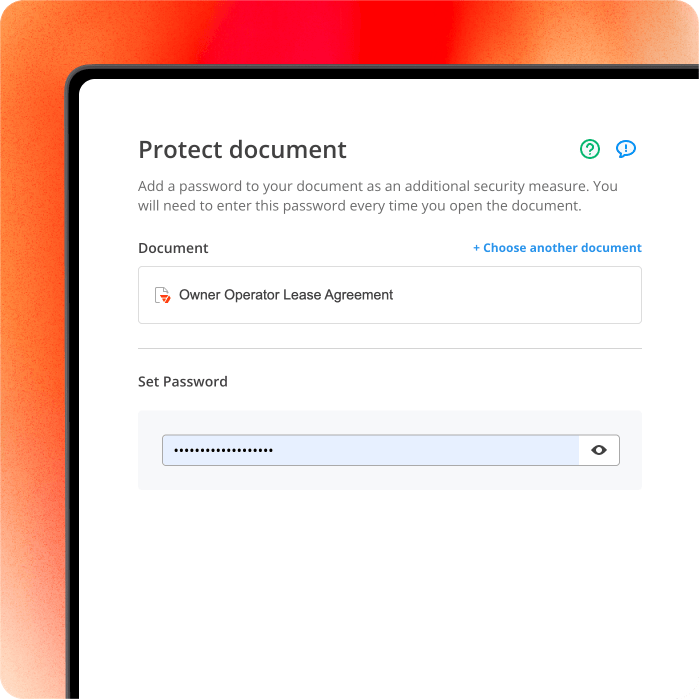
The Protect Document feature in pdfFiller allows you to secure your PDFs with a password. This feature adds a password to open a PDF, ensuring that sensitive information remains confidential. You can apply password protection to the entire document or specific pages, offering flexibility based on your needs. Accessing this feature is straightforward via the Tools menu, and it requires no technical setup, making it accessible for everyone.

How to Access Protect Document

  • Navigate to the Tools menu in pdfFiller.
  • Select the Protect Document option from the available tools.
  • This feature is available in all plans, ensuring everyone can use it.
  • Access the Protect Document feature from any device, whether desktop or mobile.

Steps to Lock a PDF

  • Select the document you want to protect from your files.
  • Enter your desired password to secure the document.
  • Choose whether to apply protection to the entire document or specific pages.
  • Click Apply to secure the document with the password you set.

How to Open a Password-Protected PDF

  • Enter the correct password when prompted to access the document.
  • Access the password-protected PDF through the pdfFiller interface.
  • This method works for both downloaded and shared PDFs.
  • No additional software is needed to unlock your secured files.

Protecting Specific Pages vs. Entire Document

When using the Protect Document feature, you can choose between protecting the full document or specific pages. This flexibility allows you to target sensitive information without unnecessarily restricting access to the entire document. For example, if you have a legal contract, you might only want to protect the signature page. Targeted protection is beneficial for managing documents effectively, allowing you to maintain control over what information is shared.

Using the Confidential Folder

pdfFiller offers a Confidential Folder feature that enhances document security. To use this feature, you need to verify your phone number and set a custom password for access. This folder hides documents from the main lists, making it ideal for storing sensitive documents securely. By using the Confidential Folder, you can ensure that your most private files are kept safe from unauthorized access.

Creating a Read-Only PDF

To restrict editing for recipients, you can use the Protect Document feature to create a read-only PDF. This is particularly useful for contracts and agreements, ensuring that the document's integrity is maintained. Recipients will be able to view the document but will not be able to make any changes. Additionally, legally binding e-signatures can still be supported, making this method effective for formal agreements.

Password Protection on Download vs. Shared Link

Password protection works differently depending on whether you are downloading a PDF or sharing a link. For downloaded PDFs, the password is required to open the file directly. In contrast, shared links can also be password-protected, adding an extra layer of security for documents that are distributed online. Understanding these differences is crucial for effective password management and ensuring that your documents remain secure in various scenarios.

When to Password-Protect a PDF

Password protection is essential in several scenarios, particularly for legal contracts, HR documents, financial records, and personal IDs. By securing these types of documents, you can prevent unauthorized access and ensure that sensitive information remains confidential. For instance, protecting HR documents can safeguard employee information, while securing financial records can prevent identity theft.

Browser Compatibility for Password Protection

pdfFiller's Protect Document feature is compatible with a variety of browsers, ensuring that you can use it regardless of your preferred platform. It works well on mobile devices, providing a consistent user experience across different environments. To achieve the best performance, it's recommended to use the latest versions of supported browsers, as older versions may not fully support all features.

Limitations of Password Protection

While password protection is a valuable feature, there are some limitations to be aware of. For instance, there is a maximum password length that you must adhere to, and the encryption standards used may vary depending on your plan tier. Additionally, different methods of protection may have varying levels of effectiveness, so it's important to understand these constraints when securing your documents.

How Does pdfFiller Compare?

When comparing pdfFiller with other PDF tools like ilovepdf, Smallpdf, and Adobe Acrobat, several unique features stand out. pdfFiller offers an intuitive interface that simplifies document management, making it easier for small and medium-sized businesses to operate efficiently. While ilovepdf and Smallpdf provide basic functionalities, pdfFiller includes advanced features like the Protect Document tool, which enhances security without complicating the user experience. Adobe Acrobat, while powerful, often comes with a steeper learning curve and higher costs, making pdfFiller a more accessible option for many users.

Next Steps to Secure Your PDFs

To recap, the Protect Document feature in pdfFiller offers a simple and effective way to lock PDF files with a password. We encourage you to try this feature today, as it is designed for ease of use and requires no software installation. By securing your documents, you can ensure that your sensitive information remains protected, allowing you to focus on your work without worry.

Try most popular PDF tools

Discover a full set of tools to handle any document task.

Edit PDFs

Make quick PDF edits online.

Sign

Add legally binding signatures.

Merge

Combine multiple PDFs.

Request signatures

Send a document for signing.

Convert

Transform PDFs into other formats.

Rearrange

Change the order of pages.

Share

Send PDFs for review or editing.

Compress

Reduce PDF file sizes.

How to protect a PDF with a password?

1. Upload

Keep your documents confidential

  • Edit, then lock it down Edit text, add images, or fill out forms to complete your PDF. After, create a password to lock down the final version and prevent unauthorized access.
  • eSign and protect After you’ve signed an agreement, protect it with a password to ensure its integrity and keep its contents confidential.
  • Verify signers Sending a document for signing? Add an extra layer of security by setting a unique password or sending a one-time SMS code to your recipients before they can eSign.
  • Share with confidence Send sensitive files without the stress. Add a password before you share via link or email, ensuring only the right people can access your document.
  • Your digital cabinet—secured Keep all documents neatly organized in your secure cloud storage. Move sensitive files, such as contracts or personal records, to a confidential folder accessible only via password.

Who uses this tool?

Learn how professionals use pdfFiller to keep sensitive information safe.

Business Owners

Add a password to confidential documents to safeguard your company’s critical data. Ensure that only authorized partners, investors, or team members can access proprietary information, protecting your business from data leaks.

  • Business plans
  • Financial reports
  • Investor agreements
  • Strategic plans
Business Owners
  • G2 — Users Most Likely To Recommend
  • G2 — Grid Leader in Small-Business
  • G2 — High Performer
  • G2 — Regional Leader
  • G2 — Easiest To Do Business With
  • G2 — Best Meets Requirements
  • G2 — Best Support

pdfFiller scores top ratings on review platforms

pdfFiller is rated 4.6 out of 5 stars across 1,000+ G2 reviews.

For medical forms, this makes things soooo much easier!
sherry
The mobility of PDF filler is its greatest asset in addition the ability to sign directly on a mobile device is incredible the website navigation is good on average the speed of being able to execute a PDF signed document is also good
Carlos C
I needed to update a PDF document to look neat and clean and PDF filler was quick and easy to use and easy to get to because it is web base. I love it
Monique M
Loved it! Perfect for filling out those pesky PDF forms without having to print and scan. Even has a signature tool!
William Leslie
easy to fill out, printable and editable
Debbie Gumpal R
This is getting a 4 star review as for… This is getting a 4 star review as for today helped me accomplish allot of paper work in short amount of time love this product
Ronald Wallace

Protect PDFs with a trusted, all-in-one solution

Try pdfFiller for all your document management needs.

pdfFiller workspace for creating, filling and managing PDF forms

Why trust pdfFiller to secure your documents?

All-in-one solution

Watch our PDF tools in action

Check out this video tutorial to learn how to secure your PDFs from unauthorized access using password protection.

FAQs

If you can't find what you're looking for, please contact us anytime!

To lock a PDF file in Microsoft Edge, use the built-in password protection feature. Open the PDF in Edge, click on the 'Print' option, and select 'Microsoft Print to PDF' as your printer. Before saving, choose 'Password' under the 'Security' settings to set a password. This ensures that only users with the password can open the document. For enhanced security, consider using pdfFiller, which offers additional features like document encryption and secure sharing options.

To rotate a PDF in Microsoft Edge, open the document and use the rotate buttons located at the top of the viewer. Click the clockwise or counterclockwise button to adjust the orientation as needed. Once satisfied, you can save the rotated PDF by selecting 'Print' and choosing 'Microsoft Print to PDF' to create a new file. For more advanced PDF manipulation, pdfFiller allows you to rotate, edit, and lock PDF files easily, ensuring your documents are both functional and secure.

While Microsoft Edge does not allow simultaneous locking and rotating of a PDF directly, you can achieve this by first rotating the PDF and then applying a password. Open your PDF in Edge, rotate it as needed, and then print it to a new PDF file with password protection. This two-step process ensures your document is both properly oriented and secure. For a more streamlined experience, consider using pdfFiller, which allows for simultaneous editing and security features.

Locking PDFs in Microsoft Edge employs standard encryption protocols to safeguard your documents. When you set a password, the PDF is encrypted, preventing unauthorized access. It's essential to choose a strong password, ideally a mix of letters, numbers, and symbols. For additional security, pdfFiller offers advanced encryption and compliance with industry standards, ensuring your sensitive documents are protected during storage and sharing.

Yes, you can lock a PDF created from a scanned document in Microsoft Edge. First, scan your document and save it as a PDF. Then, open the PDF in Edge, navigate to the 'Print' option, and select 'Microsoft Print to PDF.' Before saving, set a password under the security settings. This process secures your scanned document, making it accessible only to those with the password. For added functionality, pdfFiller allows you to edit scanned PDFs and apply security measures seamlessly.

Using pdfFiller to lock and rotate PDFs offers several advantages over Microsoft Edge. pdfFiller provides a user-friendly interface that simplifies document management, allowing for batch processing and advanced editing features. Additionally, pdfFiller's security protocols are robust, offering encryption and compliance with legal standards, which is crucial for remote professionals and legal teams. This platform also supports cross-platform compatibility, ensuring you can manage documents securely from any device.

To ensure cross-platform compatibility when locking and rotating PDFs, use pdfFiller, which is designed to work seamlessly across various devices and operating systems. When you lock a PDF in pdfFiller, it maintains the security settings regardless of the platform used to access it. This is particularly beneficial for remote professionals and SMEs who need to collaborate on documents securely. Microsoft Edge may have limitations in cross-platform functionality, making pdfFiller a more reliable choice for comprehensive document management.

Transforming businesses with pdfFiller

Check out these success stories.

This saved us an incredible amount of time! It feels like pdfFiller was custom-created for us.

Sales Frontline Insurance Group

One tool. Every document task.

One workflow shouldn’t take five tools

Start free trial