Protect PDF from Copying and Convert PDF to Word for Windows
Protect your PDF documents with a password using pdfFiller.
What is Protect Document?
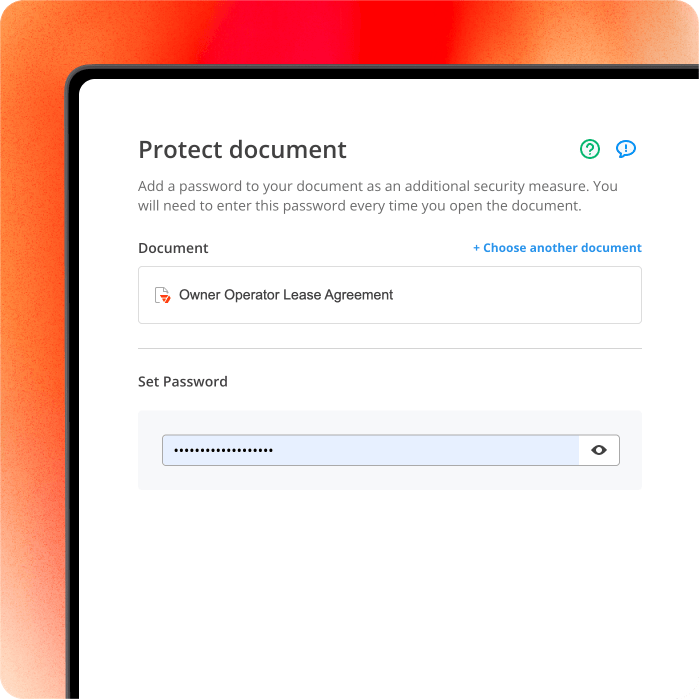
The Protect Document feature in pdfFiller allows you to Protect PDF files by applying a password to open them. This feature ensures PDF security by safeguarding sensitive information. You can choose to protect the entire document or specific pages, making it flexible for your needs. Additionally, it includes legally binding e-signatures, enhancing the document's integrity. The user interface is simple, allowing anyone to protect their documents without needing technical expertise.
How to Access the Protect Document Feature
To access the Protect Document feature, navigate to the Tools menu in pdfFiller. Select the Protect Document option, which is available on all devices. This feature requires no IT setup, making it easy for small and medium businesses to implement document protection quickly.
Steps to Add a Password to a PDF
- Select the document you want to protect and decide on the page scope.
- Enter your desired password to secure the PDF.
- Click the Apply button to enforce the password protection.
- Receive confirmation that your document is now protected.
How to Open a Password-Protected PDF
To access a password-protected PDF, enter the correct password when prompted. You can access the document via the pdfFiller link or download it directly. This method is compatible with all devices, allowing for quick access without the need for extra software.
Protecting Specific Pages vs. Entire Document
When using pdfFiller to Protect PDF files, you can choose between protecting the full document or a specific page range. This flexibility allows you to target sensitive information effectively, ensuring that only the necessary parts of the document are secured. This option is ideal for maintaining document confidentiality while sharing information.
Using the Confidential Folder
The Confidential Folder feature in pdfFiller requires phone verification for access, enhancing document security. This feature hides sensitive documents from the main lists, providing isolated visibility for files that require additional protection. By using this feature, you can ensure that your digital documents are stored securely.
Creating a Read-Only PDF for Recipients
To create a read-only PDF, use the Protect Document feature to restrict edits. This is particularly useful for contracts and agreements, as it ensures the integrity of the document remains intact while sharing. You can share the read-only PDF with confidence, knowing that it cannot be altered by recipients.
When to Password-Protect a PDF
Password protection is essential in various scenarios. Legal contracts often require confidentiality, making it crucial to secure them. HR documents frequently contain sensitive data that should be protected, while financial records also need safeguarding. Personal IDs should always be secured to prevent unauthorized access.
How Does pdfFiller Compare?
pdfFiller offers user-friendly features that simplify the process of Protect PDF tasks. Unlike competitors, pdfFiller is designed for ease of use, making it accessible for small and medium businesses. Other tools may lack the same level of integration and user-friendliness, which can hinder document management.
Adobe Acrobat provides extensive features but can be complex for small and medium businesses, and its higher cost may deter them from using it. Smallpdf has a simple interface but lacks advanced features that might be necessary for comprehensive document security. ilovepdf offers free options but has limited functionality, making it less reliable for protecting sensitive documents.
Next Steps to Secure Your PDF
Start protecting your documents today with pdfFiller. Experience the ease of use that pdfFiller provides and secure your sensitive information in just a few minutes. No software installation is required, allowing you to begin protecting your PDFs immediately.